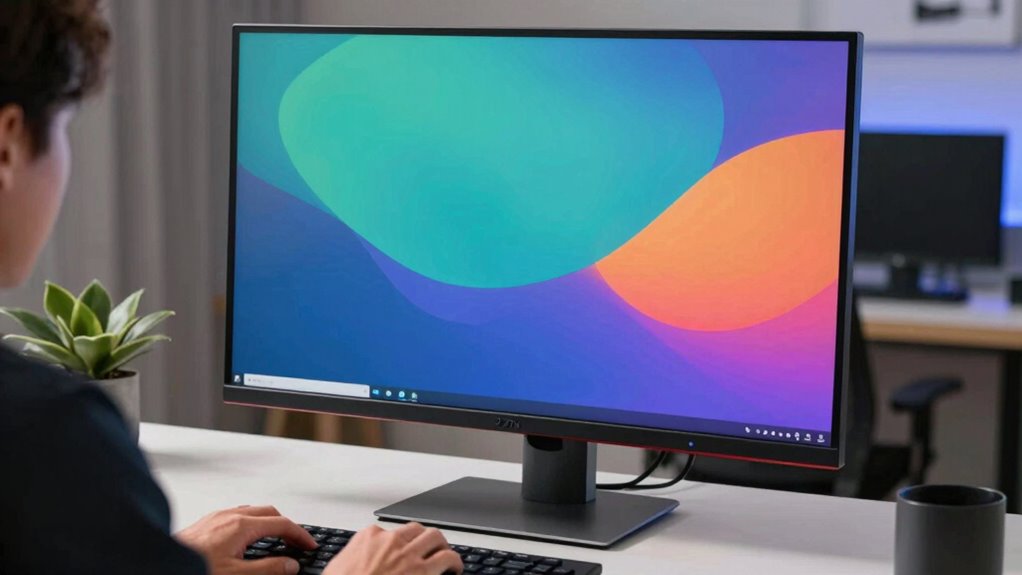

Choosing your monitor size and viewing distance together is essential for comfort and productivity. When these two are well-matched, you reduce eye strain, headaches, and muscle tension, while also improving visual clarity. A monitor that’s too small or too close, or too large and far away, can cause discomfort. By aligning the size with the right distance, you create an ergonomic setup that supports your eyes and posture. Keep exploring to discover how to optimize your workspace further.

Prime made for students and young adults
- Fast, free delivery for dorm and study essentials
- Prime Video and Amazon Music included
- Member-only deals
Key Takeaways
- Proper pairing prevents eye strain, headaches, and visual fatigue by ensuring comfortable viewing angles and distances.
- Matching monitor size with viewing distance maintains ergonomic posture and reduces neck and muscle tension.
- Task-specific setups optimize productivity and comfort, especially for detailed or general work.
- Correct placement at eye level minimizes head tilting and promotes healthy posture.
- Balanced monitor size and distance create a seamless, efficient workspace supporting long-term comfort and visual health.
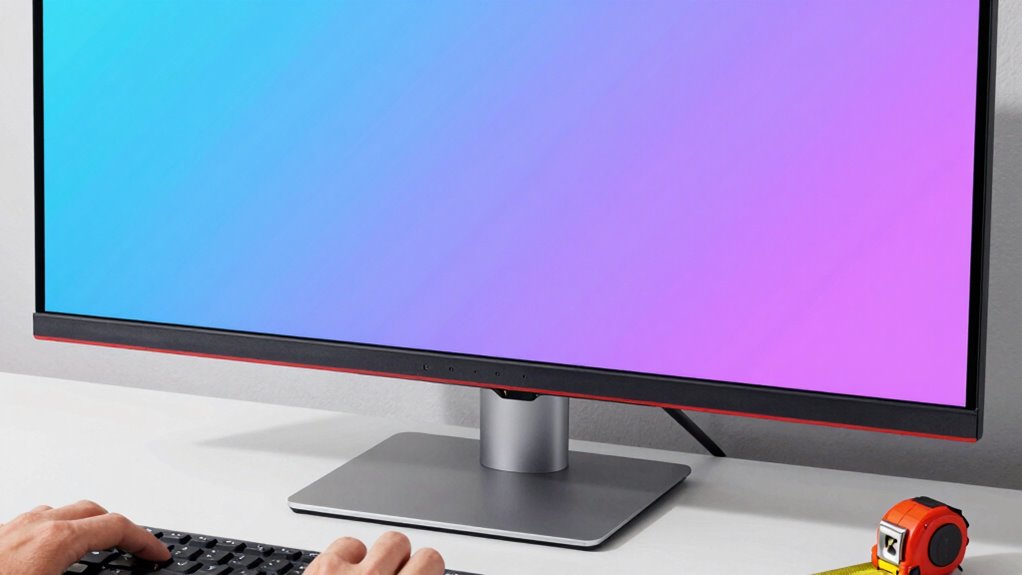
Choosing the right monitor size isn’t just about preference; it directly impacts your viewing experience and comfort. When selecting a monitor, you need to think about how its size interacts with your viewing distance to create an ergonomic setup that promotes visual comfort. The goal is to find a balance where your monitor isn’t so large that it forces you to constantly move your head or eyes, but not so small that details become hard to see or strain your eyes over time.
Your viewing distance should be proportional to the monitor size. If you choose a very large screen but sit too close, you risk neck strain and eye fatigue, as your eyes and neck will have to work harder to scan the entire display. Conversely, a smaller monitor placed too far away can make it difficult to read text or see fine details, forcing you to lean forward or squint. By matching your monitor size with an appropriate viewing distance, you establish an ergonomic setup that minimizes discomfort and maximizes productivity. Ensuring visual ergonomics is maintained helps prevent long-term issues related to improper setup.
Matching monitor size to your viewing distance ensures comfort and reduces strain for an ergonomic workspace.
Visual comfort hinges on this relationship. When your monitor is too small for your viewing distance, your eyes strain to make out details, and you may experience headaches or fatigue. When it’s too large and you sit too close, your eyes constantly dart across the screen, leading to unnecessary muscle tension. To prevent this, think about your typical tasks—if you’re doing detailed graphic design or editing, a larger screen with a closer viewing distance makes sense. For general office work or browsing, a moderate size paired with a comfortable distance keeps your eyes relaxed and your posture aligned. Additionally, considering ergonomic principles can help you optimize your workspace for long-term comfort.
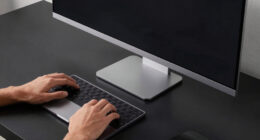
It’s also important to take into account your workspace ergonomics. An ideal setup places your monitor at eye level, with the top of the screen roughly at your eye line. Your monitor size should complement this position, so you don’t have to tilt your head or strain your neck. Adjusting monitor placement accordingly can make a significant difference in your overall comfort and reduce strain. The right combination of monitor size and viewing distance not only enhances visual comfort but also encourages a healthier posture, reducing the risk of repetitive strain injuries.
In essence, choosing a monitor size without taking into account your viewing distance is like trying to fit a puzzle piece without knowing where it belongs. When you match the two thoughtfully, you create an ergonomic setup that promotes comfort, reduces eye strain, and helps you work more efficiently. Remember, the goal is to find that sweet spot where your monitor size and distance work together seamlessly, supporting your eyes and body throughout your work or entertainment sessions. Properly considering monitor size and viewing distance is fundamental to achieving this balance.
ergonomic monitor size and viewing distance setup
As an affiliate, we earn on qualifying purchases.
As an affiliate, we earn on qualifying purchases.
Frequently Asked Questions
How Does Screen Resolution Affect Optimal Monitor Size?
Screen resolution directly impacts ideal monitor size because higher resolutions offer better screen clarity and higher pixel density. If you choose a large monitor with low resolution, images and text may appear blurry or pixelated. Conversely, a smaller monitor with high resolution provides sharp visuals. To get the best viewing experience, match your monitor size to its resolution, ensuring high pixel density for clear, crisp images at your preferred viewing distance.
Can Ergonomic Factors Override Size and Distance Considerations?
Ergonomic factors can sometimes override size and distance considerations if they promote better ergonomic comfort and posture alignment. If a monitor’s size or placement causes strain, you should prioritize adjusting it for ideal comfort. Proper posture and ergonomic support reduce fatigue and prevent injury, so don’t hesitate to modify your setup beyond standard guidelines. Ultimately, ensuring your workspace supports healthy posture is key to sustained comfort and productivity.
Are There Specific Monitor Sizes for Different Work Types?
Yes, specific monitor sizes suit different work types. For tasks like photo editing requiring color accuracy, opt for larger screens, such as 27 inches or more, to see details clearly. If portability considerations matter—like frequent travel—a smaller, lightweight monitor around 13-15 inches works best. Larger monitors enhance precision, while smaller ones prioritize mobility, helping you choose based on your work needs and the importance of color accuracy.
How Do Eye Health Concerns Influence Monitor and Distance Choices?
Think of your eyes as delicate plants that need just the right sunlight. To minimize eye strain and enhance visual comfort, choose a monitor size and distance that keep your eyes relaxed and well-supported. Larger screens at an appropriate distance reduce the need to squint or strain, preventing discomfort. Regular breaks and proper lighting also help protect your eye health, ensuring your vision stays sharp and comfortable for long-term use.
What Role Does Desk Space Play in Monitor Size Selection?
Desk space plays a vital role in your monitor size selection because it impacts desk ergonomics and workspace layout. If your desk is limited, opting for a smaller monitor guarantees you maintain proper posture and avoid clutter. Conversely, a larger monitor can enhance productivity if you have ample space. Consider your workspace layout carefully to balance screen size with comfort, making certain you create an efficient, ergonomic setup that minimizes eye strain.
adjustable monitor stand for ergonomic workspace
As an affiliate, we earn on qualifying purchases.
As an affiliate, we earn on qualifying purchases.
Conclusion
Think of your monitor and viewing distance as a dance duo—each step you take influences the other’s rhythm. When you pick the right size and distance, they move in harmony, creating a seamless performance that’s comfortable and immersive. Ignore their partnership, and the dance falls apart—causing discomfort and strain. So, choose them together, and let your workspace be a well-choreographed masterpiece that keeps you engaged and at ease with every move.
monitor size and distance calculator
As an affiliate, we earn on qualifying purchases.
As an affiliate, we earn on qualifying purchases.
As an affiliate, we earn on qualifying purchases.
Fall Picks
fall essentials
As an affiliate, we earn on qualifying purchases.