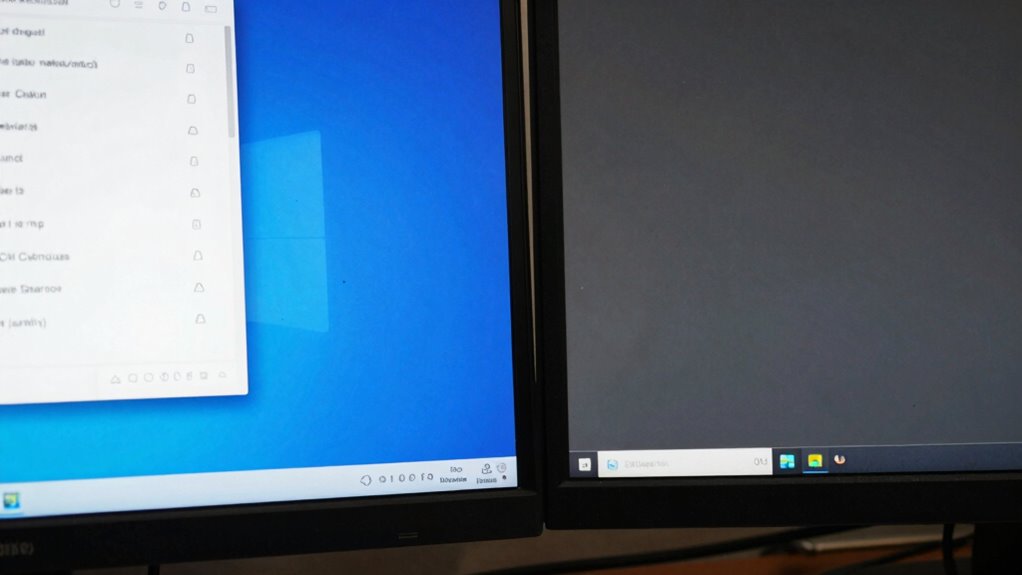

Your second display often looks worse because it may not be properly calibrated, leading to dull or off-color images. Differences in refresh rates and resolutions can also make content appear less sharp or smooth. Scaling settings might cause images to look pixelated, and incompatibilities with display settings can further worsen the display quality. By adjusting these settings, you can create a more consistent look. Keep exploring to discover how these tweaks can improve your dual-monitor setup.

Prime made for students and young adults
- Fast, free delivery for dorm and study essentials
- Prime Video and Amazon Music included
- Member-only deals
Key Takeaways
- The second monitor may have incorrect color calibration, making images look dull or off-tone.
- Differences in refresh rates can cause less smooth visuals on the second display.
- Mismatched resolutions or improper scaling can result in blurry or pixelated images.
- Inconsistent display settings and profiles may create visual disparities between screens.
- The second monitor might not be set to its optimal brightness, contrast, or color temperature.
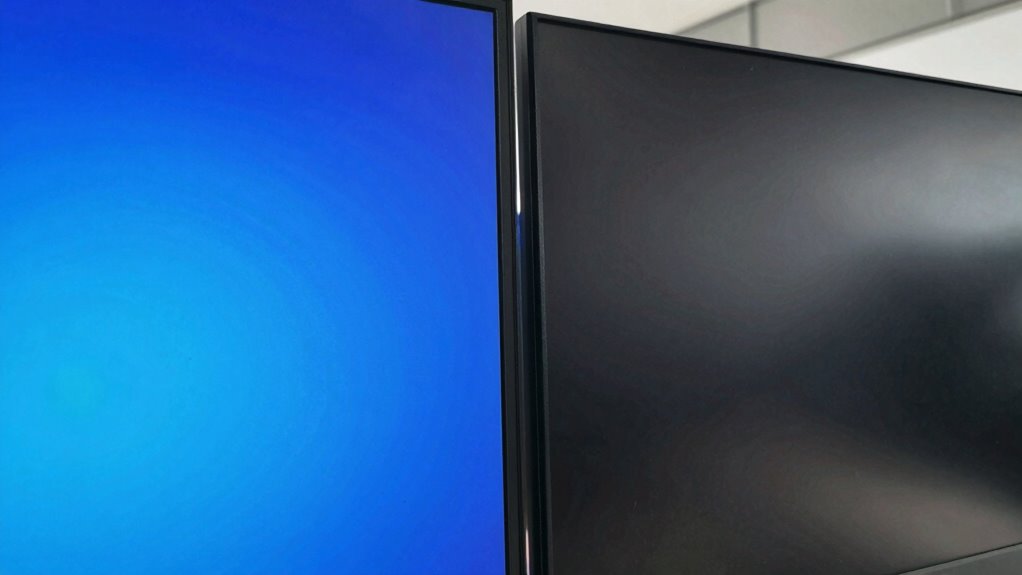
When you set up a second monitor, it often looks less sharp or vibrant than your primary display, and this discrepancy can be frustrating. One common reason is that the new monitor might not be properly color calibrated. Your eyes are used to the color profile of your main screen, which has likely been calibrated over time for accurate and vivid colors. When the second monitor isn’t calibrated similarly, it can display duller or off-color images, making it stand out in a negative way. Adjusting the color calibration settings on your second display ensures it matches the color output of your primary monitor more closely. This involves tweaking gamma, brightness, contrast, and color temperature to achieve a consistent look across both screens. Without proper calibration, even if the monitors are technically capable of high-quality images, they won’t look uniform, which impacts your overall experience. Additionally, the refresh rate of your monitors plays a crucial role in how smooth and sharp images appear, especially during fast-paced activities. The refresh rate, measured in hertz (Hz), affects how smoothly images are rendered on the screen. Your primary monitor might have a higher refresh rate, such as 144Hz or 120Hz, providing fluid motion and sharpness, especially in fast-paced activities like gaming or video editing. If your second monitor has a lower refresh rate, it can appear less responsive and less crisp, especially during quick movements or animations. This difference can make the second display seem inferior, even if the resolution and color settings are perfect. To improve this, check your display settings and ensure both monitors are set to their maximum supported refresh rates. Adjusting this setting can significantly enhance the visual harmony between your screens and reduce the feeling that the second monitor is inferior. Additionally, many users overlook the importance of matching resolution and scaling settings between the two monitors. Differences here can cause images to appear blurry or pixelated on the second display, diminishing its sharpness and vibrancy. When combined with poor color calibration and mismatched refresh rates, these issues compound, creating an overall inconsistent viewing experience. Ensuring that the monitors are set to their native resolution and that scaling options are optimized for clarity can help mitigate these display inconsistencies. Properly understanding and managing these display settings is essential for a seamless dual-monitor setup.
Popular right now

De'Longhi Stilosa Compact Manual Espresso Machine with Milk Frother

Dyson Cyclone V10 Origin Cordless Vacuum

Vitamix Propel Series 750 Professional-Grade Blender, 4 Programs, Black
As an affiliate, we earn on qualifying purchases.
Frequently Asked Questions
Can Adjusting Display Settings Improve Second Monitor Quality?
Yes, adjusting display settings can improve your second monitor’s quality. You should start by fine-tuning color calibration to match your main display, ensuring consistent color output. Additionally, check and set the resolution settings correctly; sometimes, lowering or increasing resolution helps improve clarity. These adjustments can make your second monitor look sharper, more vibrant, and better aligned with your primary display, enhancing your overall viewing experience.
Does Monitor Age Affect Its Display Performance?
Yes, monitor age can affect its display performance. Over time, displays may experience color calibration issues, leading to less vibrant images, and refresh rates can decline, causing lag or flickering. As your monitor ages, you might notice degraded image quality or responsiveness. To counteract these effects, regularly calibrate your colors and check your refresh rate settings to guarantee your display performs at its best despite aging.
How Does Cable Quality Impact Second Display Clarity?
Cable quality directly impacts your second display’s clarity. When your cable has good shielding, it reduces interference, resulting in a clearer image. Poor shielding can introduce noise, causing blurriness or flickering. Additionally, connector compatibility ensures peak signal transfer; using incompatible connectors may degrade image quality. Investing in high-quality cables with proper shielding and matching connectors ensures you get the best possible resolution and color accuracy on your second display.
Are Certain Graphics Cards Better for Dual Monitors?
Some graphics cards excel with dual monitors, especially those supporting higher refresh rates and better color calibration. You’ll notice smoother visuals and richer colors, making your second display feel more vibrant and seamless. Cheaper cards may struggle with these features, causing flickering or dull colors. So, selecting a GPU designed for dual displays guarantees your setup looks consistent, vibrant, and responsive, transforming your workspace from lackluster to inspiring.
Can Software Updates Fix Display Issues?
Yes, software updates can fix display issues. They often improve color calibration, ensuring your second monitor displays accurate colors, and optimize refresh rate settings for smoother visuals. By updating your graphics driver and display software, you can resolve flickering, resolution problems, or color inconsistencies. Keep your system current to enhance your dual monitor experience, making both screens look their best and functioning seamlessly together.
Conclusion
So, next time your second display looks dull compared to the first, ask yourself—are you truly optimizing its settings? Sometimes, it’s just a matter of tweaking the resolution, refresh rate, or color calibration. Think of your displays like a pair of shoes: one might fit perfectly, while the other needs a little adjustment. With some simple tweaks, you can make your second screen just as vibrant and sharp as your primary—are you ready to give it a try?