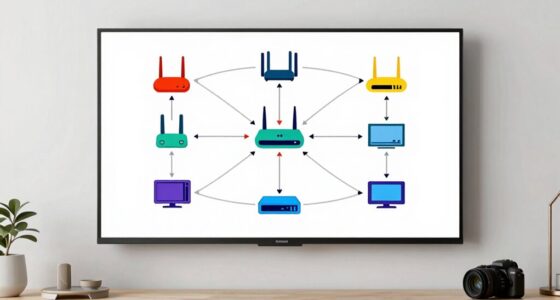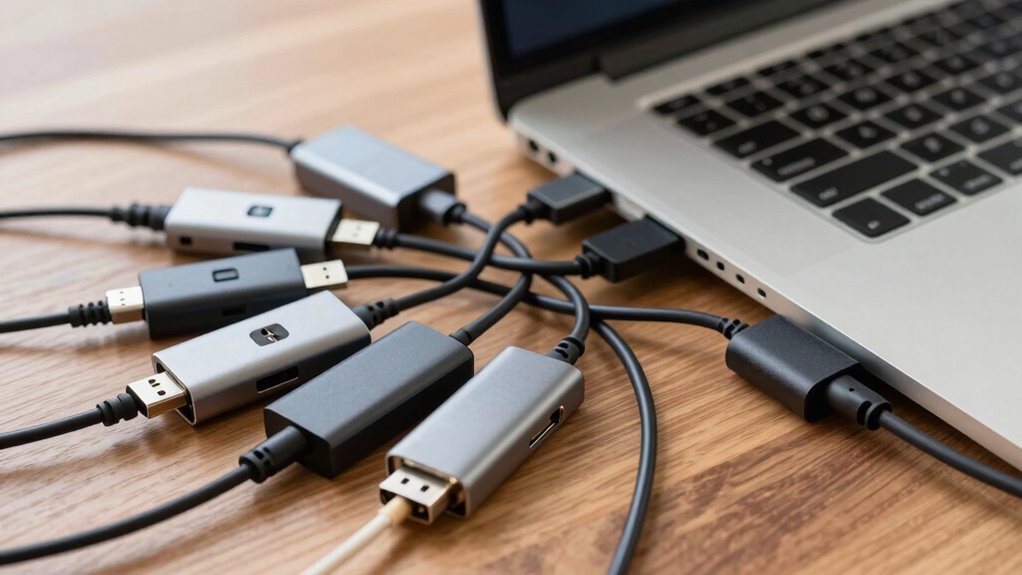
Dongle Hell happens when you find yourself overwhelmed with multiple adapters and ports, leading to clutter and compatibility frustrations. Wireless adapters often seem like simple fixes but can cause issues if they don’t work well with your device or OS. Using too many dongles can result in conflicts, slow speeds, and a chaotic workspace. Staying informed about compatibility and choosing versatile adapters helps you avoid these pitfalls—if you want to discover more, keep exploring.
Key Takeaways
- Dongle Hell refers to workspace clutter caused by multiple adapters and dongles, leading to compatibility and connection issues.
- Compatibility varies across operating systems, making some adapters unreliable or unusable without proper drivers.
- Using multiple dongles can cause USB conflicts, interference, and inconsistent network performance.
- Selecting a single, versatile, multi-capable adapter and researching compatibility helps prevent issues.
- Proper understanding of device specifications and OS support streamlines upgrades and reduces workspace chaos.
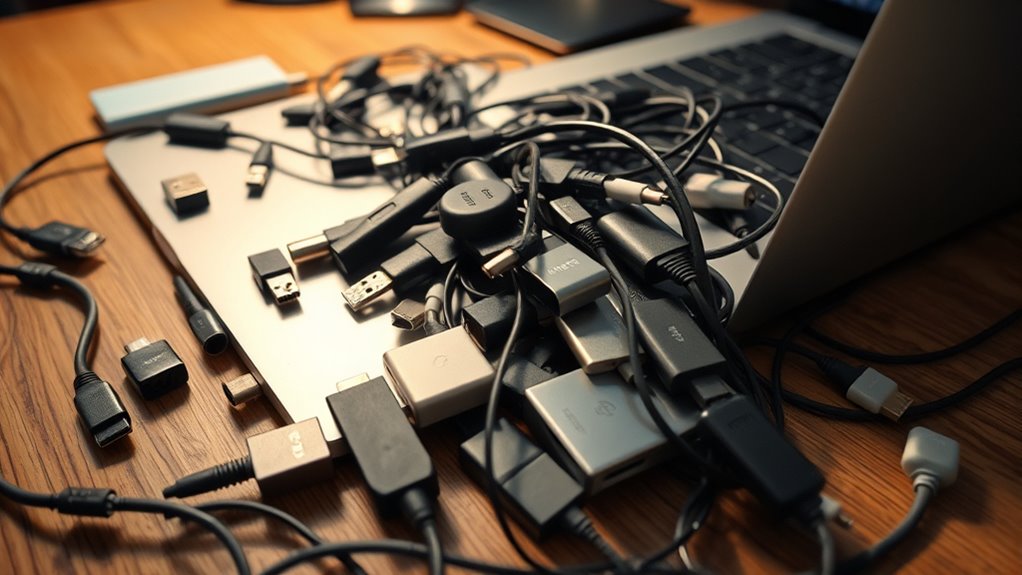
If you’ve ever tried to connect multiple devices using various dongles, you know the frustration of “Dongle Hell.” This common tech headache occurs when numerous adapters clutter your workspace, making it difficult to connect everything smoothly. One of the main culprits is the proliferation of wireless adapters, which often seem like a quick fix but can lead to more compatibility headaches. Wireless adapters are designed to add Wi-Fi capabilities to devices that lack them or upgrade existing connections, but their effectiveness depends heavily on device compatibility. If your laptop or desktop isn’t compatible with a particular wireless adapter, you might face connection issues or limited functionality right out of the box. This creates a frustrating cycle where you buy multiple adapters, only to find they don’t work seamlessly with your existing hardware.
Device compatibility is a tricky aspect of dongles. Not all wireless adapters are universally compatible, especially across different operating systems or hardware configurations. Some adapters work perfectly with Windows but struggle with macOS or Linux. Others require specific drivers that may not be readily available or are outdated, forcing you to spend extra time troubleshooting or searching for updates. This mismatch forces you to juggle multiple adapters, each with its own set of compatibility requirements, increasing clutter and confusion. It’s not just about whether the adapter physically fits, but whether it can communicate effectively with your device’s hardware and software. Without proper compatibility, even the most advanced wireless adapter becomes useless, turning what should be a simple upgrade into a frustrating obstacle.
Not all wireless adapters are compatible across operating systems, causing clutter and frustration.
The incompatibility issue is compounded when you’re trying to use several dongles simultaneously. Different adapters might compete for the same USB port or cause interference, reducing overall performance. You might find yourself switching between adapters, uninstalling drivers, or dealing with inconsistent network speeds. This not only wastes time but also creates a mess of cables and devices on your desk, exemplifying the chaos of Dongle Hell. To avoid this, it’s essential to research the compatibility of wireless adapters before purchase. Look for models known to work with your device’s specifications and operating system. Sometimes, investing in a single, high-quality adapter that supports multiple standards can save you from the compatibility trap altogether. Additionally, understanding the contrast ratio of your projector can improve your home cinema setup by providing deeper blacks and brighter whites, enhancing your viewing experience.
In essence, the key to escaping Dongle Hell lies in understanding device compatibility and choosing the right wireless adapters. By doing so, you minimize clutter, improve connection stability, and streamline your workspace. Remember, not all adapters are created equal, and compatibility issues can turn a simple upgrade into a major headache. Being informed about your device’s specifications and the capabilities of wireless adapters helps you make smarter choices, reducing frustration and keeping your workspace efficient and organized.

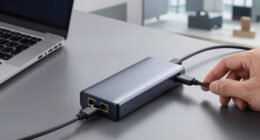
Anker USB C Hub, 7in1 Multi-Port USB Adapter for Laptop/Mac, 4K@60Hz USB C to HDMI Splitter, 85W Max PD, 2 USB 3.0 & 1 USBC Data Ports, SD/TF Card Reader, for Type C Devices (Charger Not Included)
Sleek 7-in-1 USB-C Hub: Features an HDMI port, two USB-A 3.0 ports, and a USB-C data port, each…
As an affiliate, we earn on qualifying purchases.
As an affiliate, we earn on qualifying purchases.
Frequently Asked Questions
How Do I Identify Which Dongle or Adapter I Need?
To identify which dongle or adapter you need, first check your device’s port types and compatibility requirements. Look at the adapter standards, like USB-C, Thunderbolt, or HDMI, to guarantee compatibility with your device. Verify the dongle’s compatibility with your device’s operating system and hardware. Reading product descriptions and reviews helps you confirm it supports your intended use, reducing the risk of incompatibility issues.
Are There Universal Dongles Compatible With All Devices?
Sure, universal dongles exist—if you enjoy the irony of limited universal compatibility. In reality, most adapters follow different standards, making a true universal dongle a myth. You’ll find some that work across many devices, but they often lack full support for all ports or functions. So, instead of hoping for a one-size-fits-all solution, check your device’s specific port standards and choose an adapter tailored to those.
What Are the Safety Concerns With Using Multiple Adapters?
Using multiple adapters can pose safety concerns like electrical hazards if they’re poorly made or overloaded. You might also experience signal interference, which can disrupt device performance. Always make certain your adapters are certified and compatible with your devices. Avoid daisy-chaining adapters or using damaged ones, and keep an eye on heat buildup. Taking these precautions helps minimize risks and keeps your devices functioning safely.
Can I Connect Multiple Peripherals Through a Single Dongle?
Yes, you can connect multiple peripherals through a single dongle, but keep in mind that peripheral bandwidth may become a bottleneck, especially if you’re using high-speed devices like external drives or monitors. Also, consider adapter durability, as stacking multiple adapters can increase wear and tear. To guarantee reliable performance, choose a high-quality, multi-port dongle designed for your specific peripherals, and avoid overloading it.
How Do I Troubleshoot Connectivity Issues Caused by Dongles?
Think of your dongle as a busy bridge—when connectivity issues occur, it’s like traffic jams. To troubleshoot, check for driver conflicts and update drivers to make certain smooth passage. Also, make certain your dongle gets enough power; a weak power supply can cause drops. Disconnect and reconnect the dongle, try different ports, and restart your device. These steps clear the traffic jam and restore seamless connection.

Cudy AC 650Mbps USB WiFi Adapter for PC, 5GHz/2.4GHz Wireless Dongle, WiFi, USB Wireless Adapter for Laptop – Nano Size, Compatible with Windows XP / 7/8.x /10/11, Mac OS
Upgrade to 433Mbps +200Mbps WiFi Speed. Combined with 802.11ac technology, Cudy WU650 brings a 300% speed boost compared…
As an affiliate, we earn on qualifying purchases.
As an affiliate, we earn on qualifying purchases.
Conclusion
Managing dongle hell can feel like walking through a maze of tangled wires, each port and adapter promising a solution yet often leading to more confusion. But with a little planning and understanding of your devices’ needs, you can untangle the mess and find your way to seamless connectivity. Think of it as clearing a cloudy sky—once the fog lifts, everything becomes brighter and easier to manage. Stay savvy, and your tech setup will shine.

BrosTrend 2-in-1 USB WiFi Bluetooth Adapter, AX900 WiFi 6 + BT 5.4, USB Bluetooth Adapter for PC Desktop Laptop, Dual Band 5GHz 600Mbps + 2.4GHz 286Mbps, Mini Wireless Dongle for Windows 11 /10, WPA3
One Adapter, Two Upgrades: Boost your computer PC with WiFi 6 and Bluetooth 5.4 in one single USB…
As an affiliate, we earn on qualifying purchases.
As an affiliate, we earn on qualifying purchases.

90W Universal AC Adapter Laptop Charger Replacement for Dell HP Acer Asus Lenovo IBM Toshiba Samsung Sony Fujitsu Notebook Ultrabook Chromebook Power Supply Cord with 16 Tips
[Worldwide input & output] Input: 100-240V 50-60Hz. Output: 15V 18.5V 19V 19.5V 20V. Support 2.25A 2.31A 2.37A 3.25A…
As an affiliate, we earn on qualifying purchases.
As an affiliate, we earn on qualifying purchases.