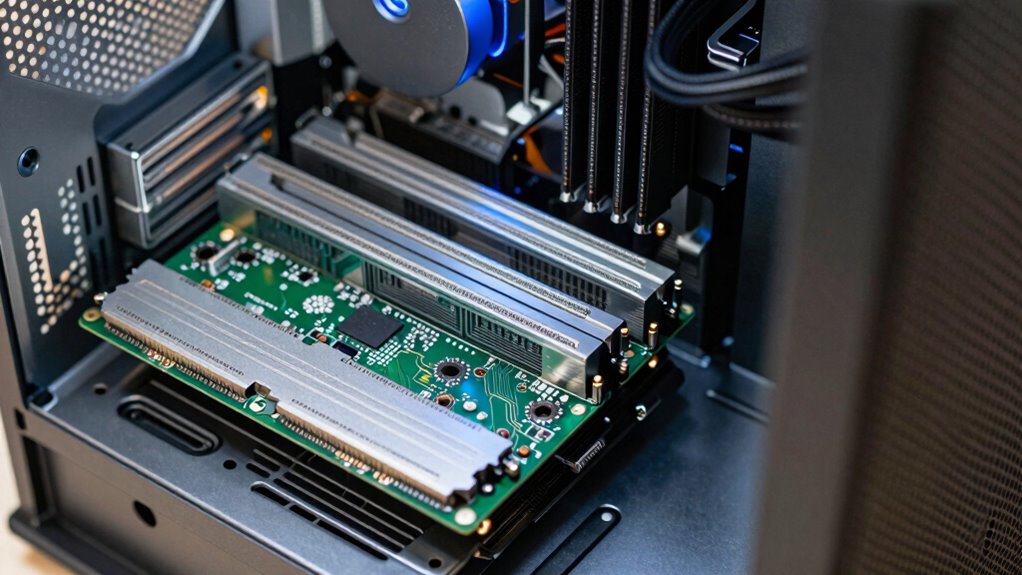

Before upgrading, ask yourself if each new component is compatible with your current hardware and truly necessary for your main tasks. Check your motherboard specs, power supply, and case size to avoid wasting money on incompatible parts. Focus on upgrades that offer the biggest performance boost for your needs, like GPU for gaming or RAM for multitasking. Keep this question in mind to prevent overspending and guarantee your upgrades make a real difference—there’s more to discover to get it just right.
Prime for Young Adults — start your free trial
Fast free delivery, streaming and member deals for eligible 18–24 year olds.
As an affiliate, we earn on qualifying purchases.
Key Takeaways
- Ask, “Will this upgrade address my primary performance bottleneck?” to prioritize relevant components.
- Check your motherboard’s specifications to ensure compatibility before purchasing new hardware.
- Establish a clear budget and focus on upgrades that deliver the most noticeable performance improvements.
- Determine if your current hardware supports the new component’s specifications to avoid overspending.
- Consider the long-term benefits and compatibility of each upgrade to maximize value and prevent unnecessary expenses.
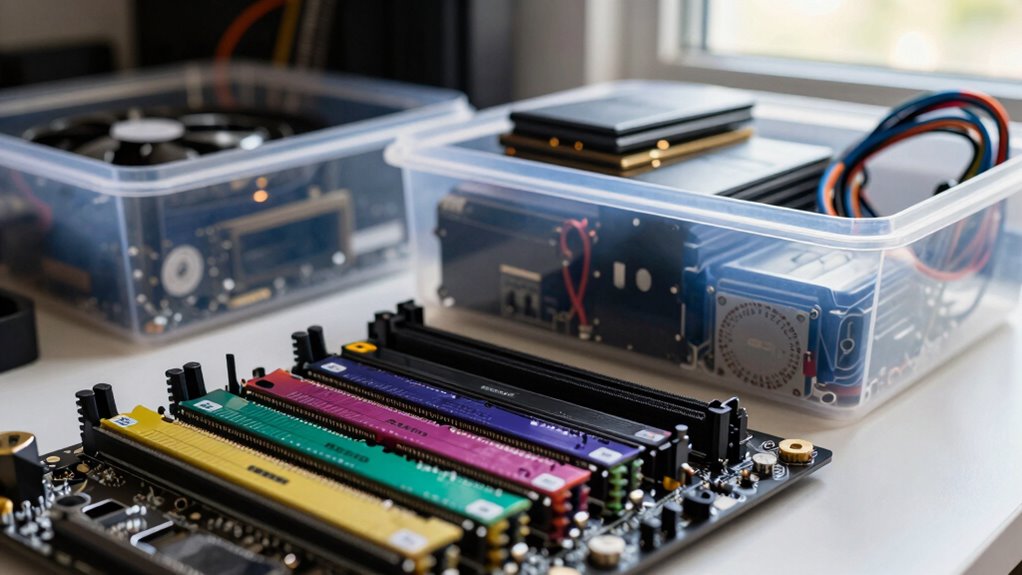
Upgrading your computer can substantially boost its performance, but knowing where to start can be confusing. The key is to focus on what truly needs improvement without overspending. To do that, you need to evaluate hardware compatibility first. Not all components work with every system, so before you buy anything, check your motherboard’s specifications and the existing hardware’s limitations. For example, if you want to upgrade your RAM, ensure the new modules are compatible in terms of type, speed, and maximum capacity your motherboard supports. Similarly, if you’re considering a new graphics card or CPU, verify that your power supply, case size, and socket type match the new hardware. Overlooking these details can lead to purchasing incompatible parts, which wastes money and time, and leaves you frustrated.
Once you understand what’s compatible, it’s equally important to manage your upgrade budgeting wisely. Setting a clear budget helps prevent you from overbuying and ensures you’re investing in upgrades that offer the most benefit. Think about your primary use—gaming, content creation, or office work—and prioritize upgrades that will make the biggest impact. For instance, if your system struggles with gaming, a new GPU might give you the most noticeable performance boost. If you’re into video editing, investing in more RAM or a faster SSD could make a difference. Be realistic about how much you’re willing to spend and avoid the temptation to go for the latest, most expensive components if they’re beyond your budget, especially if your current hardware can handle some upgrades. Additionally, understanding the importance of hardware compatibility can save you from costly mistakes and ensure your upgrades work seamlessly together.
Furthermore, it’s beneficial to stay informed about upgrading strategies, which can help you plan and execute your hardware improvements more effectively.
compatible DDR4 RAM modules for gaming PC
As an affiliate, we earn on qualifying purchases.
As an affiliate, we earn on qualifying purchases.
Frequently Asked Questions
How Often Should I Upgrade My Computer Components?
You should upgrade your computer components every 3-5 years to balance hardware longevity and performance. If you notice slowdowns, software incompatibilities, or new features you need, it’s time for an upgrade. Typically, upgrade frequency depends on your usage—gamers and professionals may need upgrades sooner. By staying attentive to your system’s performance, you avoid unnecessary expenses and guarantee your hardware remains efficient without overbuying.
What Is the Most Cost-Effective Upgrade for Gaming?
The most cost-effective upgrade for gaming is boosting your RAM capacity, especially if your current setup is limited. Increasing RAM improves game performance and reduces lag, providing noticeable gains without a hefty expense. Overclocking your CPU or GPU can also enhance performance, but it’s riskier and may void warranties. Focus on upgrading RAM first, ensuring your system has enough overclocking potential to get the most out of your hardware.
How Do I Determine Compatibility With New Hardware?
Think of checking compatibility as tuning a musical instrument—you want everything to harmonize perfectly. Start with a compatibility checklist, verifying your CPU, motherboard, RAM, and GPU specs match. Look for potential hardware bottlenecks that could slow performance. Research your new hardware’s compatibility online, check socket types, power requirements, and supported RAM speeds. This way, you avoid surprises and guarantee your upgrade sings smoothly without any discord.
Should I Upgrade or Replace My Entire System?
You should consider upgrading your current system if performance bottlenecks are mainly due to aging hardware, and software optimization can’t improve performance enough. If your system struggles with the latest applications or gaming, replacing it might be more cost-effective. However, if most components still work well and only minor upgrades can boost performance, upgrading specific parts is a smarter choice than replacing the entire system.
What Are Signs My Computer Needs an Upgrade?
You should consider upgrading your computer if it runs slowly despite software optimization, or if overheating persists even with better cooling solutions. Notice frequent crashes, long load times, or lag during tasks—these are signs your hardware can’t keep up. Upgrading components like RAM or CPU can improve performance. Also, verify your cooling solutions are adequate; overheating can damage parts and reduce efficiency, signaling it’s time for an upgrade.
power supply unit for high-performance graphics card
As an affiliate, we earn on qualifying purchases.
As an affiliate, we earn on qualifying purchases.
Conclusion
Next time you’re tempted to splurge on the latest gadget, pause and ask yourself this key question. Picture your current setup as a sturdy bridge—will this upgrade strengthen it or just add unnecessary weight? By visualizing your needs clearly, you avoid overbuying and keep your tech stable and efficient. Think of each upgrade as a carefully placed stone, building a reliable path forward rather than a shaky, overloaded crossing.
micro ATX motherboard for CPU upgrade
As an affiliate, we earn on qualifying purchases.
As an affiliate, we earn on qualifying purchases.
full tower PC case for large graphics cards
As an affiliate, we earn on qualifying purchases.
As an affiliate, we earn on qualifying purchases.
Fall Picks
fall essentials
As an affiliate, we earn on qualifying purchases.