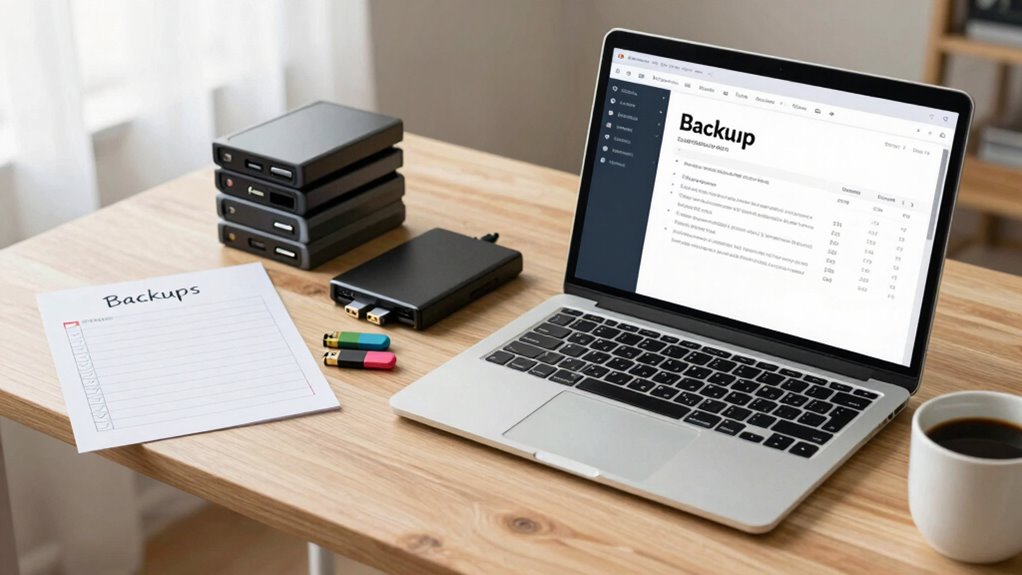

Establishing a consistent backup habit is key to avoiding bad surprises like data loss from hardware failure, cyberattacks, or accidental deletions. You should regularly back up your files to secure and accessible locations, such as cloud storage or off-site drives, and encrypt sensitive information for added protection. Automate backups when possible, and keep your strategies updated. Keep your backup routines simple and reliable—you’ll be glad you did when disaster strikes. Exploring more will help you stay even safer.

Prime made for students and young adults
- Fast, free delivery for dorm and study essentials
- Prime Video and Amazon Music included
- Member-only deals
Key Takeaways
- Establish a regular, automated backup routine to prevent data loss from sudden failures or cyberattacks.
- Use encrypted backups to protect sensitive information from unauthorized access.
- Store backups off-site or in the cloud for added redundancy and disaster resilience.
- Maintain multiple backup copies across different locations to ensure data availability.
- Continuously review and update backup procedures to ensure reliability and security.

In today’s digital world, losing important files can happen in an instant, whether due to hardware failures, cyberattacks, or accidental deletions. That’s why cultivating a solid backup habit is essential to prevent those stressful, panic-inducing moments. When you back up your data regularly, you’re essentially creating a safety net that catches you when things go wrong. But simply making copies isn’t enough—you need to ensure your backups are secure and accessible. This is where data encryption and cloud storage come into play.
Data encryption transforms your files into unreadable code, making sure that only authorized people can access sensitive information. When your backups are encrypted, even if someone gains unauthorized access, they won’t be able to understand or misuse your data. Encrypting your files is a simple step that adds a powerful layer of security, especially if you’re storing sensitive or confidential information. Many cloud storage providers offer built-in encryption, which means your files are protected both during transfer and while stored on their servers. Using cloud storage for backups is increasingly popular because it combines convenience with reliability. Instead of relying on external drives or physical media that can be damaged or lost, you can store your copies securely online, accessible from anywhere with an internet connection.
Encrypt your backups to keep sensitive data secure and protect it during transfer and storage.
Having your backups in the cloud also means you can automate the process, reducing the chances of forgetting to save important files regularly. Set up automatic backups, and your data will be continuously synced and encrypted without you even noticing. This approach minimizes the risk of human error—like forgetting to back up after editing a document or installing updates. Plus, cloud storage providers usually maintain multiple copies of your data across different servers, offering additional redundancy in case of hardware failure or cyber threats. Data security measures are crucial to ensure your backups remain protected from emerging threats. Additionally, understanding the importance of backup redundancy can further safeguard your data by ensuring multiple copies exist in different locations. Incorporating off-site storage is another effective way to protect your data from local hazards like theft, fire, or natural disasters. Implementing a comprehensive backup strategy that includes these elements can significantly increase your data resilience and peace of mind.
To make your backup habit truly effective, you should combine manual and automated backups, encrypt your files, and trust reputable cloud storage services. It’s also important to stay informed about evolving data protection best practices to adapt your strategy accordingly. Keep your encryption keys secure, and ensure your cloud account has strong, unique passwords. Regularly review your backup procedures to confirm that everything is working smoothly. When disaster strikes, you’ll thank yourself for the effort, because your data will be safe, intact, and ready to restore. Developing this habit isn’t complicated, but it’s a crucial step toward minimizing the impact of unforeseen data loss. Start today, and turn backup into a daily routine—your future self will thank you.
As an affiliate, we earn on qualifying purchases.
Frequently Asked Questions
How Often Should I Back up My Data?
You should back up your data regularly—ideally, weekly or even daily if you work with critical files. This backup frequency guarantees quick data recovery in case of hardware failure, accidental deletion, or malware. By maintaining consistent backups, you minimize the risk of losing important information and streamline data recovery, saving you time and stress. Make it a habit to keep your backups up-to-date to stay protected.
What Is the Best Backup Storage Method?
The best backup storage method combines cloud storage with local drives to guarantee backup redundancy. Use a service that offers data encryption to protect your files from unauthorized access. Regularly update your backups, and consider encrypting sensitive data before storing it. This approach ensures your data remains secure, accessible, and resilient against hardware failures or cyber threats, giving you peace of mind knowing your information is well-protected.
How Secure Are Cloud Backups?
Imagine your sensitive files stored in the cloud; you might wonder about security. Cloud backups are generally secure thanks to encryption protocols like AES-256, which protect your data from unauthorized access. However, it’s wise to have robust data recovery strategies in place. While providers invest heavily in security, always enable two-factor authentication and regularly review access permissions to keep your backups safe from breaches.
Can Automatic Backups Be Customized?
Yes, automatic backups can be customized. You can choose specific files, folders, or data types to back up, and set schedules that suit your needs. Encryption techniques guarantee your data stays secure during backup and transfer. Backup automation simplifies the process, allowing you to tailor backups without manual effort. Customizing these settings helps you protect critical information while maintaining control over storage and security.
What to Do if a Backup Fails?
If a backup fails, you should first verify the backup to identify the issue. Then, perform data recovery from the last successful backup to minimize data loss. Check your backup settings and storage space to prevent future failures. Regular backup verification ensures your backups are complete and functional. If problems persist, consider using alternative backup methods or consulting technical support to maintain reliable data protection.
As an affiliate, we earn on qualifying purchases.
Conclusion
By making backups a habit, you’re building a safety net that catches you before disaster strikes. Think of it as planting a sturdy root system beneath a towering tree—when storms come, you’ll stand strong and unshaken. Don’t wait for a bad surprise to remind you; start backing up today and turn your data into a fortress of resilience. With this habit, you’ll always be ready to weather any digital storm that comes your way.
As an affiliate, we earn on qualifying purchases.
As an affiliate, we earn on qualifying purchases.
Evergreen bestsellers Picks
bestsellers
As an affiliate, we earn on qualifying purchases.