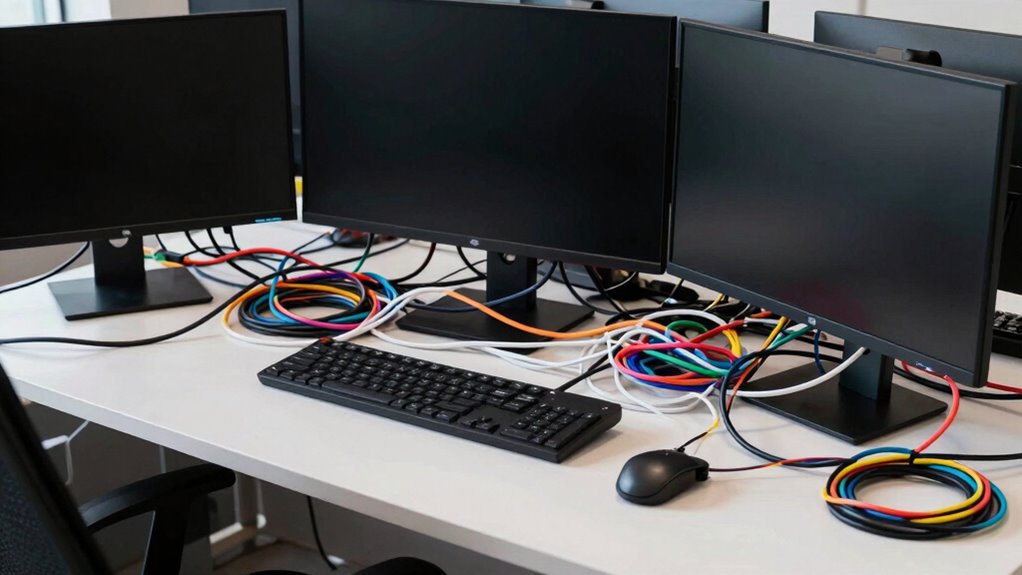

Cable confusion can quickly destabilize your multi-monitor setup by creating a tangled mess of power, HDMI, DisplayPort, and USB cables. This clutter makes troubleshooting difficult and hampers your workspace’s professionalism. When cables aren’t organized or are hard to identify, your setup becomes prone to disconnections and damage. By understanding your ports and using proper cable management, you can keep everything tidy and stable. If you want to learn how to keep your monitors secure and organized, keep exploring.

Prime made for students and young adults
- Fast, free delivery for dorm and study essentials
- Prime Video and Amazon Music included
- Member-only deals
Key Takeaways
- Tangled or excess cables can cause connection issues and make troubleshooting difficult.
- Incompatible or poorly identified cables may lead to display failures or signal loss.
- Lack of proper cable management results in physical damage or disconnection over time.
- Using incorrect port types or cable lengths can disrupt multi-monitor functionality.
- Disorganized cables reduce workspace efficiency and can cause accidental disconnections or hardware issues.
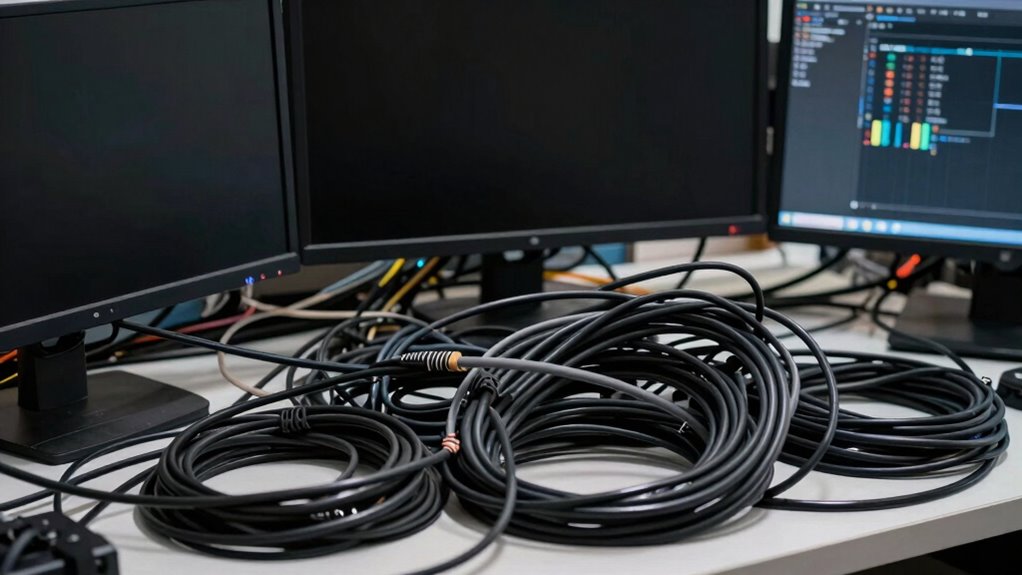
Setting up a multi-monitor configuration can quickly become a tangled mess of cables, leaving you frustrated and unsure where each one goes. The sheer number of wires—power cords, HDMI or DisplayPort cables, and sometimes USB hubs—can turn your workspace into a spaghetti nightmare. This chaos not only hampers the aesthetic but also makes troubleshooting a nightmare when something stops working. Luckily, you have options to simplify this mess. Wireless alternatives are becoming more popular, allowing you to connect monitors without running multiple cables across your desk. Devices like wireless HDMI transmitters or screen-sharing solutions let you mirror or extend your display without the clutter. While these options might come with some latency or require compatible hardware, they significantly cut down on cable clutter and improve your workspace’s look and feel.
But even if you stick with traditional wired connections, cable organization is essential. You should start by grouping cables with cable ties, clips, or sleeves to keep them together and prevent tangling. Label each cable with tags or color-coded ties so you know exactly which wire belongs where. This simple step saves you time during setup and future adjustments. Consider mounting your monitors on adjustable arms or wall brackets to keep cables off the desk surface entirely. This not only creates a cleaner look but also makes it easier to manage and replace cables as needed. For longer-term organization, invest in cable sleeves or conduits that run along the back of your desk or along the wall. These help conceal and protect your wires, giving your workspace a sleek, professional appearance. Additionally, understanding the importance of monitor ports and connections can help you select the right cables and hardware to minimize clutter and maximize compatibility. Furthermore, being aware of cable management techniques can assist you in maintaining an organized setup over time. Incorporating proper cable length considerations can prevent excess slack and further streamline your workspace. Keeping cables labeled and categorized can also speed up troubleshooting and future upgrades.
multi-monitor cable management kit
As an affiliate, we earn on qualifying purchases.
As an affiliate, we earn on qualifying purchases.
Frequently Asked Questions
How Do I Identify Which Cable Type I Need?
To identify the cable type you need, start by checking your devices’ connector compatibility and cable ergonomics. Look at the ports on your monitor and computer—are they HDMI, DisplayPort, or USB-C? Match your device’s port with the cable’s connector, ensuring it fits snugly without forcing. Consider cable length and flexibility too, to avoid clutter and connection issues, making setup smoother and more reliable.
Can Cable Quality Affect Monitor Display Quality?
Yes, cable quality can greatly influence your monitor display quality. A durable cable resists wear and tear, guaranteeing consistent connection, while poor-quality cables are more prone to damage. Additionally, high-quality cables minimize signal interference, preventing flickering, color distortion, or resolution drops. Investing in good cables ensures your multi-monitor setup runs smoothly, delivering sharp images and stable performance without interruptions caused by inferior cable quality.
Are There Universal Cables Compatible With All Monitors?
Universal cables compatible with all monitors don’t really exist because of varying cable standards and compatibility issues. You need to match your cable type—like HDMI, DisplayPort, or VGA—with your monitor’s input. While some cables support multiple standards, always check the specifications to guarantee compatibility. Using the right cable prevents display issues and ensures smooth multi-monitor setups, avoiding frustration caused by mismatched or incompatible cables.
How Often Should I Replace or Upgrade My Cables?
You should replace or upgrade your cables when you notice signs of wear, like fraying or loose connections, because even the sturdiest cables have their limits. Cable durability varies, but generally, if you experience connection instability or flickering, it’s time for a change. Don’t wait for a total breakdown—keeping your cables in good shape guarantees reliable performance and smooth multi-monitor setups, because a chain is only as strong as its weakest link.
Do Cable Length and Placement Impact Signal Quality?
Yes, cable length and placement can impact signal quality. Longer cables are more prone to signal degradation, especially if they lack proper shielding. Poor cable shielding allows more signal interference from external sources, which can cause flickering, lag, or display issues. To maintain ideal signal quality, keep cables as short as possible, avoid running them near electrical devices, and choose high-quality cables with good shielding to minimize interference.
HDMI and DisplayPort cable organizer
As an affiliate, we earn on qualifying purchases.
As an affiliate, we earn on qualifying purchases.
Conclusion
If you think managing cables is just a minor annoyance, think again—it’s the Achilles’ heel of multi-monitor setups. A tangled mess can turn your sleek workspace into chaos faster than you can say “connection error.” Stay organized, double-check your connections, and invest in quality cables to prevent this nightmare. Otherwise, you risk turning what should be a productivity paradise into a digital disaster zone. Don’t let cable confusion be the villain of your multi-monitor dreams!
wireless HDMI transmitter for monitors
As an affiliate, we earn on qualifying purchases.
As an affiliate, we earn on qualifying purchases.
cable labeling tags for monitors
As an affiliate, we earn on qualifying purchases.
As an affiliate, we earn on qualifying purchases.
Halloween Picks
halloween
As an affiliate, we earn on qualifying purchases.