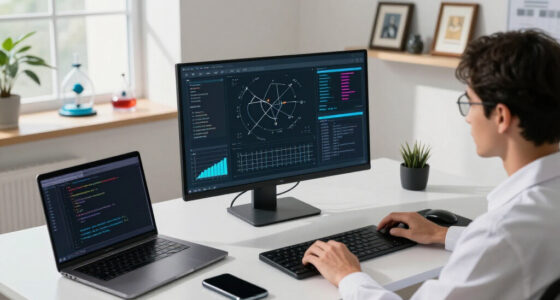
When you connect a high DPI monitor, apps can appear blurry, tiny, or oversized because your operating system struggles to scale them properly. Many programs don’t handle the increased pixel density well, causing inconsistent visuals. Adjusting display scaling settings can often fix these issues, but some legacy apps still need manual tweaks or compatibility mode. Want to learn how to optimize your setup and avoid these visual quirks? Keep exploring for effective solutions.

Prime made for students and young adults
- Fast, free delivery for dorm and study essentials
- Prime Video and Amazon Music included
- Member-only deals
Key Takeaways
- High DPI monitors can cause apps to appear blurry, tiny, or oversized without proper display scaling adjustments.
- Operating systems apply scaling to improve readability, but not all apps handle this well, leading to visual inconsistencies.
- Adjusting display scaling settings in OS preferences can help match app sizes and clarity to your monitor’s DPI.
- Legacy apps may require manual compatibility settings or different scaling levels to display correctly.
- Properly configuring scaling prevents distorted visuals and ensures a consistent, sharp appearance across applications.
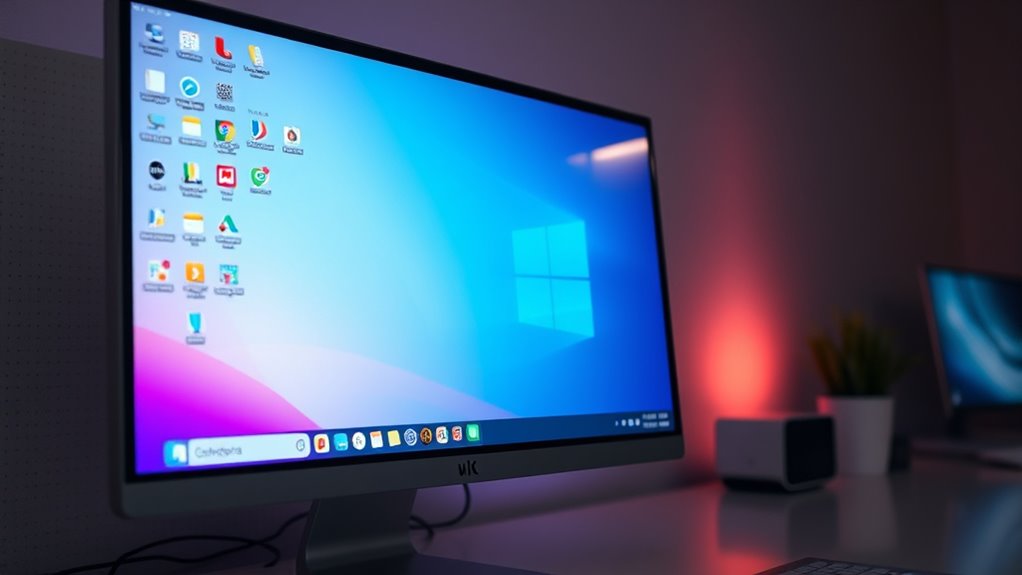
Many startups believe that rapid growth is the key to long-term success, but scaling too quickly can actually backfire. The same principle applies when you switch to a new monitor, especially one with a high DPI (dots per inch). High DPI displays offer sharper images and more detail, but they can also cause unexpected issues with how apps and interfaces appear. If you don’t adjust your display settings properly, everything might look weird, blurry, or oddly sized. That’s because many applications aren’t optimized for high DPI screens out of the box. Instead, they rely on default display scaling, which can distort or misrepresent the intended visual layout.
When you connect a high DPI monitor, your operating system typically applies display scaling to make text and icons more readable. However, not all apps handle this scaling well. Some might appear tiny, making it hard to see or click on buttons, while others could look oversized or pixelated. This inconsistency stems from how display scaling interacts with high DPI screens. If your apps aren’t designed to support high DPI, they may ignore scaling settings or render poorly. As a result, your workspace becomes frustrating, with elements that look out of place or distorted. You might find yourself constantly adjusting the scaling options, trying to find a balance that makes everything look right. Understanding display scaling is essential to prevent these issues from becoming a persistent problem.
To prevent this, you need to understand how to optimize display scaling on your system. First, check your display settings to ensure that the scaling percentage matches your high DPI display. For Windows, this involves right-clicking on the desktop, selecting Display Settings, and adjusting the scale and layout. On macOS, you can go to System Preferences > Displays and choose a scaled resolution that’s compatible with your high DPI monitor. For apps that don’t respond well to scaling, you can often right-click the app icon and select “Get Info” on Mac or adjust compatibility settings on Windows to override default scaling behavior.
It’s also worth noting that some applications are better equipped for high DPI displays than others. Modern software tends to handle display scaling gracefully, but legacy apps might require manual adjustment or may simply look off. In these cases, you might need to experiment with different scaling levels or even use compatibility modes to get the visual experience you want. Ultimately, understanding how high DPI and display scaling work helps you avoid the trap of distorted visuals, making your new monitor a productive upgrade rather than a source of frustration.
high DPI monitor display scaling
As an affiliate, we earn on qualifying purchases.
As an affiliate, we earn on qualifying purchases.
Frequently Asked Questions
How Can I Fix Blurry App Displays on My New Monitor?
To fix blurry app displays on your new monitor, start by adjusting the display scaling settings in your operating system. Check your monitor’s refresh rate and set it to the recommended value for smoother visuals. Also, perform color calibration to guarantee accurate colors and sharpness. Updating your graphics driver can help too. These steps will improve clarity, reduce blurriness, and enhance your overall viewing experience.
What Are the Best Settings for High-Dpi Monitors?
You want the best settings for high DPI monitors? Start by setting your display scaling to 150% or 200%, depending on your screen size, to keep things sharp and clear. Adjust the resolution to match your monitor’s native DPI, and make sure app scaling is enabled for better compatibility. This way, your apps look crisp, and navigation feels smooth, giving you a seamless experience across all your programs.
Do All Apps Support Scaling Properly?
Not all apps support scaling properly, especially if their OS compatibility or app design is outdated. You might notice some apps look blurry or uneven on high-DPI monitors. To improve this, check if the app has updated versions or settings for better scaling. Keep your OS and apps up to date, and consider adjusting compatibility settings to make certain of smoother scaling and a better visual experience across different applications.
How Does Monitor Resolution Affect Gaming Performance?
Your monitor resolution directly impacts gaming performance by affecting resolution scaling and gaming fps. Higher resolutions like 4K demand more GPU power, which can lower your fps if your hardware isn’t equipped to handle it. Lower resolutions boost fps but may sacrifice visual quality. Balancing resolution scaling with your hardware capabilities helps you achieve smoother gameplay, so choose settings that optimize both clarity and performance based on your system.
Can I Adjust Scaling Settings per Individual App?
Yes, you can adjust scaling settings per app to improve DPI scaling and app compatibility. For example, if you notice a game appears blurry on your high-resolution monitor, right-click its executable, select ‘Properties,’ then ‘Compatibility,’ and tweak the DPI scaling behavior. This way, you tailor scaling for each app, ensuring clarity and proper sizing without affecting others. It’s a handy way to optimize your display experience.
monitor calibration tools for high DPI screens
As an affiliate, we earn on qualifying purchases.
As an affiliate, we earn on qualifying purchases.
Conclusion
So, next time your apps look weird on a new monitor, remember it’s not just you. The scaling trap tricks your eyes into thinking everything’s off, but it’s really just a common tech hiccup. Sometimes, adjusting settings or updating software can fix the issue. Don’t blame yourself—tech’s quirks are part of the game. Embrace the challenge, and soon you’ll enjoy a sharper, more seamless experience without the weird app distortions.
Windows display scaling adjustment
As an affiliate, we earn on qualifying purchases.
As an affiliate, we earn on qualifying purchases.
As an affiliate, we earn on qualifying purchases.
Fall Picks
fall essentials
As an affiliate, we earn on qualifying purchases.