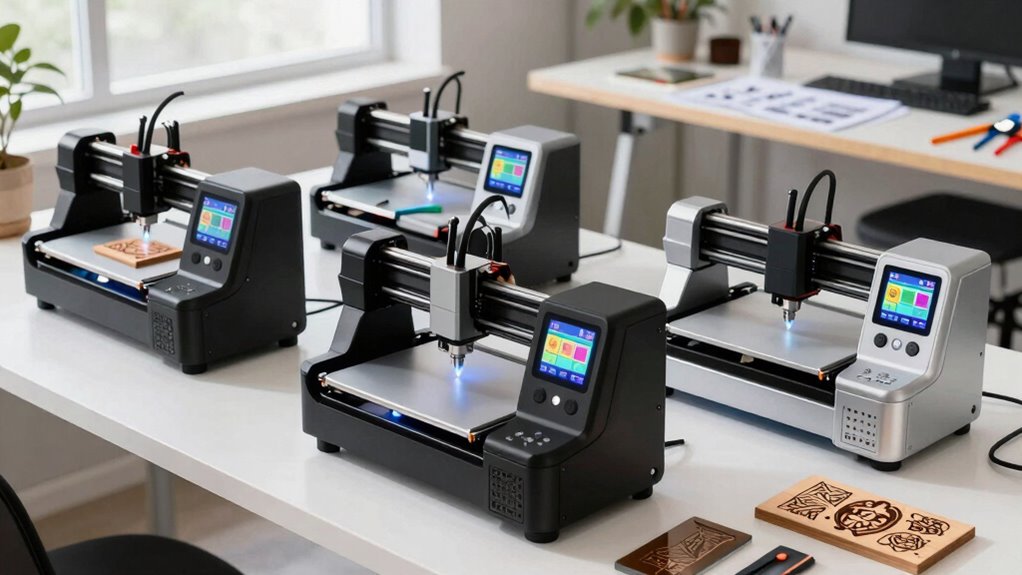
For a first laser engraver, I’d put the Twotrees TS1 Mini on the shortlist for its fully enclosed design, while the Creality Falcon 5W suits beginners who need a larger work area and the AlgoLaser Pixi 3W offers a more self-contained touchscreen workflow. The main tradeoff is between an enclosed, compact machine that helps contain laser exposure and an open-frame model that often gives you more room for larger projects. Higher power can improve cutting capability, but it does not replace ventilation, material checks, or safe operating habits. I ranked these 15 options by how well their features address the practical hurdles new users face, including setup, workspace, versatility, and safety provisions. Read on for the full breakdown and guidance on choosing a machine for your first projects.

Prime made for students and young adults
- Fast, free delivery for dorm and study essentials
- Prime Video and Amazon Music included
- Member-only deals
Key Takeaways
- The TS1 Mini’s fully enclosed design gives beginners a contained format, while the larger Falcon 5W and LONGER Ray5 5W trade that compact approach for work areas around 400 mm.
- Power and beginner friendliness are separate questions: the 10W BlazeX M3, Creality Falcon 10W, and Carverall K15 Pro target users seeking more cutting headroom, but still call for careful setup and material testing.
- The Pixi 3W’s 3.5-inch touchscreen and AlgoOS offer a more self-contained control experience than machines whose appeal centers on an open work area or higher output.
- Compact machines serve different needs: the LaserPecker LP1 Plus favors small projects and portability, while the ACMER S1 2500mW prioritizes a modest diode setup over the higher output of the S1 6W models.
- An enclosure changes the workspace decision: the TS1 Mini and Woxcker Class 1 enclosed model suit buyers who value containment, while open-frame choices need a deliberate plan for guarding, ventilation, and access control.
| AlgoLaser Pixi 3W Portable Laser Engraver with 3.5″ Touchscreen & AlgoOS |  | Best for Screen-First Beginners | Laser power: 3W | Screen: 3.5-inch touchscreen | Operating system: AlgoOS | VIEW ON AMAZON | See Our Full Breakdown |
| BlazeX M3 10W Laser Engraver Machine with 0.01mm Precision for Wood, Metal, Glass and Leather |  | Best Ready-to-Start Kit | Laser power: 10W | Precision: 0.01mm | Weight: 8 pounds | VIEW ON AMAZON | See Our Full Breakdown |
| Artilume 3000mW Laser Engraver |  | Best for Compact Storage | Laser power: 3000mW (3W) | Laser spot size: 0.04 × 0.04mm | Engraving precision: Up to 0.01mm | VIEW ON AMAZON | See Our Full Breakdown |
| Creality Falcon 5W Laser Engraver and Cutter, 400 × 415 mm Working Area |  | Best for Large Projects | Laser power: 5W (5000mW) | Laser class: Class 4 | Laser spot size: 0.06 × 0.06mm | VIEW ON AMAZON | See Our Full Breakdown |
| Twotrees TTS-55 Pro Laser Engraver – 5500mW Laser Engraving Machine |  | Best for Fast Engraving and Light Cutting | Laser power: 5500mW (5.5W) | Laser class: Class II | Spot size: 0.08 × 0.46mm | VIEW ON AMAZON | See Our Full Breakdown |
| Twotrees TS1 Mini 3000mW Fully Enclosed Laser Engraver |  | Safest Pick for Homes and Classrooms | Laser Power: 3000mW (3W, adjustable) | Work Area: 80 x 80mm | Positioning Accuracy: 0.1mm | VIEW ON AMAZON | See Our Full Breakdown |
| Creality Falcon 10W Laser Engraver and Cutter |  | Best for Real Cutting Power | Laser Output Power: 10W | Laser Spot Size: 0.06 x 0.06mm | Maximum Speed: 10,000mm/min | VIEW ON AMAZON | See Our Full Breakdown |
| LONGER Ray5 5W Laser Engraver and Cutter, 400 x 400 mm Work Area |  | Best Large Work Area | Laser Power: 5W | Work Area: 400 x 400mm | Laser Spot Size: 0.08 x 0.08mm | VIEW ON AMAZON | See Our Full Breakdown |
| Carverall K15 Pro Laser Engraver – 10W Laser Engraving & Cutting Machine |  | Best Upgrade Path | Laser Power: 10W (verified 10.36–10.58W output) | Work Area: 11.8 x 7.9 inches (near A4) | Max Speed: 15,000mm/min | VIEW ON AMAZON | See Our Full Breakdown |
| ACMER S1 6W Laser Engraver for Beginners |  | Best Low-Fuss Starter Machine | Laser Power: 6000mW (6W) | Working Area: 130 x 131mm | Laser Spot Size: 0.04mm | VIEW ON AMAZON | See Our Full Breakdown |
| ACMER S1 6000mW Diode Laser Engraver |  | Best for Software Flexibility | Laser power: 6000mW | Laser type: Diode | Laser spot: 0.04mm | VIEW ON AMAZON | See Our Full Breakdown |
| Woxcker 5.5W Enclosed Laser Engraver and Cutter, 300×300mm Engraving Area, Class 1 |  | Best Enclosed Starter | Laser power: 5500mW (5.5W) | Engraving area: 300×300mm | Laser class: Class 1 | VIEW ON AMAZON | See Our Full Breakdown |
| ATOMSTACK Swift 12000mW Laser Engraver & Cutter |  | Best for Cutting Projects | Laser power: 12000mW | Engraving accuracy: 0.08mm | Engraving speed: 10,000mm/min | VIEW ON AMAZON | See Our Full Breakdown |
| LaserPecker LP1 Plus Mini Laser Engraver for Beginners |  | Best Portable Pick | Working distance: 200mm | Supported materials: Wood, leather, acrylic, paper, and other non-metals | Metal engraving: Not supported | VIEW ON AMAZON | See Our Full Breakdown |
| ACMER S1 Laser Engraver and Cutter, 2500 mW Diode Laser |  | Best Compact Entry Point | Laser power: 2500mW | Machine output: 24W | Working area: 130×130mm | VIEW ON AMAZON | See Our Full Breakdown |
| laser engraver for beginner | Laser power |
|---|---|
| AlgoLaser Pixi 3W Portable Las | 3W |
| BlazeX M3 10W Laser Engraver M | 10W |
| Artilume 3000mW Laser Engraver | 3000mW (3W) |
| Creality Falcon 5W Laser Engra | 5W (5000mW) |
| Twotrees TTS-55 Pro Laser Engr | 5500mW (5.5W) |
| Twotrees TS1 Mini 3000mW Fully | 3000mW (3W, adjustable) |
| Creality Falcon 10W Laser Engr | — |
| LONGER Ray5 5W Laser Engraver | 5W |
| Carverall K15 Pro Laser Engrav | 10W (verified 10.36–10.58W output) |
| ACMER S1 6W Laser Engraver for | 6000mW (6W) |
| ACMER S1 6000mW Diode Laser En | 6000mW |
| Woxcker 5.5W Enclosed Laser En | 5500mW (5.5W) |
| ATOMSTACK Swift 12000mW Laser | 12000mW |
| LaserPecker LP1 Plus Mini Lase | — |
| ACMER S1 Laser Engraver and Cu | 2500mW |
More Details on Our Top Picks
AlgoLaser Pixi 3W Portable Laser Engraver with 3.5″ Touchscreen & AlgoOS
The AlgoLaser Pixi suits a first-time maker who wants to start designing at the machine instead of learning desktop software first. Its 3.5-inch touchscreen, with built-in drawing and text tools, supports PC-free projects; Wi-Fi, USB-C, and SD card connections provide other ways to send work. Compared with the Artilume 3000mW, it offers a more self-contained interface and listed safety features such as an auto-stop cover and password protection. Both use a 3W laser, so neither is the choice for fast production or substantial cutting. The Pixi’s compact, no-assembly setup lowers the initial learning curve, while its low power limits speed and material thickness. Beginners still need goggles and ventilation, and the machine should not run unattended.
Pros:- Built-in touchscreen drawing and text tools allow PC-free work
- No assembly required
- Auto-stop cover, alerts, and password protection are listed safety features
- USB-C, Wi-Fi, SD card, LightBurn, and LaserGRBL support offer flexible workflows
Cons:- The 3W laser limits engraving speed and cutting thickness
- Safe use still calls for protective goggles and ventilation
- Operation requires supervision
Best for: First-time crafters who want touchscreen design tools and PC-free operation for small projects
Not ideal for: Makers who need fast cutting, thicker material capability, or unattended operation
- Laser power:3W
- Screen:3.5-inch touchscreen
- Operating system:AlgoOS
- Laser class:Class 1
- Connectivity:USB-C, Wi-Fi, SD card
- Software compatibility:LightBurn, LaserGRBL
- Materials:Wood, leather, glass, acrylic, and other craft materials
- Safety features:Auto-stop safety cover, real-time alerts, password protection
- Warranty:1 year
Our verdict“Choose the Pixi if touchscreen controls and a ready-to-use setup matter more than cutting power or speed.”
BlazeX M3 10W Laser Engraver Machine with 0.01mm Precision for Wood, Metal, Glass and Leather
The BlazeX M3 makes a strong case for beginners who want supplies and a protective setup included from the start. Its kit lists an enclosure, honeycomb bed, tool kit, and 13 engraving materials, reducing the guesswork around what else is needed for early projects. The 10W laser and stated 0.01mm precision give it more headroom for detailed work than the 3W AlgoLaser Pixi, though the Pixi is easier to approach for someone who wants a built-in touchscreen rather than a software-led workflow. BlazeX supports LightBurn, LaserGRBL, and CutLabX across several operating systems, but beginners may still need time to learn those tools. Rotary, air-assist, and purifier accessories are optional, and the corded design makes it less convenient to move around.
Pros:- Starter kit includes an enclosure, honeycomb bed, tool kit, and 13 materials
- 10W laser power offers more capability than the 3W picks
- Stated 0.01mm precision supports detailed engraving
- Works with LightBurn, LaserGRBL, and CutLabX across Windows, macOS, iOS, and Android
Cons:- Rotary roller, air assist, and purifier are optional accessories
- Corded operation limits portability
- Software-based setup may take more learning than the Pixi’s built-in tools
Best for: New makers who want an enclosure, work bed, tools, and sample materials bundled with a more powerful laser
Not ideal for: Buyers who want a compact portable machine, built-in touchscreen controls, or all listed accessories in the box
- Laser power:10W
- Precision:0.01mm
- Weight:8 pounds
- Included accessories:Protective enclosure, honeycomb laser bed, tool kit, 13 engraving materials
- Compatible software:LightBurn, LaserGRBL, CutLabX
- Compatible platforms:Windows, macOS, iOS, Android
- Power source:Corded electric
Our verdict“Pick the BlazeX M3 if a bundled work setup and 10W power matter more than portability or touchscreen simplicity.”
Artilume 3000mW Laser Engraver
The Artilume 3000mW is a practical fit for a beginner whose workspace has to do double duty. Its foldable frame makes storage and transport easier than with the larger-bed Creality Falcon 5W, and it arrives mostly assembled, so setup is less involved. The 6 × 8-inch work area handles modest craft pieces, while LightBurn and LaserGRBL provide a path into established engraving software. That software route does require a Windows or Mac computer: unlike the AlgoLaser Pixi, Artilume has no mobile app or built-in touchscreen tools. Its 3W power also limits cutting to very thin materials under 2mm, so the stated speed and precision do not make it a substitute for a stronger cutter. It is best suited to small, occasional projects rather than larger work.
Pros:- Foldable frame is easier to store and transport
- Mostly assembled and calibrated on arrival
- Works with LightBurn and LaserGRBL
- Stated engraving precision reaches 0.01mm
Cons:- No mobile app support
- 3W laser is limited to cutting very thin material under 2mm
- 6 × 8-inch work area is smaller than the Creality Falcon 5W’s
Best for: Space-constrained hobbyists who need a foldable, mostly assembled machine for small craft pieces
Not ideal for: Buyers who want mobile-app control, a large work area, or to cut material thicker than very thin stock
- Laser power:3000mW (3W)
- Laser spot size:0.04 × 0.04mm
- Engraving precision:Up to 0.01mm
- Maximum speed:10,000mm/min
- Working area:6 × 8in (150 × 200mm)
- Supported software:LaserGRBL (Windows), LightBurn (Windows and Mac)
- Supported file formats:NC, DXF, BMP, JPG, PNG
- Design:Foldable and portable; mostly pre-assembled
- Mobile app:Not supported
Our verdict“Choose Artilume for compact storage and small projects if you are comfortable working from desktop software.”
Creality Falcon 5W Laser Engraver and Cutter, 400 × 415 mm Working Area
If a beginner expects to work on larger panels or several pieces at once, the Creality Falcon 5W offers a 400 × 415mm work area that sets it apart from the compact Artilume 3000mW. Its 5W laser and 0.06 × 0.06mm spot size are aimed at detailed engraving across a listed range of more than 200 materials. The larger bed can save repositioning when a design outgrows a small desktop frame, but it also calls for more dedicated workspace. Safety deserves particular attention: this is a Class 4 laser, and the eye-protective cover and motion-triggered stop do not remove the need for careful operation. Rotary roller and risers are sold separately, adding extra steps for buyers who want cylindrical or elevated projects.
Pros:- 400 × 415mm working area accommodates larger projects
- 5W laser with a 0.06 × 0.06mm spot size
- Listed support for more than 200 materials
- Eye-protective cover and motion-triggered stop are included safety features
Cons:- Class 4 laser calls for careful operation
- Large working area requires more bench space than the Artilume
- Rotary roller and risers are sold separately
Best for: Beginners with a dedicated workbench who plan to engrave larger panels or batch several small pieces
Not ideal for: Small-space users or cautious first-timers seeking a lower-class laser and simpler safety requirements
- Laser power:5W (5000mW)
- Laser class:Class 4
- Laser spot size:0.06 × 0.06mm
- Engraving speed:Up to 10,000mm/min
- Working area:400 × 415mm
- Supported materials:More than 200, including wood, leather, and acrylic
- Safety features:Eye-protective cover filters 97% of UV rays; motion-triggered stop
- Optional accessories:Rotary roller and risers sold separately
Our verdict“Choose the Falcon 5W if project size is your priority and you can provide a dedicated, carefully managed workspace.”
Twotrees TTS-55 Pro Laser Engraver – 5500mW Laser Engraving Machine
The Twotrees TTS-55 Pro suits a beginner who wants to grow from engraved designs into light cutting without giving up offline operation. Its 5.5W laser, stated cutting capacity for 5mm plywood, and air-assist nozzle support offer more cutting potential than the 3W Artilume, while Wi-Fi and TF-card engraving provide ways to work without a constant computer connection. The claimed maximum speed of 30,000mm/min is useful for moving through designs, but it does not mean every material or job will run at that pace. Its 300 × 300mm bed is more modest than the Creality Falcon 5W‘s, and air-assist support is not the same as a complete included air-assist system: that system is sold separately. Software compatibility is broad, though beginners will still need to learn a desktop workflow.
Pros:- 5.5W laser with listed cutting capacity for plywood, acrylic, and leather
- Supports air assist with nozzle included
- Wi-Fi and TF card enable offline engraving
- LightBurn support includes Windows, macOS, and Linux
Cons:- 300 × 300mm work area is smaller than the Creality Falcon 5W’s
- Air-assist system is sold separately
- 0.1mm accuracy and desktop software still require setup and calibration
Best for: Beginners ready to try light cutting who value Wi-Fi or TF-card operation and work within a 300 × 300mm area
Not ideal for: Makers who need a larger work bed, built-in beginner design controls, or an air-assist system included
- Laser power:5500mW (5.5W)
- Laser class:Class II
- Spot size:0.08 × 0.46mm
- Working area:300 × 300mm
- Engraving accuracy:0.1mm
- Maximum engraving speed:30,000mm/min
- Connectivity:Wi-Fi, TF card offline
- Software compatibility:LaserGRBL (Windows), LightBurn (Windows, macOS, Linux)
- Cutting capability:5mm plywood, 3mm acrylic, 0.7mm leather
Our verdict“Choose the TTS-55 Pro if you want more cutting headroom and offline options within a moderate work area.”
Twotrees TS1 Mini 3000mW Fully Enclosed Laser Engraver
This option stands out for one thing most beginner engravers ignore: safety by design. The fully enclosed acrylic cover means the beam stays contained without a separate enclosure box, which matters if kids, pets, or curious coworkers share your space. Setup is genuinely plug-and-play — no frame assembly, no belt tensioning — putting it ahead of the Creality Falcon 10W, which requires assembly before your first job. Smartphone control via the MKSLaser app keeps the entry barrier low, though LightBurn over USB is there when you outgrow it. The tradeoff is real, though: an 80x80mm bed is coaster-and-tag territory, and the 3W module only handles light cutting. Compared with the ACMER S1, you get more safety and less workspace.
Pros:- Fully enclosed design with included goggles makes it safe around kids and pets
- Zero assembly — plug in and engrave within minutes
- Bluetooth app control plus LightBurn support leaves room to grow
- Roughly 1 kg footprint fits even a crowded desk
- Auto-focus laser head removes a common beginner fumbling point
Cons:- 80x80mm work area is among the smallest in this lineup
- 3W laser only light-cuts thin materials
- Objects taller than 30mm simply won’t fit inside the enclosure
Best for: Families, teachers, and shared-workspace hobbyists who prioritize contained laser safety over project size
Not ideal for: Anyone wanting to cut thick wood or batch-produce larger signage — the tiny bed and 3W output cap both
- Laser Power:3000mW (3W, adjustable)
- Work Area:80 x 80mm
- Positioning Accuracy:0.1mm
- Max Engraving Speed:3000mm/min
- Connectivity:Bluetooth (MKSLaser app), USB
- Dimensions:157 x 157 x 167mm, ~1 kg
- Max Object Height:30mm
Our verdict“Buy it if enclosed safety and instant setup matter more than project size; skip it if you dream of large cutting jobs.”
Creality Falcon 10W Laser Engraver and Cutter
The Falcon 10W earns its spot as the cut-first pick in this batch. While the Twotrees TS1 Mini can only nibble at thin material, the Falcon’s 10W module and tight 0.06 x 0.06mm spot can slice through 5mm basswood or 3mm black acrylic in a single pass, which changes what a beginner can actually make — boxes, ornaments, standing decorations, not just engravings. Its 10,000mm/min top speed matches the LONGER Ray5, so quick detail work isn’t sacrificed for cutting muscle. The catch: assembly is required, so your first evening involves wrenches rather than engraving, and software compatibility varies by operating system, so confirm your setup before committing. The acrylic UV filter helps, but unlike the TS1 Mini there’s no full enclosure.
Pros:- One-pass cutting of 5mm basswood and 3mm black acrylic
- Fine 0.06 x 0.06mm spot produces crisp detail
- Wi-Fi, USB, and SD card transfer gives flexible workflow options
- Acrylic UV filter and one-year parts replacement warranty included
Cons:- Assembly required before first use
- Software compatibility differs by operating system
- Open frame offers less inherent safety than enclosed rivals
Best for: Beginners who want to cut wood and acrylic projects, not just engrave surfaces
Not ideal for: Buyers wanting a zero-assembly, enclosed machine for a shared family desk — this is an open-frame tool that needs care
- Laser Output Power:10W
- Laser Spot Size:0.06 x 0.06mm
- Maximum Speed:10,000mm/min
- Software:LightBurn, LaserGRBL
- Data Transfer:Wi-Fi, USB, SD card
- Dimensions:22.36 x 24.88 x 7.79 inches, 7.05 lbs
- Warranty:1 year
Our verdict“This pick makes the most sense for newcomers whose projects involve actual cutting rather than surface engraving alone.”
LONGER Ray5 5W Laser Engraver and Cutter, 400 x 400 mm Work Area
If your first project ideas involve big signs, serving boards, or full-size stencils, the Ray5 is the obvious choice here — its 400 x 400mm bed dwarfs the Carverall K15 Pro’s A4 footprint and roughly triples the engraving real estate of the Creality Falcon 10W. Offline operation is a quiet advantage: with USB, TF card, Wi-Fi, and app connectivity, you can run jobs without tying up a computer. The ESP32 processor and 0.08mm spot deliver smooth, fine detail at up to 10,000mm/min. The compromise is power — at 5W, cutting is limited compared with the Falcon or K15 Pro, and the specs don’t state material thickness limits, so expect experimentation. Safety features like emergency shutdown and overheat detection are welcome at this level.
Pros:- Spacious 400 x 400mm work area handles large projects in one go
- Multiple connection options including fully offline TF card use
- Fine 0.08mm spot with stated 0.01mm engraving accuracy
- Emergency shutdown, motion protection, and overheating detection built in
Cons:- 5W laser limits cutting depth and speed on dense materials
- No stated material thickness limits — trial and error required
- Large footprint demands a dedicated work surface
Best for: Beginners planning large-format engraving projects like signs, boards, and wall art
Not ideal for: Makers focused on cutting thicker wood or acrylic — the 5W module will force slow multi-pass work
- Laser Power:5W
- Work Area:400 x 400mm
- Laser Spot Size:0.08 x 0.08mm
- Maximum Speed:10,000mm/min
- Connectivity:USB, TF card, Wi-Fi, app
- Software:LaserGRBL, LightBurn
- Processor:240MHz ESP32
Our verdict“Choose the Ray5 when project size is your priority; the Falcon 10W or K15 Pro are better fits if cutting depth matters more.”
Carverall K15 Pro Laser Engraver – 10W Laser Engraving & Cutting Machine
This model is better suited to beginners who already suspect the hobby will stick. The verified 10W+ output with dual-fan cooling puts it in the same cutting class as the Creality Falcon — up to 12mm plywood and 8mm acrylic — but what separates it is the ecosystem: an optional 1W IR head unlocks bare-metal engraving, and accessories like a rotary roller for tumblers and an air purifier can be added as your skills grow. Assembly is a claimed three minutes with six screws, a gentler start than the Falcon. The free CutLabX software with AI design tools and offline TF card engraving suits true novices. Be realistic about the costs, though: most of the good accessories are sold separately, and the A4 bed is small next to the LONGER Ray5.
Pros:- Verified 10W+ output cuts up to 12mm plywood and 8mm acrylic
- Upgradeable ecosystem: 1W IR head, rotary roller, air purifier
- Free CutLabX software with AI design tools plus LightBurn support
- Three-minute, six-screw assembly for a fast start
Cons:- A4 work area is too small for large-format projects
- Bare-metal engraving requires an optional extra laser head
- Honeycomb plate, air pump, and other accessories cost extra
Best for: Hobbyists who want a machine that grows with them — bare metal, tumblers, and batch work later
Not ideal for: Budget-tight beginners or anyone needing large-format beds — accessories add up and the A4 area caps project size
- Laser Power:10W (verified 10.36–10.58W output)
- Work Area:11.8 x 7.9 inches (near A4)
- Max Speed:15,000mm/min
- Cutting Capacity:12mm plywood, 8mm acrylic
- Software:CutLabX (free), LightBurn, LaserGRBL
- Connectivity:Wireless app, TF card offline mode
- Assembly Time:~3 minutes (6 screws)
- Warranty:1-year warranty, lifetime technical support
Our verdict“The right pick if you see laser engraving as a long-term hobby worth investing in — just budget for the add-ons.”
ACMER S1 6W Laser Engraver for Beginners
The ACMER S1 sits in a sweet spot the extremes miss: more power than the Twotrees TS1 Mini’s 3W, far less bulk than the LONGER Ray5, and a 99% preassembled frame that gets you engraving almost immediately. Its 0.04mm spot is actually the finest in this batch, which pays off on delicate work like PCB marking, ceramics, and detailed leather. Software flexibility is a quiet strength — AcmerStudio for simplicity, LightBurn or LaserGRBL when you want industry-standard tools, across macOS, Windows, and Linux. The 130 x 131mm bed and 6W module place it firmly in small-project, light-cutting territory: great for tags, coasters, and personalization work, underpowered for thick material. It lacks the enclosure of the TS1 Mini, so eye safety habits still apply.
Pros:- Finest 0.04mm laser spot in this lineup for crisp detail
- 99% preassembled for near-instant setup
- Works with AcmerStudio, LightBurn, and LaserGRBL across macOS, Windows, and Linux
- Handles unusual beginner materials like PCBs, ceramics, and aluminum oxide
Cons:- 130 x 131mm work area restricts project size
- Cutting capability is limited to thin materials
- No enclosure, so it demands more safety discipline than the TS1 Mini
Best for: Detail-oriented beginners making small personalized items like tags, coasters, and leather goods
Not ideal for: Anyone cutting thick stock or running large signs — the compact bed and 6W output won’t keep up
- Laser Power:6000mW (6W)
- Working Area:130 x 131mm
- Laser Spot Size:0.04mm
- Maximum Speed:10,000mm/min
- Software:AcmerStudio, LightBurn, LaserGRBL
- Compatibility:macOS, Windows, Linux
- Frame:Aluminum alloy, 2 kg
- Warranty:12 months
Our verdict“A balanced first machine for small, detailed personalization work — just know its compact bed is the ceiling, not the floor.”
ACMER S1 6000mW Diode Laser Engraver
The ACMER S1 combines a fine 0.04mm laser spot and 0.01mm repeatable positioning accuracy with support for AcmerStudio, LightBurn, and LaserGRBL. That gives beginners room to start with simpler software and move to a more advanced workflow later. Its 99% preassembled frame keeps setup short, though the laser head still needs installation. Compared with the enclosed Woxcker 5.5W, the ACMER is lighter and easier to move, but it does not offer the same enclosed Class 1 design and safety features. The 6W output suits detailed engraving and light cutting on materials such as wood and leather; it is a poor fit for buyers who expect substantial cutting capacity. I’d pick it for a compact, open-frame machine with broad software compatibility.
Pros:- Supports AcmerStudio, LightBurn, and LaserGRBL across macOS, Windows, and Linux
- Fine 0.04mm spot and 0.01mm repeatable positioning accuracy support detailed work
- 99% preassembled and weighs 2kg, making setup and repositioning manageable
- Can engrave wood and leather and handle light cutting
Cons:- Laser head must be installed before use
- 6W output is suited to light cutting rather than thick materials
- Open-frame design lacks the Woxcker’s enclosed Class 1 configuration
Best for: Beginners who want to learn LightBurn or LaserGRBL on a compact machine for detailed engraving and occasional light cuts
Not ideal for: Buyers who need a fully enclosed laser or plan to cut thick stock regularly
- Laser power:6000mW
- Laser type:Diode
- Laser spot:0.04mm
- Maximum speed:10,000mm/min
- Positioning accuracy:0.01mm repeatable
- Weight:2kg
- Assembly:99% preassembled
- Compatible software:AcmerStudio, LightBurn, LaserGRBL
Our verdict“Choose the ACMER S1 if you want a portable, software-flexible starter for detailed engraving and light cutting.”
Woxcker 5.5W Enclosed Laser Engraver and Cutter, 300×300mm Engraving Area, Class 1
For a beginner who prioritizes a contained workspace, the Woxcker stands apart with its fully enclosed Class 1 design and safety features that include a flame sensor, safety lock, and automatic stop when opened. That can make a home workshop easier to manage than an open-frame machine such as the ATOMSTACK Swift, which uses a laser filter cover but is not described as fully enclosed. The Woxcker also offers a 300×300mm work area, several connection methods, and compatibility with LightBurn and LaserGRBL. Its 5.5W output is the tradeoff: it can engrave a range of materials, but cuts will be more limited than with the 12W ATOMSTACK. The work area may also constrain larger pieces. I’d choose it for contained, versatile engraving over ambitious cutting.
Pros:- Fully enclosed Class 1 design with flame sensor, safety lock, and open-cover auto-stop
- 300×300mm engraving area accommodates a range of small and medium projects
- Works with LightBurn, LaserGRBL, and Cutlabx and accepts several common file formats
- Wi-Fi, USB, app, and TF card connectivity offer flexible ways to send jobs
Cons:- 5.5W output limits cutting thickness compared with the 12W ATOMSTACK Swift
- 300×300mm work area rules out larger pieces without another solution
- Air Assist and Rotary Roller are supported accessories, but are not listed as included
Best for: New hobbyists working at home who want an enclosed machine, multiple safety features, and a 300×300mm work area
Not ideal for: Makers focused on cutting thicker plywood or engraving pieces larger than 300×300mm
- Laser power:5500mW (5.5W)
- Engraving area:300×300mm
- Laser class:Class 1
- Focus spot:0.01mm
- Maximum speed:20,000mm/min
- Connectivity:Wi-Fi, USB, app, TF card
- Compatible software:LightBurn, LaserGRBL, Cutlabx
- Warranty:1 year
Our verdict“Pick the Woxcker if an enclosed workspace and versatile engraving matter more to you than cutting thicker stock.”
ATOMSTACK Swift 12000mW Laser Engraver & Cutter
The ATOMSTACK Swift is the cutting-focused choice in this group: its 12W laser is listed for one-pass cuts through up to 8mm basswood plywood, giving beginners more room to move from surface engraving into small cutouts. That output is a different proposition from the 5.5W Woxcker, whose enclosed Class 1 design favors containment over thicker cuts. The Swift pairs its power with a 300×300mm area and a frame that can expand to 300×800mm with a separate Y-axis extension kit. Setup is listed at under five minutes, and flame and tilt detection add useful safeguards. The tradeoffs are its open-frame layout and the extra kit needed for longer projects; the stated 0.08mm accuracy is also less fine than the ACMER S1’s 0.04mm laser spot, though these figures describe different measurements.
Pros:- 12W output is listed for one-pass cuts through up to 8mm basswood plywood
- 300×300mm work area can expand to 300×800mm with the Y-axis extension kit
- Assembly is listed at under five minutes
- Includes flame alarm, tilt detection, axis limit switches, and a laser filter cover
Cons:- Y-axis extension kit is needed to reach the longer work area
- Open-frame design does not provide the Woxcker’s fully enclosed Class 1 setup
- Cutting performance claims are specific to stated materials and may not transfer to every stock
Best for: Beginners planning plywood cutouts as well as engraving, who want a 12W machine and may later need an extended work area
Not ideal for: Home users who need a fully enclosed Class 1 machine or buyers who only need a small, low-power engraver
- Laser power:12000mW
- Engraving accuracy:0.08mm
- Engraving speed:10,000mm/min
- Engraving area:300×300mm, expandable to 300×800mm
- Listed cutting capacity:Up to 8mm basswood plywood or 4mm black acrylic in one pass
- Weight:2.8kg
- Assembly time:Under 5 minutes
- Compatible software:LightBurn, LaserGRBL, AtomStack Studio, AtomStack App
Our verdict“Choose the ATOMSTACK Swift if cutting plywood is a core beginner project and you can work with an open-frame machine.”
LaserPecker LP1 Plus Mini Laser Engraver for Beginners
The LaserPecker LP1 Plus takes a different approach from the frame-based ACMER S1: it is a pocket-sized engraver designed to go where a power bank can. Setup takes under two minutes, and the adjustable stand supports multi-angle positioning, while its magnetic base can hold small items in place. That makes it appealing for personalizing compact objects away from a dedicated workbench. The constraint is the 200mm lens-to-material distance, which has to be set accurately with the included ruler. Its supported materials are non-metals, so buyers who want metal engraving should look elsewhere. Unlike the ACMER’s larger, defined work area, the LP1 Plus is built around positioning individual objects rather than handling sheet projects. I’d choose it for portability and small, occasional jobs, not as a general-purpose workshop machine.
Pros:- Pocket-sized design is easy to carry
- Runs from a power bank for use away from a fixed outlet
- Setup takes under two minutes
- Adjustable 360° stand and magnetic base help position small objects
Cons:- Does not support metal engraving
- Requires a precise 200mm distance between the lens and material
- Object-by-object positioning is less suited to larger sheet projects than the ACMER S1’s 130×130mm work area
Best for: Crafters who want to engrave small non-metal items at events, outdoors, or wherever a power bank is available
Not ideal for: Beginners planning metal engraving, larger sheet work, or a fixed-bed workflow with less manual positioning
- Working distance:200mm
- Supported materials:Wood, leather, acrylic, paper, and other non-metals
- Metal engraving:Not supported
- Stand:Adjustable, 360° multi-angle
- Base:Magnetic base for securing small items
- Power:Power bank
- Setup time:Under 2 minutes
- App:Cross-platform app for importing photos and doodles
Our verdict“Pick the LP1 Plus for portable engraving of small non-metal objects, provided you can maintain its required working distance.”
ACMER S1 Laser Engraver and Cutter, 2500 mW Diode Laser
The 2.5W ACMER S1 is the smallest defined-work-area option here, with a 130×130mm bed suited to tags, small plaques, and other compact pieces. Its 99% preassembled design and 2kg weight keep setup and handling simple, while 0.01mm repeatable positioning accuracy and speeds up to 10,000mm/min provide a solid base for learning repeatable jobs. Compared with the 6W ACMER S1 in this roundup, this model gives up laser power and cutting headroom; it is the better fit when small projects and a compact machine matter more than faster or heavier cutting. It supports LightBurn and LaserGRBL on macOS, Windows, and Linux. I’d shortlist it as a modest starter for engraving and thin-stock work, not as a machine for large pieces or substantial cuts.
Pros:- Compact 130×130mm work area fits small projects and limited workspaces
- 99% preassembled and weighs 2kg
- 0.01mm repeatable positioning accuracy supports consistent placement
- Compatible with LightBurn, LaserGRBL, and Acmerstudio on major desktop operating systems
Cons:- Small work area restricts project dimensions
- 2.5W laser is suited to thin-stock cutting rather than thicker material
- Offers less cutting headroom than the 6W ACMER S1 in this roundup
Best for: Beginners with limited bench space who want to learn engraving on small tags, plaques, and thin stock
Not ideal for: Makers who need a larger bed, faster throughput, or more cutting capacity than a 2.5W diode can offer
- Laser power:2500mW
- Machine output:24W
- Working area:130×130mm
- Maximum engraving speed:10,000mm/min
- Positioning accuracy:0.01mm repeatable
- Wavelength:455±5nm
- Weight:2kg
- Compatible software:Acmerstudio, LightBurn, LaserGRBL
Our verdict“Choose this ACMER S1 if you want a compact, low-power machine for learning on small engraving projects and thin materials.”

How We Picked
I compared the listed machines on the features that shape a first-time buyer’s day-to-day experience: stated laser output, work area, control interface, enclosure, and the range of materials named for each model. I gave weight to practical setup factors because a beginner benefits from clear controls and a machine that fits the available workspace as much as from raw power. Where product names specify an enclosure or touchscreen, I treated those as meaningful distinctions while avoiding assumptions about software quality, cutting speed, or included accessories that the supplied details do not establish.
The order reflects the balance of beginner access and useful capability. Enclosed choices and models with simpler stated controls rise when their features address common first-machine concerns; broad work areas and higher output rise for readers with larger or more demanding projects. Compact low-power machines remain relevant for small engraving tasks, but rank lower for buyers seeking flexibility across project sizes. Since the available product details do not establish comparable safety systems, support, or real-world performance, readers should confirm those points with each manufacturer before buying.
Factors to Consider When Choosing Laser Engraver For Beginners
I’d start with the projects and workspace you actually have, then match the machine to them. Laser output, enclosure, and work area affect different parts of the decision, so treating one headline specification as a shortcut can lead to a poor fit.
Match Output to Your Projects
Laser output can affect how quickly a machine marks a material and how much cutting work it can handle, but it does not tell the whole story. A 3W or 5W engraver may suit decorative marking and small projects, while higher-output options such as the listed 10W and 12W machines may appeal to buyers who expect more cutting work. Material type, thickness, focus, and machine settings all affect results, so do not assume a wattage label guarantees a specific cut. A common first-purchase mistake is paying for output before knowing whether the planned projects need it. I’d list the materials and thicknesses you expect to use, then check manufacturer guidance for each one. If your work is mostly engraving, a manageable setup may matter more than maximum output.
Treat Enclosure as a Workspace Choice
An enclosure affects how the machine fits into a home workspace and how you manage access while a job runs. The TS1 Mini is described as fully enclosed, and the Woxcker is identified as Class 1 and enclosed; those details distinguish them from the open-frame models in this group. An enclosure does not remove the need to follow the maker’s safety instructions or manage smoke and fumes. Before choosing, check what the enclosure includes, whether extraction is needed, and whether the machine will fit with its lid or access panels open. Buyers who choose an open frame should plan for guarding and keeping people and pets away from the active machine. The right choice depends on the room and operating routine, not just the machine footprint.
Choose a Work Area That Fits Real Materials
The Falcon 5W and LONGER Ray5 5W list work areas of roughly 400 mm per side, which can accommodate larger pieces than a compact machine. That extra room helps when you want to engrave signs, batches of small items, or objects that cannot be reduced to a tiny blank. It also takes more bench space and can make storage less convenient. Measure both the machine’s full footprint and the usable engraving area; they are not the same. Consider the largest item you expect to make regularly, rather than buying for a rare oversized project. If most work is on small tags or samples, a large frame may add clutter without improving your usual workflow.
Value Controls You Can Operate Reliably
Beginners often focus on laser output and overlook how they will send jobs, position materials, and repeat successful settings. The Pixi 3W names a touchscreen and AlgoOS, giving it a distinct control-oriented pitch among these options. A touchscreen may make machine-side operation more accessible, but it does not by itself prove that every task is easier or that computer software is unnecessary. Check which design and control software is supported, what file types it accepts, and whether the workflow depends on a computer or mobile device. Look for clear instructions on focusing and positioning, since small setup errors can spoil a project. Pick controls that match how you already prefer to work, rather than assuming extra interfaces always simplify the process.
Plan for Ventilation and Material Limits
Laser engraving can produce smoke and fumes, and the right handling depends on the material. Before buying, verify that the manufacturer identifies the materials as suitable and explains ventilation requirements. Do not rely on a broad phrase such as “works on glass” or “engraves metal” to infer the exact preparation or finish possible; coated and bare surfaces can behave differently. Build the cost and space for extraction into your setup plan, even when the machine is enclosed. Beginners can also make mistakes by testing unknown plastics or coatings, which may release hazardous fumes or damage equipment. A smaller approved-material list used safely is a better starting point than experimenting with every scrap on hand.
Check What the Product Listing Leaves Out
Product names rarely answer every ownership question. Confirm whether the quoted work area, enclosure, exhaust components, protective equipment, and software are included or optional. Look for warranty terms, replacement-part availability, setup documentation, and guidance for alignment and maintenance. These details can matter more to a new user than a small difference in advertised output. Compare the complete machine footprint and accessories against your available workspace and budget. If those details are unclear, ask the manufacturer before ordering so you know what else your first projects will require.
Frequently Asked Questions
Should I start with an enclosed engraver or an open-frame machine?
I’d choose based on the room and the people who share it. The TS1 Mini and Woxcker are presented as enclosed options, while several larger-area models use an open-frame format. An enclosure can help contain the work area, but you still need to follow the maker’s safety and ventilation guidance. Open-frame machines may better suit a dedicated workshop where you can set up guarding and control access. Confirm the enclosure details and extraction needs before deciding.
Is a 3W or 5W machine enough for a first engraver?
For learning engraving and making smaller projects, a lower-output machine may be a reasonable starting point. In this lineup, the 3W Pixi, Artilume, and TS1 Mini differ in interface and enclosure, while the 5W Falcon and Ray5 offer notably larger stated work areas. Cutting requirements depend on the material and thickness, not just the power label. If cutting is central to your plans, compare manufacturer specifications for your exact materials before buying. If it is occasional, prioritize workspace, controls, and safe operation too.
Does a higher wattage mean I can engrave any material?
No. Higher output does not make every material suitable, and materials with similar names can require different methods. Coatings, surface treatments, and thickness affect what a machine can mark or cut. Follow the manufacturer’s approved-material guidance and ventilation instructions instead of experimenting with unknown plastics or finishes. The 10W and 12W models may provide more capability for certain jobs, but you still need material-specific settings and precautions. Verify the expected result for your material before treating wattage as the deciding factor.
How much work area should I get if I am unsure what I will make?
Measure the largest item you realistically expect to engrave in the next year, then leave room around it for positioning and handling. The Falcon 5W and LONGER Ray5 5W list areas near 400 mm per side, which gives more flexibility for larger pieces than compact models. A bigger work area also means a larger machine to place and store. If you mostly expect to make small gifts or tags, a compact model may be easier to live with. Choose extra area when you have a real project in mind, not just because the number is larger.
What should I verify before ordering a beginner laser engraver?
Check the full machine dimensions, included accessories, software requirements, ventilation guidance, warranty, and availability of replacement parts. Confirm that the listed engraving area matches your planned materials and that the machine supports the material-specific tasks you want to perform. For enclosed models, establish whether extraction is included or needed separately. For open frames, plan where guarding and access control will go. Clear answers to these questions can prevent a machine that looks suitable on paper from becoming awkward in your workspace.
Conclusion
For the strongest balance of beginner access and useful control features, I’d choose the AlgoLaser Pixi 3W as my best overall pick, especially for someone who values a touchscreen workflow and modest project scale. The Creality Falcon 5W is my value-oriented choice for buyers who need a much larger stated work area, while the ATOMSTACK Swift 12000mW is the premium-leaning option here for users who expect more demanding cutting tasks and have the space and safety setup for it. For a first machine in a shared or compact workspace, the Twotrees TS1 Mini stands out for its fully enclosed format. If portability and small engravings matter most, consider the LaserPecker LP1 Plus; for a compact, lower-output alternative, the ACMER S1 2500mW is a simpler-fit candidate. Before choosing any of them, confirm material support, ventilation needs, and included accessories against your own projects.
Halloween Picks
halloween
As an affiliate, we earn on qualifying purchases.