To establish a straightforward, dependable home office network for two individuals, select a sturdy Wi-Fi router with integrated security such as WPA3, and position it centrally for ideal coverage. Protect your network with robust, distinctive passwords and activate encryption. Keep firmware current and contemplate setting up a guest network for visitors. Regularly oversee your connection and conduct maintenance. Staying organized now will guarantee a smooth, secure setup—there’s more to take into account for lasting performance.
Key Takeaways
- Choose a reliable, dual-band Wi-Fi router with WPA3 for strong security and sufficient coverage.
- Place the router centrally in the home office to minimize dead zones and ensure stable connectivity.
- Set unique, strong passwords for Wi-Fi and enable guest networks to keep main access secure.
- Regularly update the router firmware and monitor network activity for security and performance.
- Keep the setup simple by avoiding unnecessary extenders or complex configurations, focusing on essential coverage.
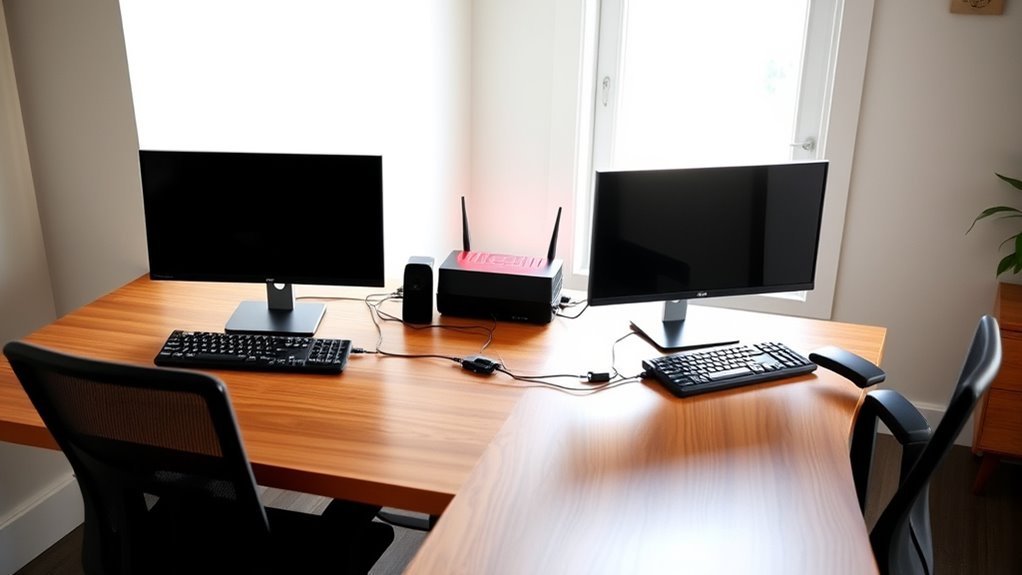
Setting up a home office network for two might seem challenging, but with the right planning, it can be straightforward and efficient. The key is to focus on creating a simple, secure setup that supports both of your needs without overbuilding. Start by choosing a reliable Wi-Fi router that can handle multiple devices comfortably. Modern routers often come with built-in security features, which are essential for protecting your wireless security and preventing unauthorized access. Make sure to change default passwords and enable encryption standards like WPA3 to safeguard your network.
Choose a reliable Wi-Fi router with security features to ensure a simple, secure home office network.
Next, position your router in a central location to ensure strong wireless coverage throughout your workspace. This reduces dead zones and minimizes the need for unnecessary extenders or additional hardware, keeping your setup clean and manageable. As you connect your devices, keep security in mind — use strong, unique passwords for Wi-Fi and any associated accounts. It’s also wise to set up a guest network if visitors or other household members need access, so you keep your main network more secure.
Once your network is up and running, focus on network troubleshooting. Even with good planning, issues can arise, so it’s helpful to know how to quickly identify and resolve common problems. Regularly update your router’s firmware; manufacturers often release patches that fix security vulnerabilities and improve stability. If your Wi-Fi drops or slows down, start by checking for interference from other electronics or neighboring networks. Changing your Wi-Fi channel can often improve performance. You can also run speed tests to verify that your internet service provider is delivering the promised speeds. If issues persist, disconnect and reconnect devices, or restart your router—sometimes, a simple reboot clears up connectivity glitches.
Monitoring your network’s activity helps you spot unusual behavior, which could indicate security breaches. Use your router’s built-in tools or third-party apps to view connected devices and detect unauthorized access. Keeping your network secure not only protects your data but also ensures smooth operation for both of you. Remember, overcomplicating your setup with unnecessary hardware can create more problems than it solves. Focus on a solid, secure Wi-Fi foundation, and troubleshoot issues methodically as they come. Additionally, understanding the role of wireless standards can help you choose equipment that offers better performance and future-proofing.
In essence, planning a two-person home office network involves selecting reliable hardware, securing your wireless connection, positioning your router thoughtfully, and maintaining it through regular updates and troubleshooting. By doing so, you create a seamless environment where both of you can work efficiently without the distraction of ongoing connectivity issues. This approach keeps your network simple, secure, and ready to support your daily tasks.
Frequently Asked Questions
How Can I Ensure Network Security for Two Users?
To guarantee network security for two users, you should implement strong password management, encouraging both of you to use unique, complex passwords and change them regularly. Also, isolate devices by setting up separate networks or VLANs to prevent unauthorized access. Keep your firmware updated, enable two-factor authentication, and regularly review your security settings. These steps help protect your data and maintain a secure home office environment.
What’s the Best Way to Upgrade My Home Network Later?
To upgrade your home network later, start by evaluating your current setup for device compatibility. Implement network segmentation to separate work and personal devices, boosting security and performance. When choosing new hardware, ensure it supports your existing devices and future expansion. Regularly update firmware and consider modular equipment that allows easy upgrades. This approach keeps your network flexible, secure, and ready for growth without overbuilding.
How Do I Prioritize Bandwidth Between Two Devices?
To prioritize bandwidth between your two devices, use bandwidth management features on your router, like Quality of Service (QoS). Device prioritization lets you assign higher priority to essential tasks, such as video calls or work applications, ensuring they get the necessary bandwidth. Adjust the QoS settings to specify which device or activity should have priority, and monitor performance to fine-tune your device prioritization for ideal home office productivity.
Can I Add More Devices Easily Without Overbuilding?
Think of your network as a garden—easily expanded with proper planning. Yes, you can add more devices without overbuilding by choosing scalable options like network switches and Wi-Fi routers with multiple ports. These scalability options simplify device management and guarantee smooth growth. Just make certain your current setup supports future additions, avoiding bottlenecks and keeping your network flexible for any new gadgets you want to connect.
What Are Common Troubleshooting Steps for Home Office Networks?
When troubleshooting your home office network, start by checking your network speed to identify any slowdowns. Make certain your devices are compatible with your router and network hardware. Restart your modem and router to resolve temporary issues. Verify connections and update firmware if needed. If problems persist, test with different devices to pinpoint compatibility issues, and consider adjusting your network settings for ideal performance.
Conclusion
By thoughtfully designing your home office network, you create a cozy space where both of you can work smoothly without feeling cramped. With a few smart choices, you’ll enjoy seamless connectivity and a clutter-free setup that feels just right. Remember, sometimes less is more, and a simplified network can offer the perfect balance of efficiency and comfort. In the end, your well-planned system becomes the quiet foundation for your daily productivity.