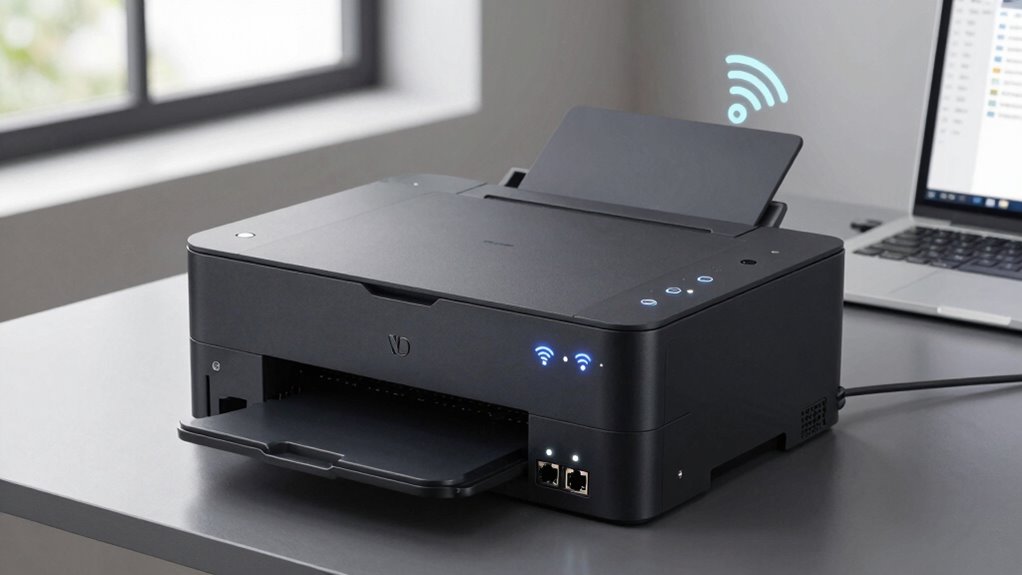

Choosing between Wi-Fi and Ethernet for your printer impacts your printing experience. Wi-Fi offers flexibility, letting you print from multiple devices without cables, perfect for home or small offices. Ethernet provides a stable, high-speed connection, ideal for high-volume or demanding environments. Both options improve your printer’s accessibility and performance. Understanding these differences helps you select the best setup for your needs—keep going to discover how each option can work best for you.
Prime for Young Adults — start your free trial
Fast free delivery, streaming and member deals for eligible 18–24 year olds.
As an affiliate, we earn on qualifying purchases.
Key Takeaways
- Wi-Fi enables wireless printing from multiple devices without physical connections, offering convenience and flexibility.
- Ethernet provides a stable, high-speed connection ideal for high-volume or critical printing tasks.
- Proper network setup, whether Wi-Fi or Ethernet, ensures reliable and efficient printer performance.
- Wireless connections are more flexible but may be affected by signal strength and interference.
- Choosing the right connection type depends on environment, volume needs, and stability requirements.
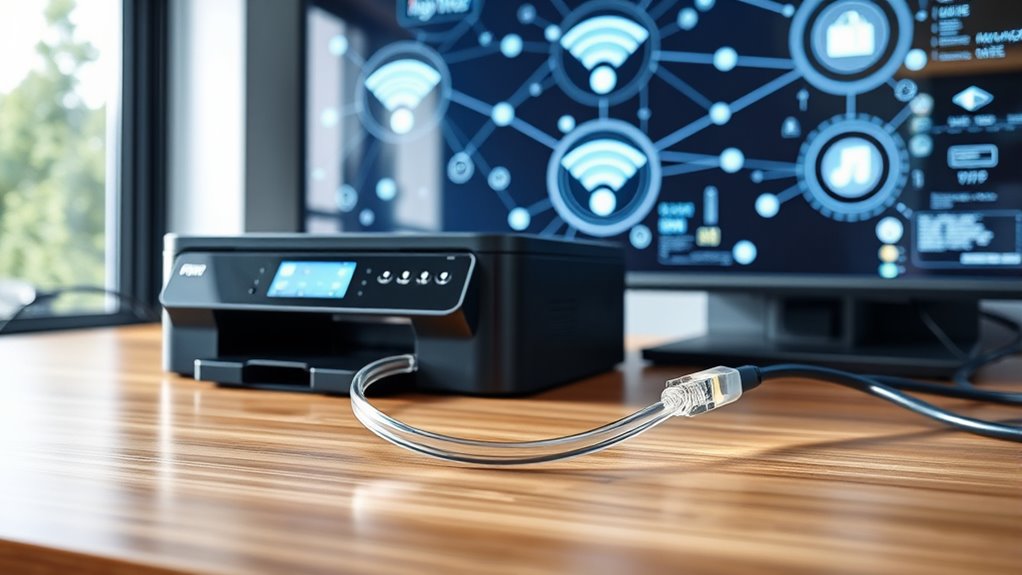
Ever wondered how your printer connects seamlessly to your devices? The secret lies in understanding wireless printing and the network setup that makes it all possible. When you choose a printer with wireless capabilities, you gain the freedom to print from your laptop, tablet, or smartphone without the clutter of cables. To get started, you need to configure the network setup correctly. This involves connecting your printer to your Wi-Fi network, which allows all your devices on the same network to communicate with it effortlessly. The process is straightforward: you typically access the printer’s control panel, select your Wi-Fi network, and enter the password. Once connected, your printer can be part of your home or office network, enabling you to print from anywhere within range. wireless printing offers a major convenience, especially if you have multiple devices or a shared workspace. Instead of physically connecting each device with a USB cable, your devices communicate with the printer over your Wi-Fi network. This setup not only saves you time but also reduces clutter. Plus, many modern printers support multiple devices simultaneously, so everyone in your household or team can print without constant reconfiguration. Ensuring a strong, stable network setup is key here. If your Wi-Fi signal is weak or inconsistent, printing can become frustrating—jobs may fail or take longer to complete. To avoid this, position your wireless printer close to your router or consider upgrading your Wi-Fi for better coverage. Beyond Wi-Fi, Ethernet connections provide another reliable method for printer connectivity. With an Ethernet cable, your printer connects directly to your router or network switch, offering a stable, high-speed link. This setup is especially beneficial in office environments where multiple users need consistent, fast access. Ethernet connections eliminate interference issues common with wireless signals and ensure that large print jobs or high-volume printing don’t slow down your network. Setting up an Ethernet connection is simple: just plug one end into your printer and the other into your network port. Your printer then becomes a permanent fixture on your network, accessible to all authorized devices. Choosing between wireless printing and Ethernet depends on your specific needs. Wireless offers flexibility and convenience, ideal for homes and small offices, whereas Ethernet provides stability and speed for high-demand environments. Either way, understanding how your printer connects—through Wi-Fi or Ethernet—and guarantee proper network setup makes a significant difference. It means fewer frustrations, faster printing, and a smoother workflow. When your printer is properly integrated into your network, you’ll experience the true convenience of modern connectivity, making printing just another effortless task in your digital life.
Frequently Asked Questions
How Do I Troubleshoot Wi-Fi Connectivity Issues With My Printer?
To troubleshoot Wi-Fi connectivity issues with your printer, first check for wireless interference from other devices and make certain your Wi-Fi signal strength is strong. Restart your router and printer, then reconnect them. Make sure your printer is within range of the Wi-Fi network, and update the printer’s firmware if needed. If problems persist, try resetting network settings or reconfiguring your Wi-Fi connection to improve stability.
Can I Connect Multiple Devices to a Single Printer via Ethernet?
Yes, you can connect multiple devices to a single printer via Ethernet by setting up your network properly. Use a network switch or connect the printer to your router with an Ethernet cable, ensuring device sharing is enabled. This setup allows all connected devices on the network to access the printer seamlessly. Just make sure your network setup supports multiple device connections and that your printer is configured correctly for shared access.
What Security Risks Are Associated With Wi-Fi Printers?
Sure, your Wi-Fi printer’s open network invites wireless hacking, turning it into a tempting target. Without proper network encryption, hackers can intercept sensitive documents or gain access to your network. Ironically, the convenience of wireless printing often comes with the risk of exposing your data. To stay safe, verify your Wi-Fi uses strong encryption, like WPA3, and keep your firmware updated to block potential security threats.
Is Ethernet Faster Than Wi-Fi for Large Print Jobs?
Ethernet is generally faster than Wi-Fi for large print jobs because it isn’t affected by wireless interference or signal strength issues. Wi-Fi connections can slow down due to interference from nearby devices or weak signals, causing delays. Ethernet provides a more stable, reliable connection with consistent speeds, making it ideal when you’re printing large files or multiple documents. So, if speed matters, Ethernet is the better choice.
How Does Printer Connectivity Affect Print Quality and Speed?
Your printer’s connectivity impacts print quality and speed through data transfer rates. Wired connections like Ethernet generally offer faster, more stable data transfer, which helps maintain high print resolution and reduces delays. Wi-Fi can be slower or prone to interference, potentially lowering print quality or increasing wait times. So, for the best balance of speed and print resolution, a wired connection often outperforms wireless options.
Conclusion
Think of your printer’s connectivity as the bridge that keeps your digital world connected. Whether it’s Wi-Fi or Ethernet, these channels are like essential roads ensuring your documents reach their destination smoothly. Without a reliable connection, it’s like building a city with blocked streets—nothing moves efficiently. Choose the right connection, and you’ll keep your workflow flowing seamlessly, like a well-maintained highway. Stay connected, stay productive.
Fall yard work Picks
leaf blowers
As an affiliate, we earn on qualifying purchases.