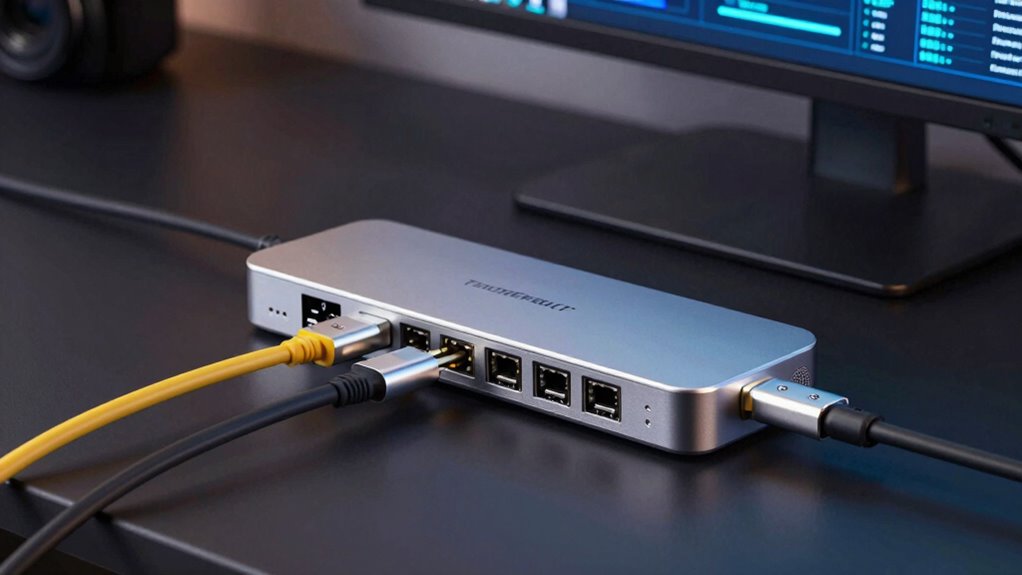

Thunderbolt bandwidth depends on both your device and dock capabilities. While Thunderbolt 4 can reach speeds up to 40 Gbps, limits often occur when docks or peripherals don’t support these high standards or when power delivery restrictions come into play. USB C compatibility and device support also play roles in achievable speed. Understanding these factors can help you maximize performance—if you want to explore what causes these bottlenecks, keep going for more insights.
Open a free Amazon Business account
Business pricing, bulk buying and tax-exempt orders.
As an affiliate, we earn on qualifying purchases.
Key Takeaways
- Thunderbolt offers speeds up to 40 Gbps, but real performance depends on hardware and port compatibility.
- USB C support is critical; ports limited to USB 3.x reduce maximum bandwidth and hinder dock performance.
- Power delivery limits (up to 100W) can throttle data transfer rates when insufficient power is provided.
- Peripheral compatibility affects throughput; non-supporting devices create bottlenecks even on high-speed docks.
- Multiple connected devices and standard mismatches can split bandwidth, causing performance drops at high data loads.

Ever wondered how fast your Thunderbolt connection really is? If you’re using a Thunderbolt dock or device, understanding its bandwidth can help you optimize your setup. Thunderbolt’s impressive speed isn’t just about raw data transfer; it also depends on factors like USB C compatibility and power delivery limits. These elements directly impact what your dock can handle, especially when you’re pushing it to its limits.
USB C compatibility is fundamental because Thunderbolt 3 and 4 use the USB Type-C connector, but not all USB C ports are created equal. Some ports only support USB 3.1 or 3.2, which can limit bandwidth and compatibility with Thunderbolt devices. When your dock or device is Thunderbolt-compatible, it ensures that the port supports high-speed data transfer rates up to 40 Gbps, but only if the USB C port itself is fully compatible. If your port isn’t designed for Thunderbolt, you might not realize the full potential of your setup, leading to bottlenecks or slower transfer speeds. Always check that the USB C port supports Thunderbolt standards to maximize bandwidth.
Power delivery limits are another critical consideration. Thunderbolt ports often provide power delivery (PD), allowing you to charge devices while transferring data. However, this feature isn’t unlimited—there are specified limits for how much power can be delivered over a single cable. For example, Thunderbolt 3 supports up to 100W power delivery, but in some cases, docks or cables might only support a fraction of that, constraining your ability to charge high-power devices like laptops. If your dock’s power delivery limits are lower than what your device needs, it could affect performance or prevent charging altogether. This, in turn, influences your overall bandwidth, as devices may throttle data transfer to conserve power or due to insufficient power delivery.
Furthermore, device compatibility plays a crucial role in achieving maximum throughput, as not all peripherals are designed to operate at the highest speeds supported by Thunderbolt.
In essence, the maximum throughput you achieve with your Thunderbolt setup depends on these intertwined factors. Compatibility with USB C standards ensures you’re getting the full speed potential, while understanding your power delivery limits helps you avoid unexpected bottlenecks. If either aspect isn’t up to par, your bandwidth could be compromised, especially when connecting multiple high-demand peripherals. So, to truly harness Thunderbolt’s capabilities, make sure your devices support high-speed USB C compatibility and that your power delivery limits align with your needs. Only then can you push your dock to its real potential without hitting unforeseen speed walls.
Frequently Asked Questions
How Does Thunderbolt Compare to USB in Real-World Performance?
In real-world use, Thunderbolt generally outperforms USB, especially for video editing and gaming performance. You’ll notice faster data transfer rates, smoother editing workflows, and reduced lag when using Thunderbolt-connected peripherals. USB can handle many tasks, but it often hits bandwidth limits with high-speed devices or multiple connections. So, if you want seamless performance for demanding tasks, Thunderbolt is the better choice.
Can Thunderbolt Bandwidth Be Upgraded or Increased?
You can’t upgrade Thunderbolt bandwidth directly, as it’s built into the hardware and limited by the port’s design. If you face bandwidth constraints, your best upgrade options include switching to a newer Thunderbolt version or choosing a dock with better internal bandwidth management. These steps help optimize performance and reduce bottlenecks, but the core bandwidth capacity remains fixed by your device’s hardware specifications.
What Are Common Signs of Bandwidth Limitations in Docks?
Ever feel like your dock is holding back your productivity? That’s a sign of bandwidth limitations, often caused by data congestion or power throttling. You might notice slower data transfer speeds, devices disconnecting unexpectedly, or reduced charging performance. These symptoms point to the dock struggling to handle multiple high-bandwidth devices simultaneously. When your dock is overwhelmed, it’s time to contemplate upgrading or optimizing your setup to restore smooth performance.
How Do Multiple Devices Share Bandwidth on a Thunderbolt Dock?
When you connect multiple devices to a Thunderbolt dock, they share the total device bandwidth, which can cause performance issues if demands are high. Port prioritization helps manage this by assigning higher priority to critical devices, ensuring they get the bandwidth they need first. To optimize performance, keep an eye on how your devices share bandwidth, and consider prioritizing essential peripherals to prevent bottlenecks.
Are There Future Thunderbolt Versions Expected to Increase Bandwidth?
You might be surprised, but future Thunderbolt versions are indeed expected to boost bandwidth. Manufacturers are working on future upgrades, with bandwidth projections showing significant improvements. These advancements aim to handle more data and support higher resolutions, faster transfer speeds, and more devices simultaneously. As technology evolves, you’ll likely see Thunderbolt docks that offer even greater performance, making your setup more efficient and future-proof.

Thames & Kosmos | Structural Engineering: Bridges & Skyscrapers | Science & Engineering Kit | Build 20 Models | Learn about Force, Load, Compression, Tension | Parents' Choice Gold Award Winner, Blue
- Number of models: Build 20 models for learning
- Building pieces: Over 285 interchangeable parts
- Includes manual: 36-page illustrated experiment guide
As an affiliate, we earn on qualifying purchases.
Conclusion
Understanding Thunderbolt bandwidth helps you realize its limits, especially when connecting multiple devices. Did you know that Thunderbolt 3 offers up to 40 Gbps, but real-world performance often falls short as you add more peripherals? This can slow down your workflow and frustrate your experience. So, next time you’re choosing a dock, remember that pushing past these limits might mean sacrificing speed and efficiency—it’s all about balancing your needs with these technical realities.

National Geographic Junior Chemistry Set with 50 Experiments for Kids
- Complete Chemistry Lab: For young scientists aged 4+
- 50 Hands-On Experiments: Engages curiosity and discovery
- Illustrated Step-by-Step Instructions: Easy for kids to follow
As an affiliate, we earn on qualifying purchases.
Grilling season Picks
grills
As an affiliate, we earn on qualifying purchases.