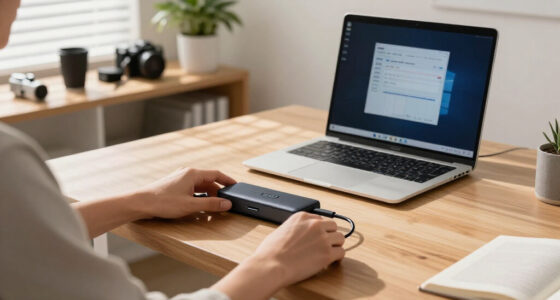
The biggest setup mistake that makes expensive monitors feel disappointing is neglecting proper ergonomic positioning and color calibration. If you don’t adjust the monitor height, angle, and distance, you’ll strain your neck and eyes, reducing comfort and clarity. Failing to calibrate colors also leads to unnatural images and visual fatigue. These issues prevent you from experiencing your monitor’s full potential. Keep going to discover how small adjustments can transform your viewing experience and satisfaction.
Key Takeaways
- Improper ergonomic positioning causes discomfort, reducing overall satisfaction with high-end monitors.
- Failing to calibrate the monitor leads to unnatural colors and poor image quality.
- Incorrect monitor height and angle increase eye and neck strain, diminishing viewing comfort.
- Neglecting calibration and ergonomic setup prevents users from experiencing the monitor’s full potential.
- Poor workspace arrangement reduces visual clarity and hampers long-term health benefits of expensive displays.
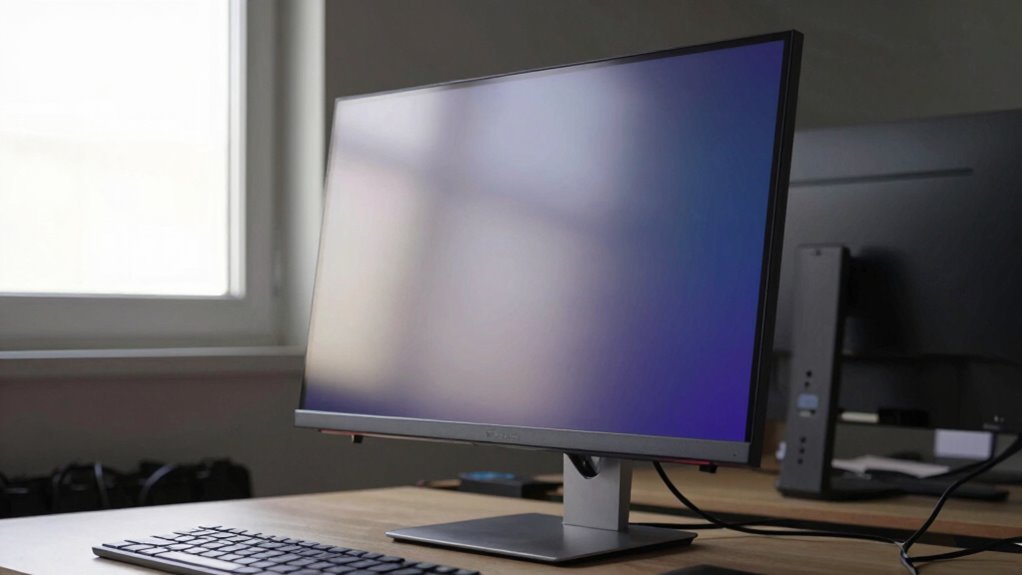
Even the most expensive monitors can fall short of your expectations if you set them up incorrectly. A common mistake is neglecting proper ergonomic positioning, which can lead to discomfort and fatigue, making even the best display feel less impressive. When you don’t adjust your monitor to the right height and angle, your neck and eyes strain, diminishing your overall experience. The ideal setup places the screen so that your eyes are level with the top third of the display, and you sit at a comfortable distance—usually about an arm’s length away. Failing to do this can cause you to lean forward or tilt your head, which not only hurts over time but also prevents you from appreciating the monitor’s true color accuracy and clarity. Additionally, ergonomic setup is crucial for long-term comfort and health, especially during extended viewing or work sessions. Ensuring your workspace is properly arranged can further reduce physical strain and enhance your overall comfort. Another overlooked aspect is color calibration. Even if your monitor boasts high resolution and a wide color gamut, these features won’t shine unless you calibrate it properly. Many people leave their monitors in default settings, assuming they’re accurate enough. But factory presets often exaggerate contrast or oversaturate colors, making images look artificial or overly vibrant. To get the most out of your display, you should run a color calibration using tools like calibration hardware or software. This guarantees that the colors you see are true to life, which is especially important if you do creative work, photo editing, or video production. Without proper calibration, you might find yourself disappointed with how your images or videos look, despite owning a premium monitor. Proper calibration can also help you avoid visual fatigue, which is a common issue when displays aren’t set up correctly. Recognizing the importance of proper setup can make a significant difference in your overall experience with high-end monitors. Paying attention to display settings can also optimize your viewing experience and reduce eye strain.
The mistake of neglecting ergonomic positioning and color calibration is simple but impactful. When you ignore these setup essentials, you’re not truly maximizing your monitor’s potential. You might think that a high-end display will automatically deliver perfect visuals and comfort, but that’s not the case. Proper ergonomic positioning reduces physical strain, allowing you to work longer and more comfortably. Meanwhile, accurate color calibration ensures you see your work as intended, giving you confidence in your color accuracy and detail. These small adjustments make a big difference in your overall experience, transforming a pricey display from a disappointment into a powerful tool that elevates your work and enjoyment. Remember, investing in a high-quality monitor is just the first step—setting it up correctly is what unleashes its full potential.
As an affiliate, we earn on qualifying purchases.
Frequently Asked Questions
How Can I Test My Monitor’s Display Quality Effectively?
To test your monitor’s display quality effectively, start by checking color accuracy with test images or calibration tools to guarantee colors are vibrant and true to life. Next, evaluate the refresh rate by playing fast-paced videos or games, noting if motion appears smooth without ghosting. Adjust settings as needed, and use software like DisplayHDR to confirm the display performs well across different scenarios.
What Are the Best Ergonomic Practices for Monitor Placement?
To create an ergonomic workspace, position your monitor at eye level to prevent neck strain, ensuring the top of the screen is just below eye height. Keep it about an arm’s length away for comfortable viewing. Adjust the monitor height so your neck stays neutral, and the screen is directly in front. This setup minimizes discomfort, boosts productivity, and helps you maintain good posture throughout your workday.
Does Monitor Size Impact Perceived Image Quality?
Yes, monitor size impacts perceived image quality, especially regarding resolution issues and viewing angles. Larger screens can reveal lower resolution flaws more clearly, making images look less sharp if the resolution isn’t high enough. Additionally, wider viewing angles are essential; if your monitor’s viewing angles are limited, colors and clarity may distort when viewed from different positions, causing disappointment regardless of the monitor’s size.
How Do I Calibrate My Monitor for Accurate Colors?
Think of your monitor as an artist’s palette; to get the true colors, you need to calibrate it. Use calibration tools like a colorimeter or software to fine-tune color accuracy. Start by resetting your display settings, then run the calibration process, adjusting brightness, contrast, and color temperature. This guarantees your monitor displays colors accurately, making your work look just as intended, whether for photography, design, or daily use.
What Common Accessories Improve Monitor Viewing Comfort?
To improve your monitor viewing comfort, consider using an adjustable monitor stand to set your screen at eye level, reducing neck strain. Adjust your screen brightness to match ambient light, minimizing eye strain caused by glare or flickering. Using an anti-glare screen protector can also help. Regular breaks and proper lighting further prevent eye fatigue, making your viewing experience more comfortable and less tiring.
As an affiliate, we earn on qualifying purchases.
Conclusion
To avoid disappointment, pay attention to your setup—adjust your monitor height, tweak your viewing angle, and optimize your workspace. Don’t settle for a great monitor that feels off; align your environment with your needs. When you prioritize comfort, clarity, and consistency, you elevate your experience. Remember, a well-placed monitor isn’t just about looks; it’s about feeling good, working efficiently, and enjoying every pixel. Make your setup work for you, not against you.
As an affiliate, we earn on qualifying purchases.
As an affiliate, we earn on qualifying purchases.