
If your text looks blurry, start by ensuring your display resolution matches your monitor’s native setting for sharpness. Next, check your font smoothing or ClearType settings—turn them on or calibrate for crisper, cleaner fonts. Finally, review your display scaling options; adjusting these can prevent text from appearing fuzzy, especially on high-resolution screens. Fixing these three settings usually makes a big difference, and if you keep exploring, you’ll find even more ways to improve your screen clarity.
Key Takeaways
- Ensure your display resolution matches the monitor’s native setting for sharp, clear text.
- Enable or adjust font smoothing (ClearType on Windows, font rendering on macOS) to improve text clarity.
- Check and modify display scaling settings to prevent text from appearing blurry or pixelated.
- Update graphics drivers to fix potential display rendering issues causing blurry text.
- Restart your device after changing settings to ensure improvements take effect properly.
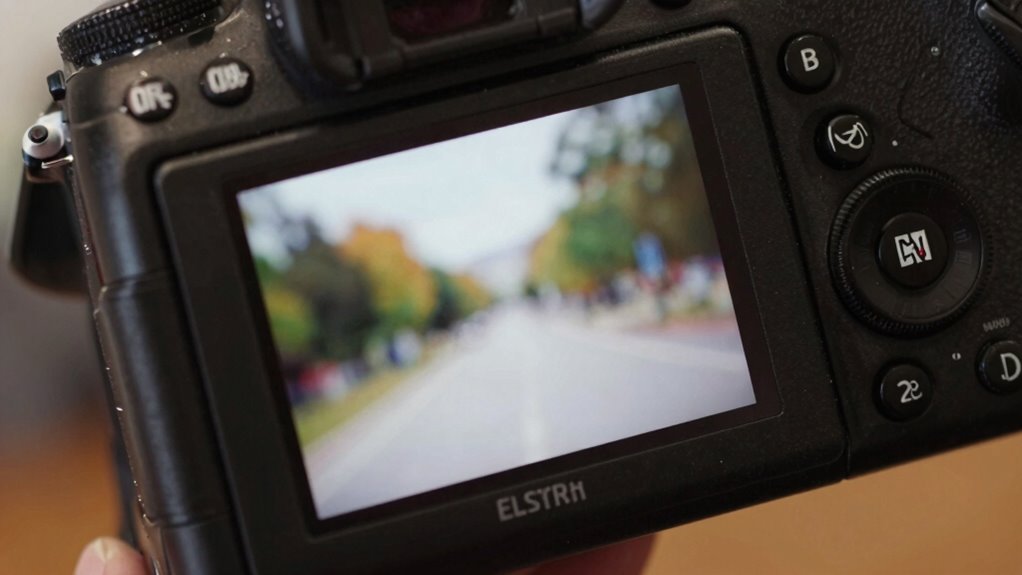
Have you ever stared at your screen only to find the text looks blurry and hard to read? It’s frustrating, especially when you’re trying to get work done or just enjoy browsing. Often, this issue stems from display settings like font smoothing and screen resolution. Adjusting these can dramatically improve text clarity, making your screen easier on the eyes.
Staring at a blurry screen? Adjust resolution and font smoothing for sharper, clearer text.
First, consider your screen resolution. If it’s set too low, images and text will appear pixelated or fuzzy. Your monitor has a native resolution – the one it’s designed to display ideally. Check your display settings and ensure you’re using this native resolution. On Windows, right-click on the desktop, select Display Settings, and look for the resolution dropdown. On macOS, go to System Preferences > Displays and select the best resolution for your monitor. Selecting the correct resolution ensures that each pixel is rendered sharply, preventing blurriness caused by stretching or scaling.
Next, font smoothing plays a crucial role in how crisp text appears. Font smoothing is a technique that makes fonts look smoother and more readable on digital screens. If it’s turned off or misconfigured, text can look jagged or blurry. On Windows, font smoothing is often managed through ClearType settings. You can find this by typing “ClearType” into the Start menu search bar and following the calibration wizard. This tool guides you through adjusting font smoothing for your display, enhancing text clarity. On macOS, font smoothing settings are usually optimized automatically, but you can tweak them via System Preferences > General, where you’ll find options related to font rendering. Turning on or adjusting font smoothing settings ensures text appears cleaner and easier to read.
Sometimes, the blurriness isn’t just about the settings but also about how the operating system scales content. If you’re using a high-resolution display with scaling enabled, it can sometimes cause text to appear less sharp. Adjust the scaling options to match your needs. For example, on Windows, under Display Settings, you can tweak the scaling percentage to find a balance between size and clarity. On Mac, scaling options are available in the same Display preferences. Additionally, understanding projector resolution and how it interacts with display settings can be crucial for optimal clarity when projecting content onto larger screens.

Datacolor SpyderExpress Monitor Calibrator & Screen Color Calibrator
- Quick and Easy Calibration: Precise color for photos and content creation
- Supports Latest Displays: Compatible with MacBook M4 mini-LED and Liquid Retina XDR
- Fast Setup: Calibrates in just 90 seconds for quick results
As an affiliate, we earn on qualifying purchases.
As an affiliate, we earn on qualifying purchases.
Frequently Asked Questions
How Can I Improve Text Clarity on High-Resolution Screens?
To improve text clarity on high-resolution screens, you should enable font smoothing, which reduces blurriness and makes text sharper. Adjust display scaling settings to guarantee text isn’t too small or overly enlarged, maintaining clarity. Check your device’s display settings and activate font smoothing options, often found in advanced display or graphics settings. These steps help your text appear crisper and more readable, enhancing your overall viewing experience.
Does Outdated Graphics Driver Cause Blurry Text Issues?
Outdated graphics drivers can cause blurry text issues, disrupting your visual experience. While your graphics card handles rendering, an outdated driver can lead to poor display quality. Updating your driver guarantees compatibility and sharpness. You should visit your GPU manufacturer’s website or use device management tools to check for updates. Keeping your graphics driver current not only improves clarity but also enhances overall performance and stability.
Can Adjusting Display Resolution Fix Blurry Text Problems?
Adjusting your display resolution can help fix blurry text issues, especially if scaling issues are involved. When you set the resolution to match your monitor’s native resolution, it reduces font smoothing problems and makes text clearer. Make certain that scaling settings are also appropriate; improper scaling can cause blurry text. By aligning resolution and scaling, you improve text sharpness, eliminating blurriness and enhancing overall display clarity.
Is There a Way to Reset Display Settings to Default?
Like turning back the clock to a simpler time, you can reset your display settings to default. Simply open your display settings, look for the “Reset” or “Restore Default Settings” option, and click it. This action will undo any custom adjustments and return your display to its original state, helping fix issues like blurry text. A quick reset can often restore clarity and improve your viewing experience.
Why Does Text Appear Blurry Only in Specific Applications?
You might notice blurry text in certain applications due to improper font smoothing or application scaling settings. Some apps don’t handle display scaling well, causing text to appear fuzzy. To fix this, adjust font smoothing options in your system settings and check if the application supports scaling correctly. You can also disable DPI scaling for specific apps, which often clears up blurry text and improves readability.
ClearType font smoothing software
As an affiliate, we earn on qualifying purchases.
As an affiliate, we earn on qualifying purchases.
Conclusion
So, next time your text looks blurry, won’t you try adjusting those three key settings? Whether it’s your display resolution, scaling, or font smoothing, these tweaks can make a huge difference. Imagine reading crisp, clear text instead of straining your eyes—doesn’t that sound better? Don’t settle for blurry visuals; take a moment to optimize your display. After all, why settle for less when perfect clarity is just a few clicks away?
high-resolution display scaling adjustment
As an affiliate, we earn on qualifying purchases.
As an affiliate, we earn on qualifying purchases.
Datacolor SpyderExpress Monitor Calibrator & Screen Color Calibrator
- Quick and Easy Calibration: Precise color for photos and content creation
- Supports Latest Displays: Compatible with MacBook M4 mini-LED and Liquid Retina XDR
- Fast Setup: Calibrates in just 90 seconds for quick results
As an affiliate, we earn on qualifying purchases.
As an affiliate, we earn on qualifying purchases.