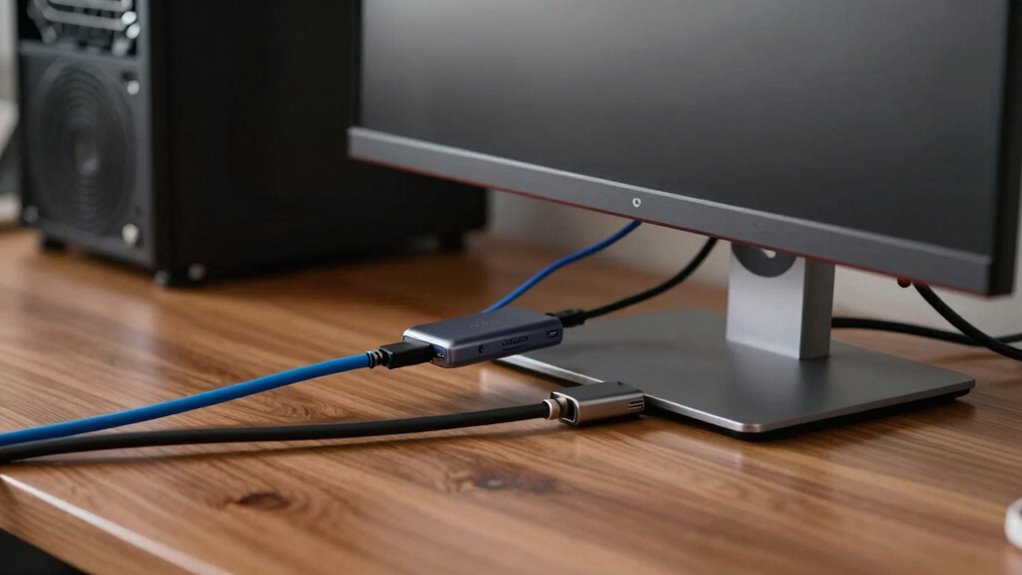
DisplayLink technology makes connecting multiple monitors via USB simple and affordable, boosting productivity by expanding your workspace. However, installing or updating drivers can sometimes cause new problems like flickering, display detection issues, or system conflicts. These issues often arise from incompatible hardware, outdated drivers, or security software blocking installation. If you keep working through these challenges, you’ll find solutions that improve performance—yet understanding the potential pitfalls can help you avoid them altogether.

Prime made for students and young adults
- Fast, free delivery for dorm and study essentials
- Prime Video and Amazon Music included
- Member-only deals
Key Takeaways
- DisplayLink hardware and drivers enable multi-monitor setups via USB but may cause display flickering or recognition issues.
- Installing or updating DisplayLink drivers can resolve connectivity problems but might conflict with existing graphics drivers.
- Compatibility issues, especially with USB-C ports, can lead to performance degradation or display detection failures.
- Security settings or antivirus software may block driver installation, creating additional troubleshooting challenges.
- Keeping drivers and system software up-to-date minimizes problems but improper updates can introduce new conflicts.
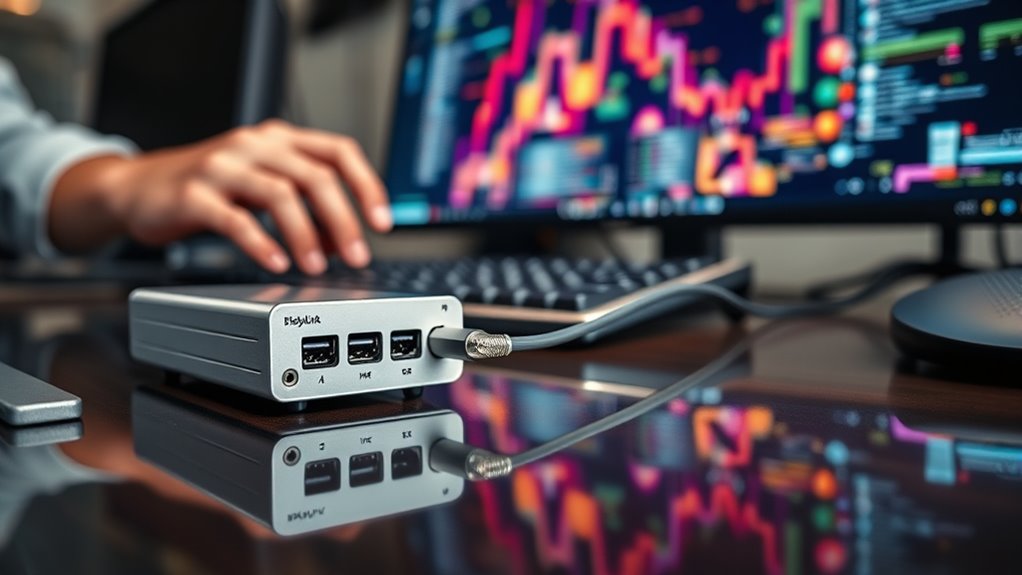
Have you ever wondered how multiple displays can be connected to a single computer effortlessly? DisplayLink technology makes this possible by providing a simple way to extend your screen real estate without upgrading your entire system. When you plug in a DisplayLink-enabled docking station or adapter, it communicates with your computer via USB, allowing you to connect multiple monitors without the need for dedicated graphics cards or complex setups. This convenience is especially appealing if you’re looking to maximize productivity or create a more immersive workspace. One of the key advantages of DisplayLink is its broad compatibility, including USB C compatibility. If your laptop or desktop features a USB-C port, you can often connect DisplayLink devices directly, reducing the need for additional adapters and making the setup cleaner and more streamlined. However, despite these benefits, some issues can arise, particularly around driver installation.
Driver installation issues are a common stumbling block when deploying DisplayLink solutions. While the technology is designed to be user-friendly, you may find yourself facing challenges with drivers not installing properly or conflicts with existing graphics drivers. These problems can manifest as displays not being recognized, flickering screens, or instability during use. Often, these issues stem from outdated drivers, incompatible operating systems, or security settings that block the installation process. To mitigate this, it’s recommended to download the latest DisplayLink drivers directly from the manufacturer’s website rather than relying on automatic updates or bundled software. Doing so ensures you’re using the most compatible and stable version for your system. Additionally, you should verify that your operating system is up to date, as outdated software can cause conflicts. Sometimes, a simple restart or a clean uninstall of previous driver versions can resolve these issues. Recognizing the importance of supporting diverse operating systems can help prevent compatibility problems down the line.
Despite its ease of use, DisplayLink’s reliance on drivers means it’s not entirely free of troubleshooting. Especially with USB C compatibility, issues can arise if your device’s hardware or firmware isn’t fully supported or if the port doesn’t supply enough power or bandwidth. This can lead to display detection problems or degraded performance. Also, some security policies or antivirus software may interfere with driver installations, requiring you to temporarily disable certain settings or run installations in administrator mode. While DisplayLink provides a flexible and scalable way to connect multiple monitors, it’s essential to be prepared for these potential driver-related issues. Understanding the importance of keeping drivers updated and ensuring compatibility can save you significant time and frustration, helping you enjoy the expanded workspace that DisplayLink promises.
DisplayLink USB multi-monitor adapter
As an affiliate, we earn on qualifying purchases.
As an affiliate, we earn on qualifying purchases.
Frequently Asked Questions
Does Displaylink Support 4K or Higher Resolution Displays?
Yes, DisplayLink supports 4K and higher resolution displays, but your experience depends on resolution limitations and hardware compatibility. Make certain your graphics card and USB ports can handle the high data transfer rates needed for 4K. Some older hardware may struggle, leading to performance issues or lower resolutions. Check your device specifications and DisplayLink’s compatibility list to confirm your setup can reliably support 4K or higher displays.
Can Displaylink Be Used With Gaming or High-Performance Applications?
You can use DisplayLink for gaming or high-performance applications, but it’s not ideal. It may handle casual gaming well, but it often struggles with gaming performance and high refresh rates due to bandwidth limitations. For smooth graphics and responsive gameplay, dedicated gaming hardware is better. DisplayLink works best for productivity tasks and extending displays, not for demanding gaming or high-performance applications where low latency and high refresh rates are vital.
Is Displaylink Compatible With All Operating Systems?
Think of DisplayLink as a chameleon—its compatibility depends on the operating system you’re using. It’s not a one-size-fits-all solution; software compatibility varies, and driver updates are essential for smooth sailing. You’ll find it works best with Windows and macOS, but Linux support can be hit or miss. To keep everything running seamlessly, stay on top of driver updates and check compatibility before diving in.
How Secure Is Data Transmitted Through Displaylink Adapters?
Data transmitted through DisplayLink adapters is generally secure due to data encryption protocols. However, you should perform regular vulnerability assessments to identify potential security gaps. While encryption helps protect your information, no system is entirely invulnerable. Keep your drivers and software updated, and follow best security practices to minimize risks. This proactive approach guarantees your data remains safe during transmission via DisplayLink adapters.
What Are Common Troubleshooting Steps for Displaylink Connection Issues?
You might think troubleshooting DisplayLink connection issues is complicated, but start by updating your drivers and checking your cable quality. First, verify your drivers are the latest version, as outdated ones often cause problems. Next, inspect your cable for damage or low quality, replacing it if needed. Restart your device and reconnect the adapter. These simple steps often resolve most connection issues quickly and effectively.
DisplayLink driver update for Windows
As an affiliate, we earn on qualifying purchases.
As an affiliate, we earn on qualifying purchases.
Conclusion
In the end, understanding DisplayLink helps you make smarter choices and avoid potential pitfalls. While it offers great flexibility, it’s important to weigh the benefits against the risks. Remember, “a problem shared is a problem halved,” so stay informed and prepared. By knowing both its advantages and limitations, you can navigate technology with confidence and ensure your setup works smoothly without unexpected issues. Stay vigilant and keep learning—your tech’s health depends on it.
DisplayLink docking station with USB-C
As an affiliate, we earn on qualifying purchases.
As an affiliate, we earn on qualifying purchases.
Display flickering fix for DisplayLink
As an affiliate, we earn on qualifying purchases.
As an affiliate, we earn on qualifying purchases.
Fall Picks
fall essentials
As an affiliate, we earn on qualifying purchases.


![Competitive Programmer's Handbook (2018) [Pdf]](https://haltmal.com/wp-content/uploads/2026/10/competitive-programmer-s-handbook-2018-pdf-featured-560x300.jpg)