
Printer failures often stem from simple issues like paper jams, misaligned paper, or using the wrong paper type. Driver problems, outdated firmware, or worn-out components can also cause breakdowns or unclear prints. Regular maintenance, keeping software updated, and handling paper carefully can prevent many problems. If you want to understand all the common causes and solutions, there’s more to discover that can help keep your printer running smoothly.
Key Takeaways
- Paper jams caused by overloading, wrinkled paper, or debris are common printer failures that disrupt operation.
- Poor maintenance, such as dirty rollers or worn parts, leads to feeding issues and paper jams.
- Outdated drivers, firmware, or software conflicts can cause malfunctions and printing errors.
- Internal hardware components like print heads and sensors may fail or need repairs over time.
- Using incorrect or low-quality paper increases the risk of jams and damage to printer parts.

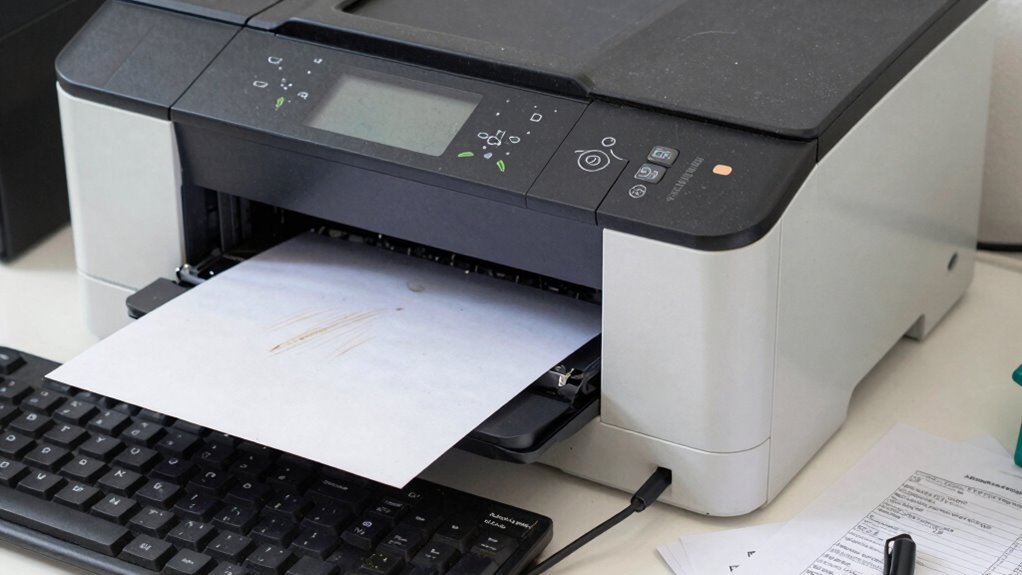
Paper jams are another frequent reason printers suddenly stop working. If you see paper stuck inside or a jam error message on your screen, don’t panic. First, turn off the printer and unplug it to avoid damaging sensitive components. Carefully open the printer cover and look for any crumpled or misaligned paper. Gently remove jammed paper, making sure not to tear it, as leftover pieces can cause additional jams. Check the rollers for dust or debris, which can prevent smooth paper feeding. Cleaning the rollers with a soft cloth and a bit of water or isopropyl alcohol can improve grip and reduce future jams. Always use the correct type and size of paper recommended for your printer—overloading the tray or using wrinkled paper increases jam risks. Regular maintenance like clearing paper trays and inspecting rollers can prevent many jam occurrences, saving you time and frustration. Proper printer maintenance and using quality paper can significantly reduce paper jam issues. Beyond ink issues and paper jams, other causes often include driver problems, outdated firmware, or hardware failures. Keeping your printer’s software up-to-date ensures compatibility and smooth operation. If your printer still won’t start after resolving ink and paper issues, consider resetting it or consulting the manufacturer’s troubleshooting guide. In some cases, internal components like the print head or sensors may need professional repair or replacement. Regular maintenance, such as cleaning the rollers and checking ink levels, helps keep your printer in top shape. By understanding these common failure points and how to troubleshoot them, you can avoid many breakdowns and keep your printer running smoothly when you need it most.
Frequently Asked Questions
How Often Should I Replace My Printer’s Cartridges?
You should replace your printer’s cartridges when the ink cartridge lifespan or toner replacement schedule indicates they’re empty. Typically, ink cartridges last for about 200-300 pages, but it varies with usage. Keep an eye on your printer’s alerts or check ink levels regularly. For toner, replace it after printing roughly 2,000 pages. Regularly monitoring these schedules helps prevent printing failures and guarantees consistent quality.
Can Software Updates Fix Printer Hardware Issues?
Think of software updates as a band-aid for software glitches; they can fix some issues but not all. Firmware updates can address certain hardware-related problems, but they won’t repair worn-out parts or mechanical failures. So, if your printer’s hardware is failing, updating the firmware might improve performance temporarily, but it’s not a cure-all. You’ll still need to replace or repair the hardware for a lasting fix.
What Is the Average Lifespan of a Typical Printer?
You can expect a typical printer to last about 3 to 5 years, depending on usage and maintenance. Printer durability varies, so if you care for it well, it might last longer. Keep an eye on ink cartridge lifespan, as running out unexpectedly can shorten its usefulness. Regular cleaning and updates help extend your printer’s life, ensuring you get the most out of your investment.
How Do I Troubleshoot Wi-Fi Connection Problems?
To troubleshoot Wi-Fi connection problems, start by checking your wireless troubleshooting steps: confirm your printer is within range, restart your router and printer, and reconnect to your network. Verify network security settings to prevent unauthorized access. Also, update your printer’s firmware and driver software. If issues persist, reset your network settings and reconfigure the connection, ensuring your Wi-Fi credentials are correct and your network isn’t blocking the printer.
Are There Eco-Friendly Printer Maintenance Options Available?
You can choose eco-friendly printer maintenance options like using eco-friendly ink and embracing sustainable printing practices. These options reduce your environmental impact and promote greener habits. By selecting recycled paper, opting for refillable cartridges, and maintaining your printer regularly, you support sustainability. While traditional maintenance focuses on performance, eco-conscious choices prioritize environmental health—making your printing process both efficient and eco-friendly, ultimately benefiting the planet.
Conclusion
If you think printers are just stubborn machines, think again. They’re secretly plotting against you, waiting for the worst moment to jam or run out of ink. But now that you know the real causes, you can outsmart these sneaky gadgets. Don’t let a simple paper jam or low ink ruin your day—because with the right know-how, you’ll conquer any printer meltdown. Remember, you hold the power to defeat these tiny, ink-stained villains!