
To avoid underpowering your laptop with USB-C Power Delivery, choose certified chargers and high-quality cables that support your device’s wattage needs. Use a power meter to monitor real-time power flow and guarantee you’re receiving the proper wattage for peak performance. Keep in mind, incompatible or low-capacity chargers slow charging and may harm your device. Staying informed about best practices helps protect your laptop—continue to explore how to maximize your setup for safe, efficient power.
Key Takeaways
- Use a certified USB-C charger that matches your laptop’s required wattage for optimal power delivery.
- Ensure your USB-C cable supports high wattage and is compatible with your device’s charging standards.
- Verify the charger supports USB Power Delivery (PD) and negotiate power levels correctly with your laptop.
- Utilize a power meter to monitor real-time wattage and confirm your device receives adequate power.
- Avoid mixing incompatible or low-capacity chargers and cables to prevent underpowering and ensure efficient charging.
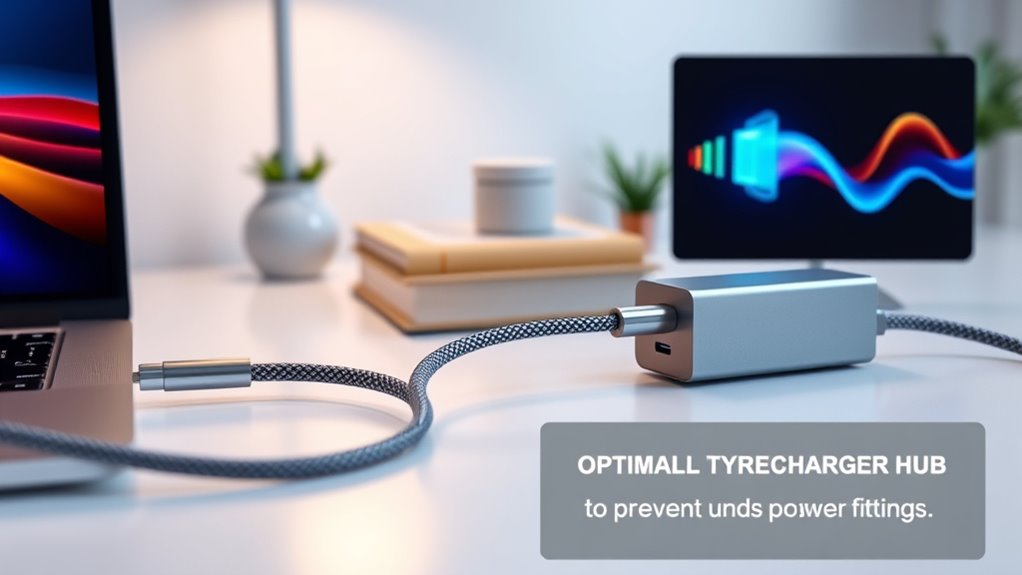
Have you ever wondered how your devices charge so quickly and efficiently? The secret lies in advanced power delivery technologies like USB-C Power Delivery (PD). This protocol enables fast charging, allowing your devices to reach full battery levels in a fraction of the time traditional chargers take. But to truly harness its benefits, you need to understand how it works and avoid underpowering your laptop. Using power meters can be a game-changer here, giving you real-time insights into the power flow and helping guarantee your device receives the best amount of energy.
Discover how USB-C Power Delivery ensures fast, efficient charging and how power meters help optimize your device’s performance.
When you connect a compatible USB-C charger, the device communicates with the power source to negotiate the best charging rate. This negotiation is what makes fast charging possible, but if your charger or cable isn’t up to the task, your laptop might not get enough power to operate efficiently or charge properly. That’s where power meters come into play. By plugging your setup into a power meter, you can verify how much wattage your laptop receives during use or charging. This prevents scenarios where your device underperforms because it’s not getting the full power it needs, especially when you’re working on resource-intensive tasks.
To avoid underpowering your laptop, verify your charger supports the necessary power levels for your device. Many laptops require higher wattages—sometimes 65W, 90W, or even more—so using a basic or lower-capacity charger won’t cut it. With a power meter, you can check if the charger delivers the claimed wattage and adjust accordingly. If it doesn’t, upgrading to a higher-capacity charger that supports USB-C Power Delivery ensures your laptop gets the juice it needs for fast, reliable performance.
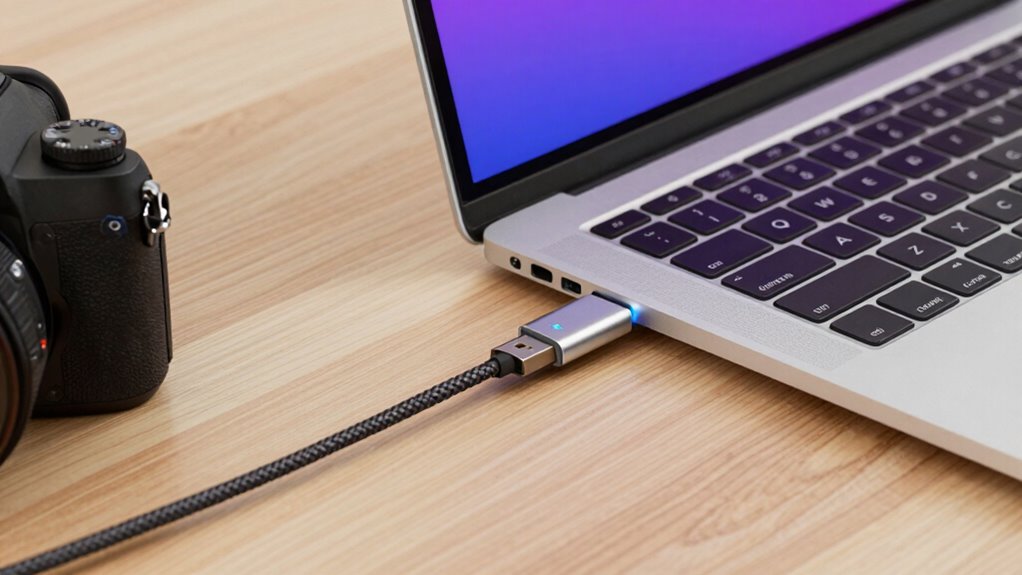
Another important aspect is choosing the right cable. Not all USB-C cables are created equal; some can’t handle high wattages or fast charging speeds. Using certified, high-quality cables verified for fast charging and power delivery prevents power loss and ensures safe, efficient energy transfer. When you combine a proper charger, the right cable, and a power meter to monitor the flow, you considerably reduce the risk of underpowering your laptop. Additionally, understanding Floating on Water concepts can help in designing better cooling solutions for high-performance devices, ensuring they stay within optimal temperature ranges during heavy use.
In essence, understanding how fast charging works and taking steps to monitor power flow helps you maximize your device’s performance. Don’t just rely on the charger’s claims—use power meters to verify the actual power your laptop receives. That way, you’re safeguarding your device’s health, ensuring it charges quickly, and stays powered up during your busiest days.
Frequently Asked Questions
Can I Charge Multiple Devices Simultaneously With USB-C Power Delivery?
Yes, you can charge multiple devices simultaneously with USB-C Power Delivery, but you’re limited by the USB-C port’s power output. Multi-device charging works best if your charger provides enough wattage to handle all connected devices without underpowering any of them. Keep in mind the USB-C port limitations; if the port isn’t designed for multi-device charging, it might not deliver sufficient power, resulting in slower charging or underpowered devices.
What Are the Signs of Underpowering a Laptop via USB-C?
If your laptop experiences power fluctuation or battery draining faster than usual, it’s a sign you might be underpowered via USB-C. You may notice slower charging or the laptop shutting down unexpectedly, which can harm your battery health over time. Keep an eye on these signs, and verify you’re using a compatible, higher wattage charger to prevent underpowering and protect your device’s longevity.
Is USB-C Power Delivery Compatible With All Laptop Brands?
You might think USB-C Power Delivery is universally compatible, but that’s not always true. Some laptop brands rely on brand-specific chargers or proprietary ports, making universal chargers incompatible or less effective. Always check your laptop’s specifications and verify the charger supports Power Delivery at the correct wattage. While many devices work with USB-C PD, using the right charger prevents underpowering and keeps your laptop running smoothly.
How Do I Verify My Charger’s Wattage Output?
To verify your charger’s wattage output, look at the charger’s label or specifications printed on it. It typically displays the power output in watts (W) or provides voltage (V) and current (A), which you can multiply to find wattage. For accurate power output verification, compare these figures with your laptop’s recommended charger wattage. This ensures you’re using a compatible charger that provides sufficient power for maximum performance.
Can Using a Lower Wattage Charger Damage My Laptop?
Using a lower wattage charger can potentially harm your laptop if it’s not compatible, as it may not supply enough power during intensive tasks, causing performance issues or charging problems. Always verify your charger’s wattage and make sure it’s compatible with your device. Double-check wattage verification and charger compatibility to prevent underpowering, which can lead to overheating or battery wear. When in doubt, use the recommended charger for safe and reliable operation.
Conclusion
To keep your laptop running smoothly, it’s best to choose the right USB-C power delivery setup. By paying attention to your charger’s wattage and compatibility, you guarantee your device gets just the right amount of power—nothing more, nothing less. Remember, sometimes a little extra care in your setup can lead to a more seamless experience. After all, a well-powered laptop is like a well-tended garden—thriving quietly beneath the surface.