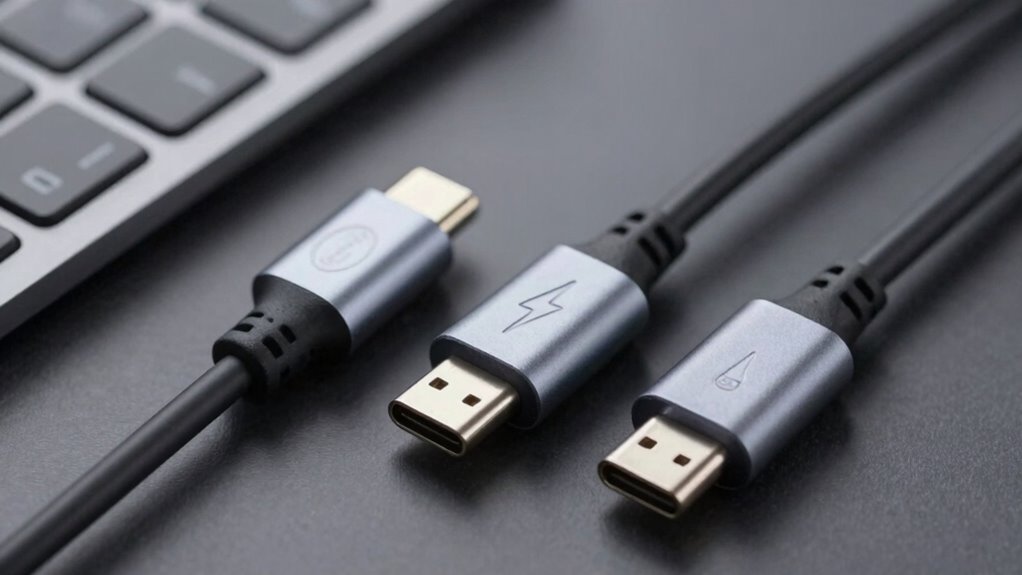

Understanding the differences between USB-C, Thunderbolt, and DisplayLink helps you choose the right connection for your devices. USB-C is versatile, supporting charging, data transfer, and basic display options, while Thunderbolt offers much higher speeds—up to 40 Gbps—and better performance for demanding tasks like video editing or external GPUs. DisplayLink focuses on expanding your workspace with multiple displays without sacrificing performance. Stick around to explore how each technology impacts your setup and compatibility.
Listen free for 30 days with Audible
Thousands of audiobooks and originals — cancel anytime.
As an affiliate, we earn on qualifying purchases.
Key Takeaways
- USB-C is a versatile port supporting various standards for data, power, and display, ensuring broad device compatibility.
- Thunderbolt builds on USB-C, offering higher data transfer speeds (up to 40 Gbps) and advanced features like daisy-chaining.
- DisplayLink focuses on connecting multiple displays via USB, prioritizing display expansion over data speed or power delivery.
- Compatibility depends on the specific standard supported by the device, affecting data transfer rates, charging, and display options.
- Choosing the right technology depends on workflow needs: high-speed data transfer (Thunderbolt), versatile connectivity (USB-C), or multiple displays (DisplayLink).
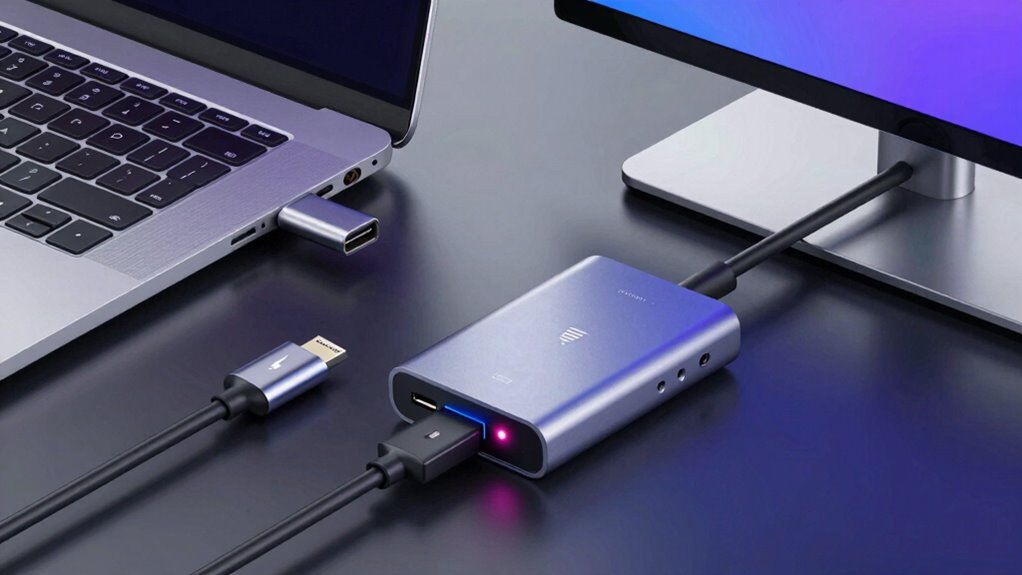
In today’s tech landscape, understanding the differences between USB-C, Thunderbolt, and DisplayLink is vital for optimizing your device connections. Each of these technologies has distinct capabilities that impact how you connect peripherals, transfer data, and charge your devices. Recognizing their differences helps you choose the right solution for your needs, whether you’re syncing files, powering up your laptop, or connecting multiple displays.
USB-C is the most common port on modern devices, known for its versatility. It supports device charging, allowing you to power your device and peripherals through a single cable. When it comes to data transfer speed, USB-C varies depending on the specific standard it adheres to. For example, USB 3.1 Gen 2 can transfer data at up to 10 Gbps, while USB4 and Thunderbolt 3/4 over USB-C can reach up to 40 Gbps. This means that if you’re working with large files or high-bandwidth applications, selecting a higher data transfer rate is vital to avoid bottlenecks. USB-C’s widespread availability and compatibility make it a convenient choice, but knowing its data transfer limits helps you avoid frustration when dealing with intensive data tasks. Additionally, standard compatibility ensures seamless operation across different devices and accessories, especially as standards continue to evolve.
USB-C offers versatile device charging and data transfer up to 40 Gbps with USB4 and Thunderbolt 3/4 standards.
Thunderbolt, specifically Thunderbolt 3 and 4, builds on USB-C’s foundation but offers greatly enhanced performance. It supports ultra-fast data transfer speeds up to 40 Gbps, making it ideal for professional workflows involving large files, 4K or 8K video editing, and external GPU setups. Thunderbolt also supports device charging, but it’s optimized for high power delivery, allowing you to fast-charge compatible laptops and peripherals. The key advantage here is not just the speed but also the ability to daisy-chain multiple devices through a single port without sacrificing performance. If you frequently work with large multimedia files or require minimal latency, Thunderbolt’s higher data transfer speeds and power capabilities make it the superior choice, especially for demanding tasks. Understanding the compatibility with peripherals can help ensure you maximize the benefits of Thunderbolt technology.
DisplayLink, on the other hand, is a technology designed primarily for connecting multiple displays via USB connections. It doesn’t focus on device charging or raw data transfer speeds but specializes in providing flexible video output options. DisplayLink adapters let you connect additional monitors to your laptop or desktop, even if your device doesn’t have multiple video ports. While DisplayLink doesn’t match Thunderbolt or USB-C in data transfer speed, it’s highly valuable for expanding your workspace without upgrading your hardware. It’s a practical solution if your priority is multiple display support over maximum data transfer speeds or device charging. Understanding these distinctions ensures you pick the right technology that matches your workflow, whether that’s rapid data movement, power delivery, or display expansion.
As an affiliate, we earn on qualifying purchases.
Frequently Asked Questions
Can I Use USB-C for Charging and Data Transfer Simultaneously?
Yes, you can use USB-C for charging and data transfer simultaneously. It supports Power Delivery, allowing your device to charge quickly while syncing data. Modern USB-C ports are designed for both functions at once, so you don’t need to choose between them. Just make certain your cable and device support Power Delivery and data synchronization, and you’ll enjoy seamless charging and data transfer without any issues.
Are All USB-C Ports Capable of Thunderbolt or Displaylink Functions?
Not all USB-C ports are compatible with Thunderbolt or DisplayLink functions. Compatibility myths often lead people to believe every port offers the same versatility, but that’s not true. Some USB-C ports support only basic data transfer and charging, while others are equipped for Thunderbolt or DisplayLink features. Check your device specifications to confirm port capabilities, ensuring you get the port versatility you need for high-speed data, video, or external displays.
How Do I Identify Which Technology My Device Supports?
You can identify your device’s supported technology through port identification. Check your device’s specifications or user manual, often available online, to see if it mentions Thunderbolt, USB-C, or DisplayLink support. Look closely at the port itself—Thunderbolt ports usually have a lightning bolt icon, while other USB-C ports might lack this. Confirming these details guarantees device compatibility and helps you select the right accessories.
Do All Monitors With USB-C Support Daisy Chaining?
Not all monitors with USB-C support daisy chaining. To determine if you can connect multiple monitors through a single port, check if your monitor’s specifications mention daisy chaining or DisplayPort Multi-Stream Transport (MST). If supported, you can expand your monitor connectivity by connecting one monitor to another. If not, you’ll need separate connections for each monitor, limiting your display setup options.
Is There a Speed Difference Between Thunderbolt and USB-C?
Yes, there’s a speed difference. Thunderbolt offers faster data transfer speeds, with benchmarks reaching up to 40Gbps, making it ideal for high-performance tasks. USB-C, depending on the version, typically maxes out at 10-20Gbps. Your choice depends on hardware compatibility and your needs; if speed is critical, Thunderbolt is the better option. Always check device specifications to confirm your hardware supports the desired transfer rates.
As an affiliate, we earn on qualifying purchases.
Conclusion
Understanding the differences between USB-C, Thunderbolt, and DisplayLink isn’t just technical jargon; it’s the key to accessing seamless compatibility. Think of it as choosing the right path in a maze—you’ll avoid dead ends and reach your destination faster. By knowing what each technology offers, you empower yourself to make smarter choices and avoid frustrating surprises. So, next time you connect your devices, remember: the right connection isn’t just a feature, it’s your gateway to effortless productivity.
DisplayLink multi-monitor docking station
As an affiliate, we earn on qualifying purchases.
As an affiliate, we earn on qualifying purchases.
As an affiliate, we earn on qualifying purchases.
NFL season / tailgating Picks
team gear
As an affiliate, we earn on qualifying purchases.