To prevent returns with your dock and KVM switch, check their compatibility with your devices first. Make certain they support your required standards like USB-C, Thunderbolt, HDMI, or DisplayPort, and match your device ports. Confirm firmware updates and operating system compatibility, and verify peripheral support for monitors, drives, and accessories. Matching device specs to your setup is key. Keep these factors in mind, and you’ll reduce the chance of problems—more details can help you make the right choice.
Key Takeaways
- Verify the dock or KVM supports your device’s required connection standards (USB-C, HDMI, DisplayPort, Thunderbolt).
- Ensure firmware and driver updates are current for optimal compatibility and performance.
- Confirm OS support and check for any specific setup instructions or known issues.
- Match physical connector types and verify peripheral support, including monitors and USB devices.
- Review device specifications to ensure compatibility with your ecosystem and setup requirements.
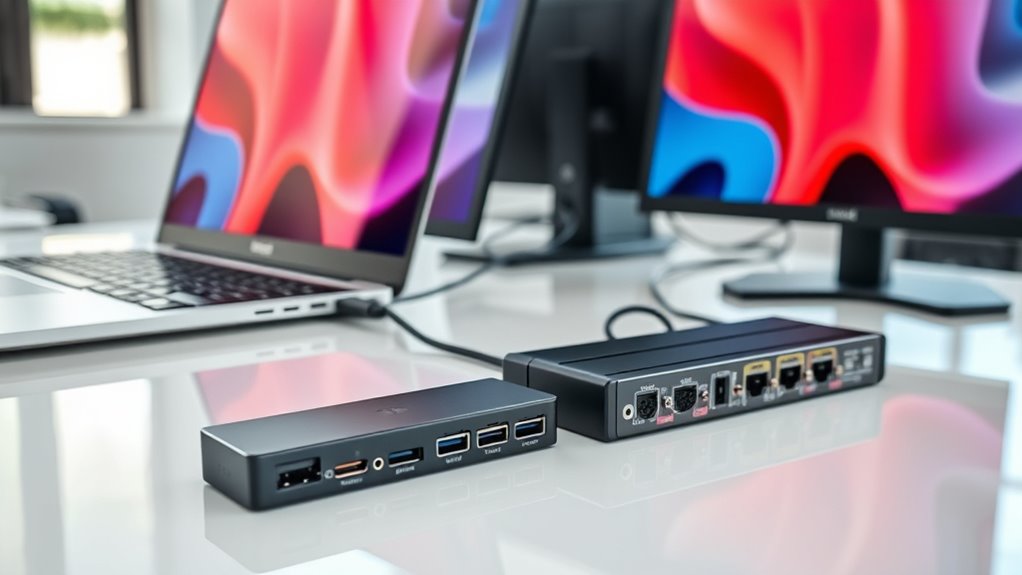
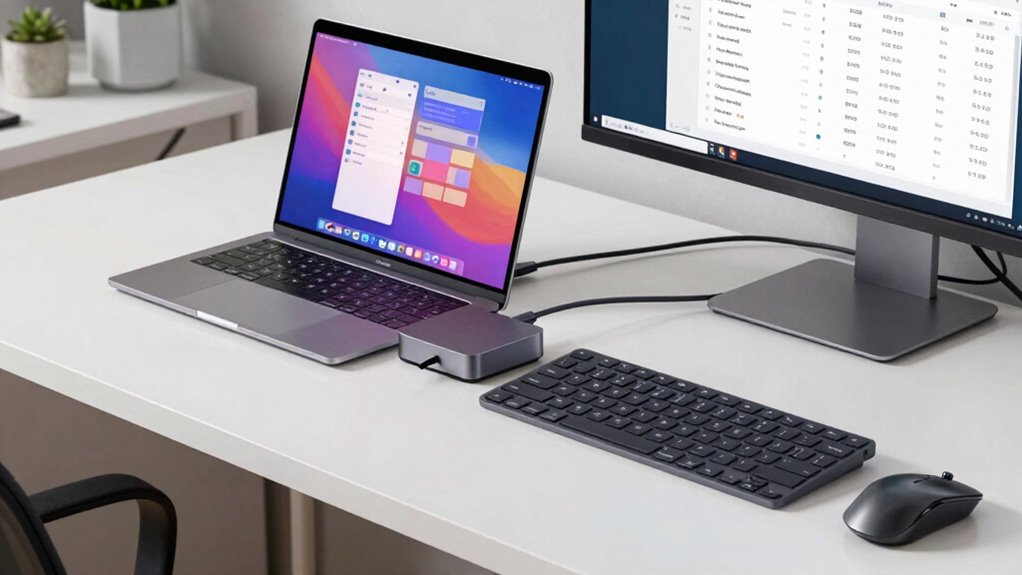
When choosing a dock or KVM switch, guaranteeing compatibility with your devices is vital for seamless performance. One of the key factors to contemplate is whether the device adheres to the right adapter standards. These standards define how connections are made and how data is transmitted between your peripherals and your computer. If the dock or KVM switch doesn’t support the adapter standards your devices use, you might face connectivity issues, slow data transfer, or even complete device failure. To avoid this, double-check the specifications and guarantee the switch supports common standards like USB-C, Thunderbolt, HDMI, or DisplayPort, depending on what your setup requires. Compatibility isn’t just about physical connectors; it also involves software and firmware support, which can often be overlooked. Ensuring your devices meet the compatibility standards will help maintain a reliable connection over time. Firmware updates play a vital role in maintaining device compatibility over time. Manufacturers regularly release firmware updates to improve functionality, fix bugs, and enhance compatibility with new devices or standards. Before purchasing, verify if the manufacturer offers reliable firmware updates for the model you’re considering. If you already own a device, keeping the firmware current can resolve many compatibility issues that may arise from outdated software. Outdated firmware might not recognize newer peripherals or could cause instability, leading to frustrating troubleshooting or returns. Regularly checking for updates and applying them as recommended guarantees your dock or KVM switch continues to work smoothly with your evolving device ecosystem. Additionally, consider the compatibility of your operating system. Some docks and KVM switches are optimized for specific OS versions, and using incompatible hardware can cause connectivity problems or limited functionality. Read the product documentation carefully to confirm compatibility with your OS, and look for user reviews from others who use the same system. This can provide insights into potential pitfalls or unique configuration steps needed for your environment. Finally, don’t overlook the importance of compatibility with your peripherals. If you’re connecting multiple monitors, keyboards, mice, or external drives, verify that the device can support your setup’s specific requirements. This includes checking the maximum number of supported displays, resolution limits, and peripheral power delivery. Ensuring all these elements align with your needs reduces the risk of returns and technical headaches later on.
Frequently Asked Questions
Can I Use Multiple KVM Switches Simultaneously?
Yes, you can use multiple KVM switches simultaneously for multi switch setups, allowing you to switch control between different sets of devices effortlessly. Just make certain your KVM switches are compatible with your hardware and support simultaneous control if needed. Keep in mind that not all switches work seamlessly together, so check compatibility to prevent issues. This setup grants you flexible, efficient management of multiple computers or servers.
What Is the Maximum Resolution Supported by Compatible Docks?
Most compatible docks support a maximum resolution of 4K at 30Hz or 60Hz, depending on the model. To guarantee your display’s resolution limits are met, check the dock’s specifications for display compatibility. Keep in mind, some docks may support higher resolutions like 5K or multi-monitor setups. Always verify the dock’s resolution limits before purchasing to avoid display issues and ensure your setup works seamlessly.
Are Older Laptops Compatible With Modern KVM Switches?
Older laptops can be compatible with modern KVM switches, but you might face compatibility challenges due to legacy hardware. These challenges often stem from outdated ports or lower resolutions that modern switches no longer support seamlessly. To avoid issues, check your laptop’s port types and resolution capabilities against the KVM switch specifications. If needed, consider adapters or upgraded hardware to guarantee smooth compatibility and prevent frustration.
How Do I Troubleshoot Audio Issues With a Dock and KVM?
To troubleshoot audio issues with a dock and KVM, first check dock compatibility with your devices, ensuring it supports audio output. Then, verify your audio settings in your operating system, making sure the correct output device is selected. Test the dock’s audio connection with different cables or ports, and update your device drivers. If problems persist, restart your system and consult the dock’s manual for specific troubleshooting steps.
Do All Docks Support USB-C and Thunderbolt KVM Functions?
Not all docks support USB-C and Thunderbolt KVM functions—some are as limited as a puddle in a storm. USB-C limitations often mean slower data transfer or fewer supported displays, while Thunderbolt compatibility requires specific hardware. Before buying, check if your dock explicitly states Thunderbolt support. This guarantees seamless KVM switching and high-speed performance. Don’t assume all docks are created equal; verify compatibility to avoid disappointment and tech headaches.
Conclusion
By checking compatibility now, you save yourself from future frustrations—think of it as your own personal shield against the chaos of returns. Just like the wise captain who charts a safe course, you’re ensuring everything works seamlessly, avoiding the stormy seas of tech issues. When you prioritize compatibility, you’re not just making a smart purchase; you’re securing peace of mind for the journey ahead. Trust this checklist, and sail smoothly into your tech future.