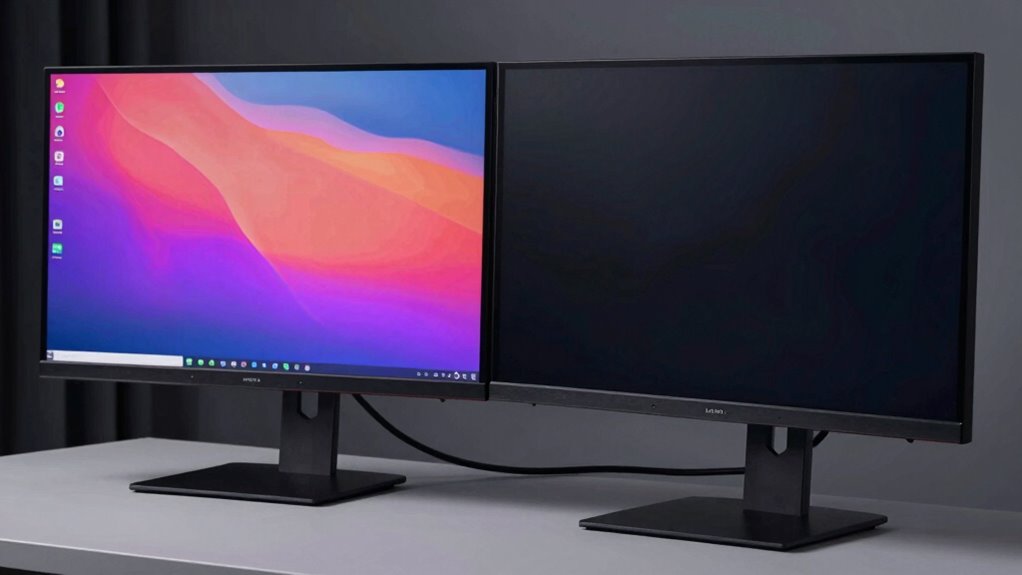

If your second monitor won’t wake up, it’s often due to hardware issues like loose cables or faulty ports, outdated or corrupted graphics drivers, or incorrect display settings and power-saving modes. You might need to check connections, update or reinstall drivers, or reset display configurations. Sometimes, BIOS settings or system updates play a role. Still struggling? Keep exploring – you’ll find more tips to troubleshoot and fix the problem effectively.
Key Takeaways
- Check physical connections and cables to ensure proper communication between the monitor and system.
- Update or reinstall graphics drivers to fix compatibility issues affecting monitor wake-up.
- Verify display and power management settings to disable sleep timers and enable automatic wake functions.
- Use display detection tools or BIOS settings to ensure the system recognizes the second monitor.
- Inspect hardware for faults and contact support if software troubleshooting fails to resolve the issue.
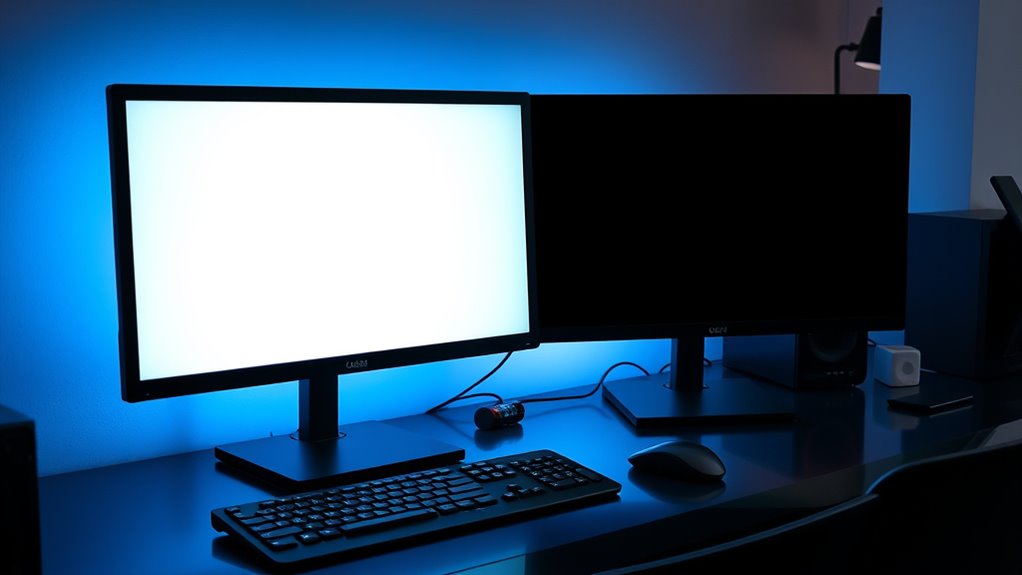
If your second monitor refuses to wake up, it can be frustrating, especially when you’re trying to work or game smoothly. Often, the problem stems from hardware issues or outdated drivers that prevent your monitor from properly communicating with your system. To troubleshoot effectively, you need to understand how these factors interfere with your display’s wake-up process.
Hardware issues are a common culprit when a second monitor stays black or remains unresponsive. Loose or damaged cables, faulty ports, or a malfunctioning monitor can cause the device to fail to wake. Before diving into software fixes, check all physical connections. Ensure that the video cable is securely plugged into both the monitor and your computer. If you’re using adapters, verify they’re functioning correctly. Sometimes, a damaged cable or port can be the root cause, so try swapping cables or testing the monitor on another device to rule out hardware failure.
Driver updates are equally essential. Your graphics card drivers act as the bridge between your system and the monitor. Outdated or corrupted drivers can lead to display issues, including the monitor not waking up properly. Regularly check for updates from your GPU manufacturer’s website or through your device manager. Installing the latest drivers often resolves compatibility issues that prevent the monitor from waking. Once updated, restart your computer to ensure the new drivers are properly loaded.
In addition to hardware checks and driver updates, consider adjusting your display settings. Sometimes, power-saving modes or specific display configurations can interfere with wake-up signals. Disable any sleep timers or power-saving features that might put the monitor into a deep sleep mode. You can also try resetting your display settings to default to eliminate configuration conflicts.
Another step is to verify your system’s display detection. On Windows, right-click the desktop, select “Display settings,” and see if your second monitor appears. If it doesn’t, click “Detect” to force the system to recognize it. If detection fails, reinstalling your graphics drivers or performing a system update might help. Also, check your system’s BIOS settings to ensure that multiple displays are enabled and configured correctly.
Finally, don’t overlook the importance of keeping your operating system updated. Updates often include fixes for hardware compatibility and driver management that can resolve wake-up issues. Regular maintenance, including hardware inspections and software updates, will keep your system running smoothly and prevent future monitor wake-up problems. Additionally, understanding the importance of color accuracy in your setup can help optimize the overall display performance, especially when troubleshooting display issues. If all else fails, contacting technical support might be necessary, as persistent hardware faults could require professional repair or replacement.
Frequently Asked Questions
Can a Faulty HDMI or Displayport Cable Cause Monitor Wake Issues?
Yes, a faulty HDMI or DisplayPort cable can cause monitor wake issues. Poor cable quality or connector issues disrupt the signal transfer, making it seem like your monitor isn’t waking up. Check for bent or loose connectors, and try swapping the cable with a known good one. Ensuring you use high-quality cables helps prevent these problems and keeps your monitor responsive when waking up.
Does Outdated Graphics Card Firmware Affect Second Monitor Wake-Up?
Imagine your graphics card as a conductor guiding your display orchestra. Outdated firmware can throw this harmony off, causing your second monitor to stay asleep. Driver updates are essential to make sure firmware compatibility, preventing miscommunications that hinder wake-up signals. Keep your graphics card firmware current, and you’ll help your monitor recognize commands smoothly, like a well-rehearsed symphony, ensuring it wakes promptly whenever you need it.
How Do Power Supply Issues Impact Monitor Responsiveness?
Power supply issues can considerably impact your monitor’s responsiveness. Power fluctuations and electrical surges can cause inconsistent power delivery, leading to your monitor not waking up properly. If your power supply isn’t stable, it may result in delayed wake-up times or unresponsiveness. Using a surge protector or an uninterruptible power supply (UPS) can help stabilize power, ensuring your monitor responds quickly when you wake it.
Can BIOS Settings Influence Monitor Wake-Up Problems?
Did you know that over 60% of users experience monitor wake-up issues due to BIOS settings? Yes, BIOS can influence your monitor’s responsiveness, especially if your motherboard isn’t fully compatible or if monitor calibration settings interfere. You should verify your BIOS to ensure proper display settings and compatibility. Adjusting these options can often resolve wake-up problems, making your second monitor responsive when needed.
Is There a Risk of Hardware Damage if Monitors Won’t Wake?
If your monitors won’t wake, there’s generally no risk of hardware damage or compromising monitor safety from simply trying to wake them up. Your devices are designed to handle power and display signals safely. However, forcing shut-downs or disconnecting cables repeatedly could cause minor hardware issues over time. To stay safe, use proper shutdown procedures and avoid unnecessary power cycling, ensuring your monitors remain in good condition.
Conclusion
Don’t despair if your second monitor stays silent. By double-checking connections, disabling sleep settings, and updating drivers, you can defeat these display dilemmas. Remember, simple solutions often solve stubborn screen snoozes. Stay patient, stay persistent, and you’ll soon see your second screen spring back to life. With a little troubleshooting, you’ll tame technical troubles and turn your workspace into a well-wired, well-watched wonderland. Your monitor’s revival is just a few quick fixes away!