
To make extra storage truly helpful, start with a clear file naming system that helps you find things quickly. Organize your files into logical folders based on projects or categories, and regularly review and delete duplicates or outdated items. Use cloud backup solutions to safeguard and sync your data across devices. Maintaining consistency and tidiness guarantees your storage stays efficient. Keep going to discover simple strategies that will make your space more manageable and effective.

Prime made for students and young adults
- Fast, free delivery for dorm and study essentials
- Prime Video and Amazon Music included
- Member-only deals
Key Takeaways
- Implement a consistent file naming convention for easy identification and retrieval.
- Categorize files into logical, project-based folders to prevent clutter.
- Regularly delete unnecessary files and duplicates to free up storage space.
- Use cloud backup solutions for secure, synchronized storage and version control.
- Periodically review and optimize storage by compressing files and removing unused data.
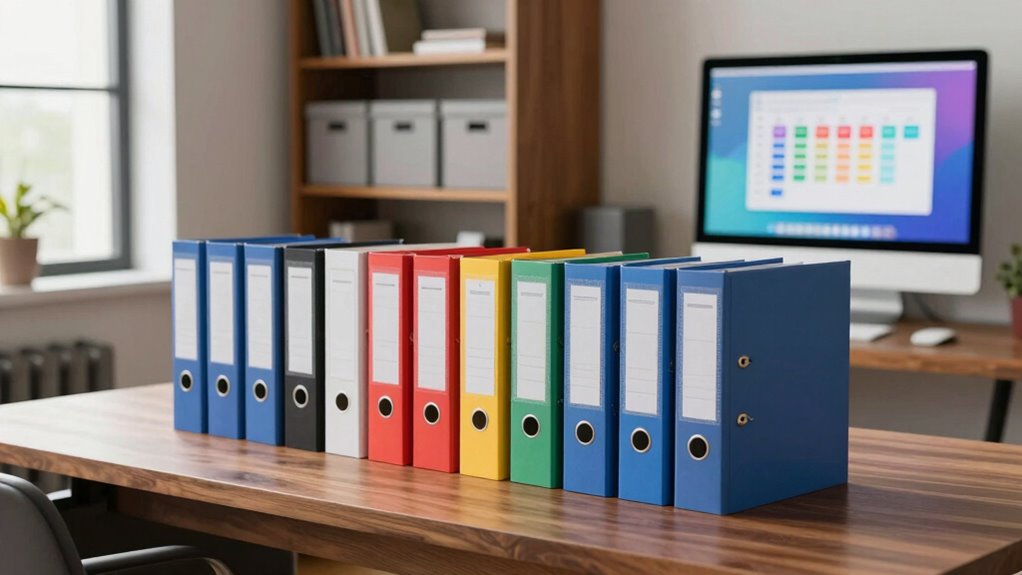
When you add extra storage to your device, it can feel like a game-changer—until you realize your files are still a mess. Suddenly, you have more space, but finding what you need becomes a chore. That’s where proper organization kicks in. Instead of just dumping files onto your new drive, take time to set up a system that maximizes the space and keeps everything accessible. One of the first steps is to implement a consistent file naming convention. Clear, descriptive names help you identify files at a glance, saving you time when searching. For example, instead of vague titles like “Document1,” use specific names such as “MeetingNotes_March2023” or “ProjectProposal_ClientX.” This simple practice prevents files from getting lost in a sea of similar names and ensures you can locate what you need quickly.
Use clear, descriptive file names like MeetingNotes_March2023 to easily find what you need.
Next, leverage cloud backup solutions to safeguard your organized files. Cloud backup isn’t just about disaster recovery; it also helps you keep your files synchronized across devices. When you save files in a designated folder that automatically syncs to the cloud, you create a reliable, off-site copy. This reduces the risk of losing important documents if your device crashes or gets stolen. Plus, cloud backup services often come with version history, so you can revert to previous versions if needed. By integrating cloud backup into your workflow, you’re adding an extra layer of security and ensuring your organized system remains intact, even if your local storage runs out of space or encounters issues. Additionally, understanding the importance of file management can help you maintain a more efficient system over time. Regularly reviewing your files and understanding how digital organization works can prevent chaos from creeping back in. Incorporating storage optimization techniques can further enhance how effectively you utilize your space, such as compressing files or removing unused data.
Once you have your naming conventions and backup strategies in place, categorize your files into logical folders that reflect your workflow or project structure. For instance, create separate folders for work, personal, photos, and receipts. Inside each folder, further organize files by date or project, depending on what makes sense. Regularly reviewing and tidying these folders prevents clutter from creeping back in. As your storage expands, resist the temptation to just throw everything into a single folder—this defeats the purpose of extra space and makes future searches more tedious. Developing a consistent organizational system ensures that your digital space remains manageable over time, even as your collection of files grows.
Finally, consider deleting unnecessary files and duplicates to free up space and keep your system lean. Use tools that scan for duplicate files or old downloads and remove what you no longer need. When combined with thoughtful file naming, cloud backup, and structured folders, these practices turn your extra storage from a simple addition into an efficient, organized system. With a little effort upfront, you’ll find your digital space not only larger but also more manageable, making your files easier to find and your workflow smoother.
external hard drive with file organization software
As an affiliate, we earn on qualifying purchases.
As an affiliate, we earn on qualifying purchases.
Frequently Asked Questions
What Are the Best Tools for Organizing Digital Files?
The best tools for organizing digital files include cloud storage services like Google Drive, Dropbox, or OneDrive, which offer seamless access and sharing. Use consistent file naming conventions to keep everything organized and easy to find. These tools help you categorize and back up files efficiently, preventing clutter. By combining cloud storage with thoughtful file naming, you guarantee your digital workspace stays tidy and accessible, making extra storage truly effective.
How Often Should I Review and Clean My File Organization System?
Like tending a garden, you should review and clean your file organization system at least once every three to six months. During this time, check if your file naming conventions still make sense and update them if needed. Reinforce your backup strategies by deleting duplicates and archiving outdated files. Regular maintenance keeps your digital space tidy, prevents clutter, and guarantees quick access when you need it most.
Can Physical Storage Solutions Complement Digital Organization?
Yes, physical storage solutions can perfectly complement your digital organization. Use storage containers to categorize and store physical documents, and label them clearly with physical labels for easy identification. This approach keeps your workspace tidy and guarantees you can quickly access important papers without digital clutter. Combining these methods helps create a seamless, efficient system where both physical and digital files support each other, saving you time and reducing stress.
How to Prioritize Which Files to Keep or Delete?
You should prioritize files by asking yourself what’s truly essential, because “less is more.” Start with a clear folder hierarchy to categorize important files, then use file tagging to mark those you need to access frequently. Delete duplicates and outdated documents, keeping only what adds value. Regularly review your files to stay organized, ensuring your extra storage serves its purpose without clutter.
What Are Common Mistakes to Avoid When Organizing Files?
You should avoid common mistakes like inconsistent file naming, which makes searching difficult, and neglecting a clear folder hierarchy, leading to clutter. Don’t lump unrelated files together or create too many nested folders, as it complicates navigation. Also, resist the urge to save everything without sorting; this wastes space. Regularly review and reorganize your files to keep your system streamlined, ensuring your storage actually helps rather than hinders.
cloud backup service subscription
As an affiliate, we earn on qualifying purchases.
As an affiliate, we earn on qualifying purchases.
Conclusion
By staying organized and making the most of your extra storage, you’ll turn chaos into clarity faster than you can say “file disaster.” With a little effort, your digital space becomes a powerhouse of efficiency, freeing up time and mental space for what truly matters. Remember, cluttered files are like a leaky faucet—if you don’t fix them, they’ll flood your productivity. So, get organized today and watch your digital world transform into a well-oiled machine!
file compression software for Windows
As an affiliate, we earn on qualifying purchases.
As an affiliate, we earn on qualifying purchases.
USB flash drive with organized folder structure
As an affiliate, we earn on qualifying purchases.
As an affiliate, we earn on qualifying purchases.
Fall Picks
fall essentials
As an affiliate, we earn on qualifying purchases.