
Choosing between ultrawide and dual monitors depends on your workflow and workspace needs. Ultrawides offer a seamless, immersive display perfect for multitasking and reduces neck strain, while dual monitors let you customize your setup with flexible positioning and dedicated screens for different tasks. Each setup has its own productivity advantages and aesthetic appeal. If you want to explore the key tradeoffs and find the best fit, there’s more to discover ahead.
Key Takeaways
- Ultrawide monitors provide seamless multitasking with a large, continuous display, reducing window switching.
- Dual monitors offer customizable positioning and flexibility for task-specific workflows.
- Ultrawides enhance visual continuity and aesthetics but may limit multi-angle adjustments.
- Dual monitors can improve ergonomic comfort through tailored height and tilt adjustments.
- Both setups boost productivity when aligned with user-specific work habits and task requirements.
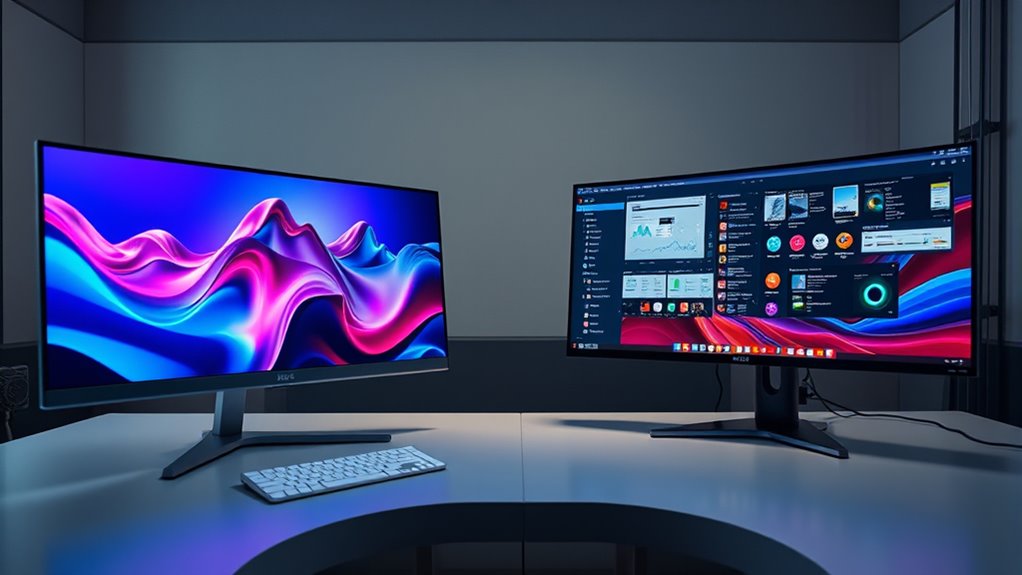
When choosing between ultrawide and dual monitors, it’s important to contemplate how you work and what you need from your setup. Your decision can considerably impact your productivity, comfort, and workspace aesthetics. Ultrawide monitors offer a sleek, seamless display that can reduce the need to switch between windows, but dual monitors provide flexibility and customization options. Understanding the ergonomic benefits and aesthetic appeal of each setup can help you make an informed choice that aligns with your workflow.
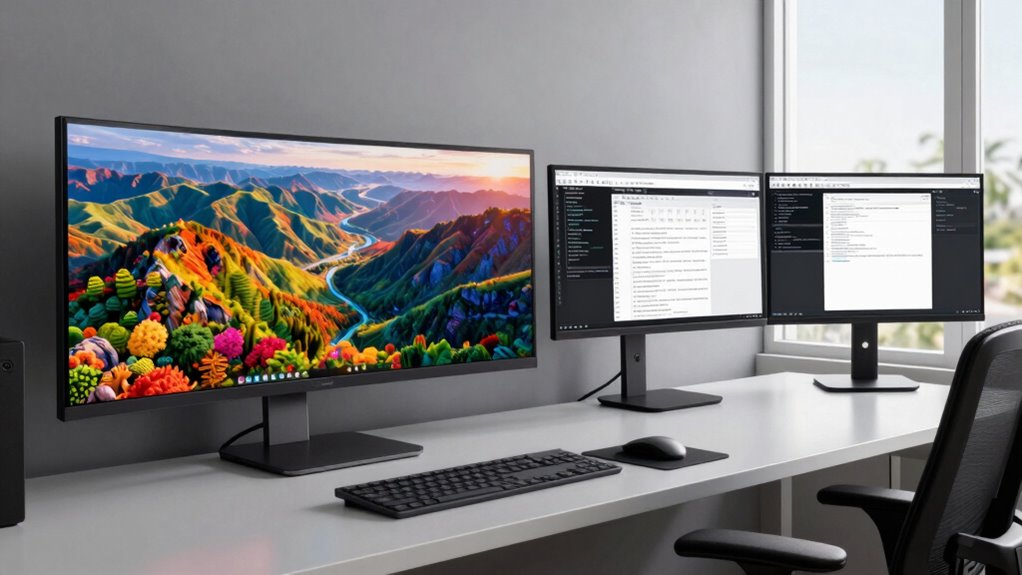
Ultrawide monitors excel in creating an immersive, streamlined workspace. Because they eliminate bezels and gaps, you get a smooth, continuous view that’s ideal for multitasking or working with wide spreadsheets, video editing timelines, or design layouts. The ergonomic benefits here are notable: with a single, large screen, you don’t have to turn your head as much, reducing neck strain. Plus, positioning an ultrawide monitor at eye level can improve posture, lessen fatigue, and promote better comfort during long work sessions. Aesthetically, ultrawides lend a modern, minimalistic look to your desk. They can make your workspace appear more organized and sophisticated, especially if you prefer a clean, uncluttered environment. The sleek design often complements contemporary décor and helps you create a professional or stylish setting.
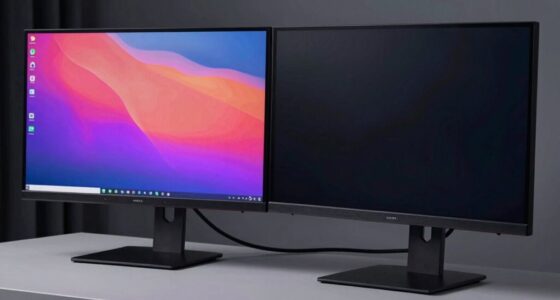
On the other hand, dual monitors give you versatility that ultrawides can’t always match. You can position two screens at different angles or heights, tailoring your setup to your ergonomic needs. This flexibility allows you to dedicate specific screens to certain tasks—one for communication, another for research, or one for coding and another for previewing content. From an ergonomic standpoint, dual monitors can help you reduce eye strain by adjusting each display’s position and tilt, keeping your neck and eyes aligned more comfortably. They also enable easier window management, as you can quickly move applications between screens without resizing or overlapping windows. Aesthetically, dual monitors can be a double-edged sword. They often introduce more visual clutter if not arranged neatly, but with proper setup, they can still look organized. Some users prefer the symmetrical look of matching monitors, which can create a balanced, professional appearance.
Ultimately, your choice hinges on your specific work habits and visual preferences. If you prioritize a clean, immersive experience with minimal distractions, an ultrawide monitor’s aesthetic appeal and ergonomic benefits might be more appealing. Conversely, if you value flexibility and customization, dual monitors offer ergonomic advantages and allow you to tailor your workspace to your needs. Both setups can boost productivity when used correctly, so consider how each aligns with your tasks, comfort, and style to choose the best fit for your workspace. Additionally, detecting passive voice in your writing can improve clarity and engagement, making your content more effective for readers.
ultrawide monitor for multitasking
As an affiliate, we earn on qualifying purchases.
As an affiliate, we earn on qualifying purchases.
Frequently Asked Questions
Do Ultrawide Monitors Cause More Eye Strain Than Dual Monitors?
Ultrawide monitors can cause more eye strain if you don’t make proper ergonomic adjustments and calibrate the display correctly. You might find yourself leaning forward or turning your head more, which strains your eyes. To avoid this, set the monitor at eye level, adjust brightness and contrast, and verify the display is calibrated for accurate colors. These steps help reduce eye fatigue, making ultrawide monitors more comfortable for long use.
How Do Ultrawide Monitors Impact Gaming Performance?
You’ll likely notice that ultrawide monitors enhance gaming immersion thanks to their wide aspect ratio, creating a more cinematic experience. However, your gaming performance depends heavily on the monitor’s refresh rate; higher refresh rates provide smoother gameplay, especially in fast-paced games. If your ultrawide monitor has a high refresh rate, you’ll enjoy improved responsiveness and a more engaging experience, but lower refresh rates can cause motion blur and lag, affecting your gameplay.
Are Ultrawide Monitors More Expensive Than Dual Monitor Setups?
Ultrawide monitors tend to be more expensive than dual monitor setups, especially considering the cost comparison for high-quality models. They often feature larger screens and better display technology, which drives up the price. Additionally, installation complexity can be higher with ultrawides, requiring more space and precise setup. While they offer seamless viewing, your budget should account for these factors when choosing between ultrawide and dual monitors.
Can Ultrawide Monitors Fit in Small Workspaces Effectively?
You might think ultrawide monitors won’t fit in small workspaces, but with smart desk organization and wall mounting, they can. These monitors are surprisingly versatile, providing a wide viewing area without taking up extra desk space. Consider mounting the monitor on the wall or using a compact stand to maximize your room. With clever arrangement, ultrawide monitors can seamlessly fit into tight spaces, boosting your productivity.
Do Dual Monitors Improve Multitasking More Than Ultrawide Screens?
Dual monitors generally improve multitasking efficiency more than ultrawide screens because you can dedicate each display to specific tasks, making workspace organization easier. With dual setups, you can switch focus quickly and keep multiple applications visible, boosting productivity. Ultrawide monitors offer a seamless view but may limit multitasking flexibility, especially in small workspaces. Choose dual monitors for better multitasking and organized workspaces.
dual monitor setup for productivity
As an affiliate, we earn on qualifying purchases.
As an affiliate, we earn on qualifying purchases.
Conclusion
Choosing between ultrawide and dual monitors depends on your workflow. Imagine you’re editing videos—an ultrawide offers seamless timeline viewing, boosting your efficiency. Or, if you’re juggling multiple spreadsheets, dual monitors let you compare data side-by-side effortlessly. Ultimately, consider your tasks and workspace. Whether you opt for a panoramic view or split screens, understanding these tradeoffs helps you make the best choice. Boost your productivity by selecting the setup that aligns with how you work best.
ergonomic adjustable monitor stands
As an affiliate, we earn on qualifying purchases.
As an affiliate, we earn on qualifying purchases.
As an affiliate, we earn on qualifying purchases.