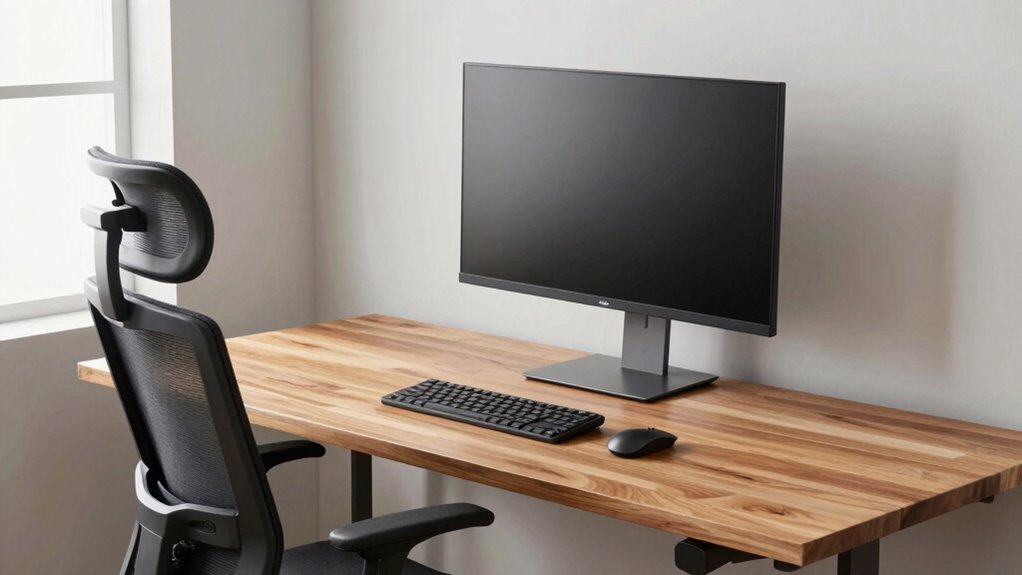

To properly fix your chair, desk, and monitor within the workstation triangle, start by adjusting your chair so your feet rest flat and your knees are at a 90-degree angle. Position your desk to allow your elbows to be a comfortable 90 degrees with forearms parallel to the ground. Place your monitor directly in front, about an arm’s length away, with the top at or just below eye level. Keep these tips in mind to optimize comfort and boost efficiency. If you want to learn more, keep exploring the setup details.
Key Takeaways
- Position the chair first to ensure proper lumbar support and feet flat on the ground before adjusting the desk and monitor.
- Set the desk height so elbows are at a 90-degree angle and forearms are parallel to the ground.
- Place the monitor directly in front, about an arm’s length away, with the top at or slightly below eye level.
- Adjust the chair to support the natural spine curve and maintain proper lumbar support.
- Ensure the overall workspace triangle is balanced, with each component supporting optimal comfort and workflow.
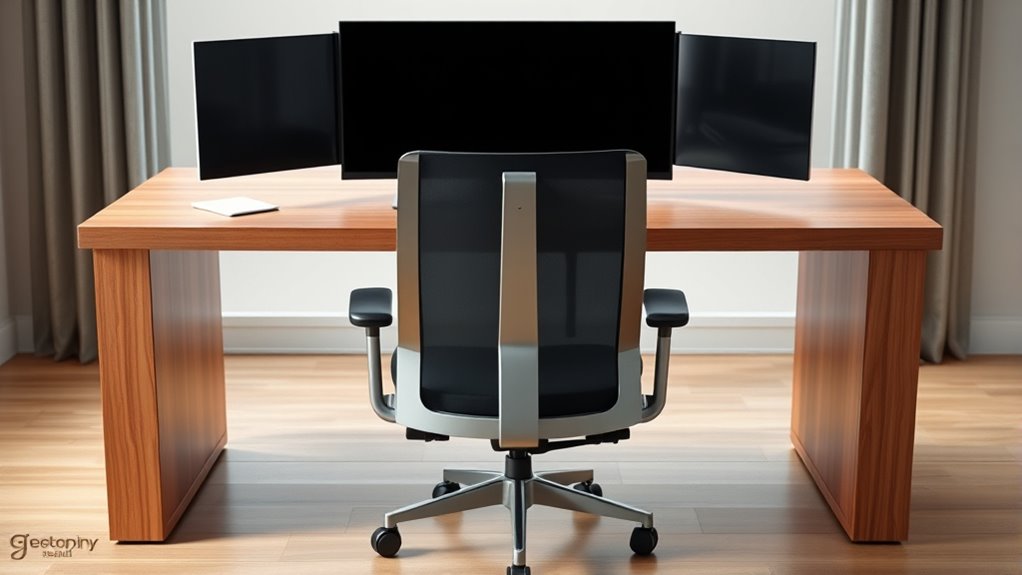
Have you ever wondered how to set up your workspace for maximum comfort and efficiency? Achieving an ideal ergonomic setup is essential for maintaining productivity and preventing discomfort during long hours at your desk. One proven method is understanding the workspace ergonomics involved in creating a well-organized workstation triangle. This concept emphasizes the importance of arranging your chair, desk, and monitor in the right order and position, ensuring each component supports your overall comfort and workflow.
Start by fixing your chair first. Your chair should be adjustable and supportive, allowing your feet to rest flat on the ground and your knees to be at a 90-degree angle. Proper lumbar support is vital, so adjust the backrest to support the natural curve of your spine. When your chair is correctly positioned, it forms a stable foundation for the rest of your workspace. An ergonomic setup begins here because a comfortable seat reduces strain on your lower back and encourages good posture, which directly impacts your productivity and health.
Start with a supportive, adjustable chair that promotes good posture and stability.
Next, position your desk in relation to your chair. The desk height should allow your elbows to be at about a 90-degree angle when resting on the surface. Your forearms should be parallel to the ground, preventing shoulder strain. Adjust the height so that your wrists remain straight and relaxed while typing or using a mouse. The goal is to minimize reaching or twisting, which can cause fatigue over time. Ensuring your desk is at the correct height also helps keep your workspace ergonomics balanced, reducing the risk of repetitive strain injuries.
Finally, set up your monitor in the right spot. The monitor should be directly in front of you, about an arm’s length away. The top of the screen should be at or just below eye level, so you’re not tilting your head up or down. This positioning prevents neck pain and eye strain. When your monitor is correctly aligned within the workspace triangle, it creates a seamless visual flow that supports your natural line of sight and head position, fostering better posture and reducing fatigue. Additionally, understanding the workspace ergonomics involved can help prevent long-term musculoskeletal issues.
Frequently Asked Questions
How Often Should I Adjust My Workstation Setup?
You should adjust your workstation setup whenever you notice discomfort or after changing tasks. For ideal ergonomics, regularly check that your ergonomic keyboard and adjustable monitor are positioned correctly, ideally daily or weekly. This helps prevent strain and promotes good posture. Make small adjustments as needed to maintain comfort, especially if you switch between sitting and standing or if your work duration changes. Consistent tweaks ensure your setup stays ergonomic and supports your health.
What Are Signs My Workstation Is Causing Discomfort?
If your neck aches, or your wrists feel numb, your workstation’s probably to blame—ironic, right? You might notice discomfort from poor ergonomic footwear or an awkward keyboard height. Sore eyes, constant fidgeting, or back pain also signal misalignment. Pay attention to these signs; they’re your body’s way of saying, “Fix this!” Adjust your chair, monitor, and keyboard to keep discomfort at bay and stay productive.
Can I Use Ergonomic Accessories With My Existing Setup?
Yes, you can definitely use ergonomic accessories to customize your workstation. Items like adjustable footrests, wrist supports, or monitor risers can improve comfort and reduce strain. These accessories complement your existing setup and are easy to add. Just guarantee they’re compatible with your current chair, desk, and monitor placement. Proper workstation customization helps you maintain good posture and minimizes discomfort during long working hours.
How Do I Maintain Proper Posture During Long Work Sessions?
To maintain proper posture during long work sessions, sit in an ergonomic chair with good lumbar support, keeping your feet flat on the floor. Adjust your monitor placement so the top of the screen is at eye level, minimizing neck strain. Take regular breaks to stretch, and stay mindful of your posture, ensuring your shoulders remain relaxed and your wrists aren’t bent, which helps prevent discomfort and strain over time.
Is There a Recommended Workspace Lighting Setup?
For ideal workspace illumination, choose lighting that minimizes glare and shadows, enhancing lighting ergonomics. Use a combination of natural light and adjustable task lighting to keep your workspace bright without causing eye strain. Position light sources to avoid reflections on your monitor, and consider adjustable desk lamps to direct light where needed. Proper lighting setup boosts focus, reduces fatigue, and helps you maintain good posture during long work sessions.
Conclusion
By mastering the workstation triangle, you craft a symphony of comfort and efficiency, where your chair, desk, and monitor dance in perfect harmony. When each element aligns like well-tuned instruments, your workspace becomes a sanctuary of productivity and well-being. Think of it as tending a delicate garden—tweak one element, and the whole melody shifts. Embrace this order, and watch your workday flow seamlessly, transforming your space into a haven where focus blooms and fatigue fades away.