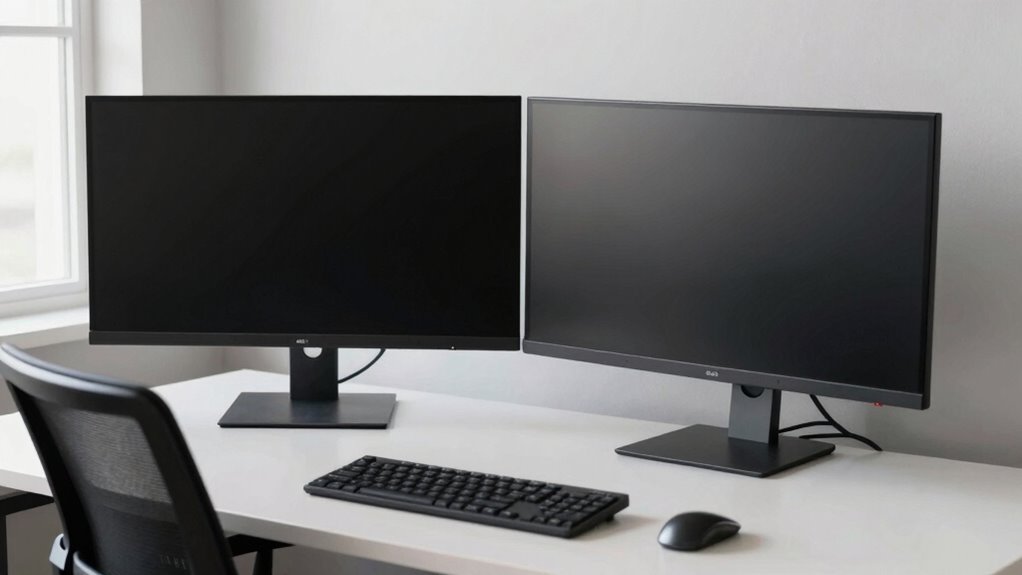

To save your neck with dual monitors, position both screens at eye level and angle them inward, forming a slight V-shape, so you don’t have to turn your head excessively. Keep the primary monitor directly in front and the secondary at a comfortable angle to reduce strain. Using adjustable mounts helps fine-tune height and tilt, ensuring a natural posture. If you want to learn more about perfecting your setup, keep exploring ways to optimize your workspace.
Key Takeaways
- Angle monitors inward so they form a slight arc, reducing neck turning and promoting a more natural viewing posture.
- Keep primary monitor directly in front at eye level, with secondary monitor angled slightly inward to minimize head rotation.
- Adjust monitor tilt to match eye level, ensuring screens are horizontal and reduce neck strain.
- Use adjustable mounts or arms to fine-tune monitor angles for optimal ergonomic positioning.
- Avoid excessive monitor angles; keep screens aligned with your line of sight to prevent awkward neck positions.
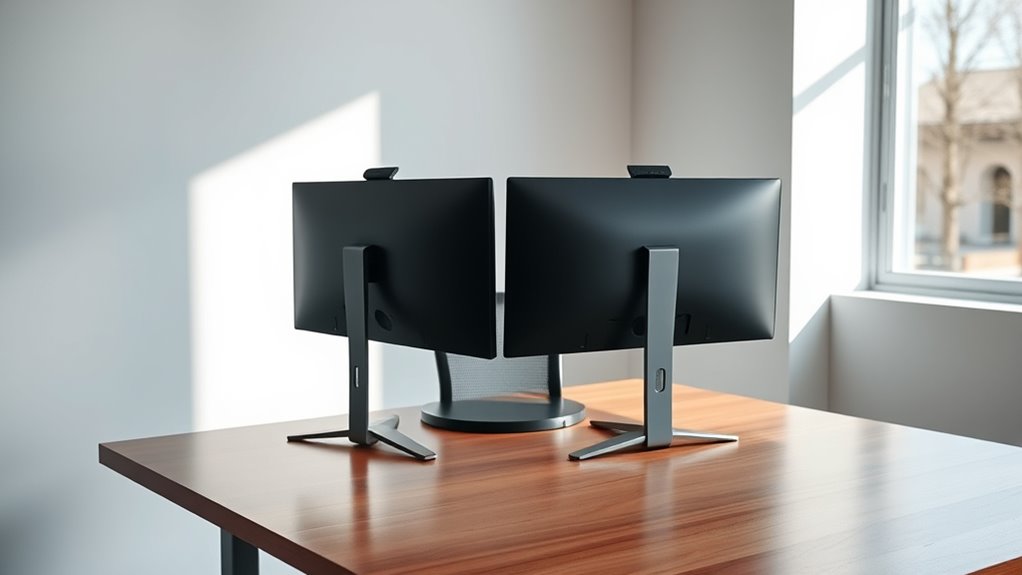
Setting up dual monitors can boost your productivity, but it also requires attention to ergonomics to prevent discomfort or injury. The key is proper monitor placement, which involves positioning your screens at the right height, distance, and angles. If your monitors are misaligned, you might find yourself constantly turning your neck or straining your eyes, leading to fatigue and discomfort over time. To avoid this, place your primary monitor directly in front of you, about an arm’s length away, with the top of the screen roughly at eye level. This setup encourages a natural, neutral neck position, reducing strain during long work sessions. The secondary monitor can be positioned slightly beside or angled toward you, but it shouldn’t require excessive turning or tilting your head. Using monitor stands or adjustable mounts can help you fine-tune the height and angle, ensuring your screens are aligned correctly without sacrificing comfort. Incorporating ergonomic principles into your workspace design can further optimize your setup for comfort and health.
In addition to monitor placement, ergonomic accessories play a vital role in maintaining good posture. An adjustable monitor arm allows you to set the perfect height and angle, minimizing neck rotation and promoting a more comfortable viewing position. A good-quality keyboard tray or an adjustable desk can also contribute to better ergonomics, helping you maintain a neutral wrist position and reducing strain on your shoulders. Consider investing in an ergonomic mouse that fits comfortably in your hand, preventing wrist fatigue and promoting better arm positioning. An anti-fatigue mat can also be beneficial if you prefer sitting on a standing desk, offering cushioning and reducing leg fatigue during prolonged periods of standing. Remember, the goal is to create a workspace that supports your natural posture, not forces you into awkward positions.
Furthermore, don’t forget about the importance of lighting. Proper ambient lighting minimizes glare on your screens, which can cause eye strain and lead you to adopt unfavorable head or neck positions. Position your monitors perpendicular to windows or light sources and consider using glare filters or adjustable blinds. Regular breaks, eye exercises, and maintaining good posture while sitting or standing are equally essential components of an ergonomic setup. Adjust your workspace periodically to avoid static positions that can cause stiffness or discomfort. By paying close attention to monitor placement and utilizing ergonomic accessories thoughtfully, you set yourself up for a healthier, more comfortable dual-monitor experience that enhances productivity without sacrificing your well-being.
Frequently Asked Questions
How Do I Adjust Monitors for Different Screen Sizes?
To adjust monitors for different screen sizes, start by setting each monitor to your eye level using the monitor height adjustment. Make sure screens are aligned at the same height for comfortable viewing, reducing neck strain. Position each monitor so that the top edges are slightly below eye level and angle them inward for better screen alignment. This setup helps you maintain good posture, no matter the size differences between your monitors.
What Are the Best Monitor Arm Options for Ergonomics?
You might worry about compatibility, but many monitor arms are versatile and fit most setups. Look for options with adjustable tension to easily customize stability and movement. Brands like Ergotron, Vivo, and AmazonBasics offer highly adjustable monitor arms that support ergonomic positioning, reducing neck strain. These options let you tilt, swivel, and adjust height effortlessly, ensuring best comfort for your workspace. Choosing the right arm improves your posture and boosts productivity.
How Does Monitor Placement Affect Eye Strain?
Monitor placement directly influences your eye comfort and glare reduction. When you position your screens at eye level and about an arm’s length away, you reduce strain and minimize glare that can cause discomfort. Adjust the angle so you’re not looking up or down excessively, which helps prevent eye fatigue. Proper placement guarantees you can work comfortably longer, protecting your eyes from unnecessary strain and glare.
Can Dual Monitors Improve Productivity Significantly?
Yes, dual monitors can boost your productivity considerably. You’ll find it easier to multitask and switch between applications with less time wasted. Proper ergonomic keyboard and mouse placement, combined with the right monitor angles, reduces fatigue and discomfort, helping you work more efficiently. Instead of constantly toggling windows, you get a broader workspace, streamlining your tasks and maintaining focus longer.
What Lighting Conditions Optimize Dual Monitor Use?
You should optimize your lighting by using soft ambient lighting to prevent eye strain and enhance focus. Avoid harsh overhead lights and instead, opt for diffused sources that create a gentle glow. Position your monitors to reduce glare by angling them slightly and using glare reduction screens if needed. This setup minimizes eye fatigue, improves clarity, and helps you work comfortably for longer periods.
Conclusion
Think of your monitors as the compass guiding your focus. When you set them at the right angle, you’re steering your body away from strain and toward comfort. Just like a lighthouse shields ships from danger, good ergonomics safeguards your neck and eyes. Remember, small adjustments can lead to a smoother, healthier work journey. Embrace these simple changes, and let your workspace become a sanctuary where your well-being always leads the way.